Overview
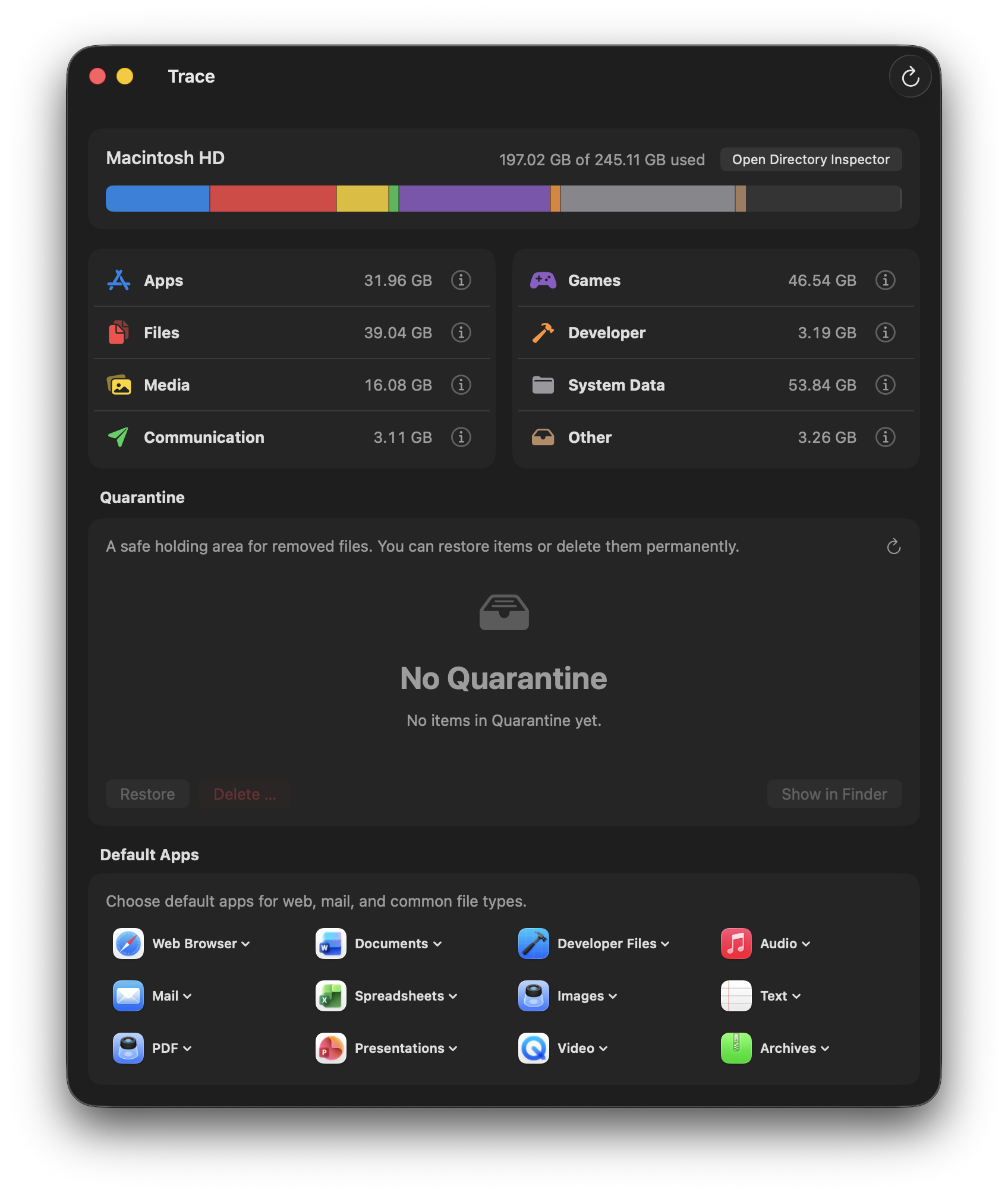
Trace is a Storage Inspector + Uninstaller for macOS. Unlike classic “cleaners”, Trace shows what's taking up space – and lets you act with preview, rationale, and Undo.
What Trace does
- Make it visible: break down storage usage into transparent categories
- Connect the dots: map app data (containers, caches, preferences) to the responsible apps – with evidence
- Act safely: remove apps and leftovers with preview and Quarantine – reversible until you permanently delete
Quick start
- Dashboard: start with the biggest categories (Apps, System Data, Files).
- Details: open the “Top Items” tab to find large folders/files.
- Inspectors: use App/Game Inspector for leftovers – with explanations.
- Safe by default: Quarantine/Undo first; permanently delete only when you're sure.
Important (so nothing goes wrong)
- Backup: before large deletion actions, we recommend a recent Time Machine backup.
- Shared data: shared folders (e.g. Office/Adobe) are labeled and never selected by default.
- System paths: changes to system/snapshot data are irreversible and require confirmation.
Storage calculation
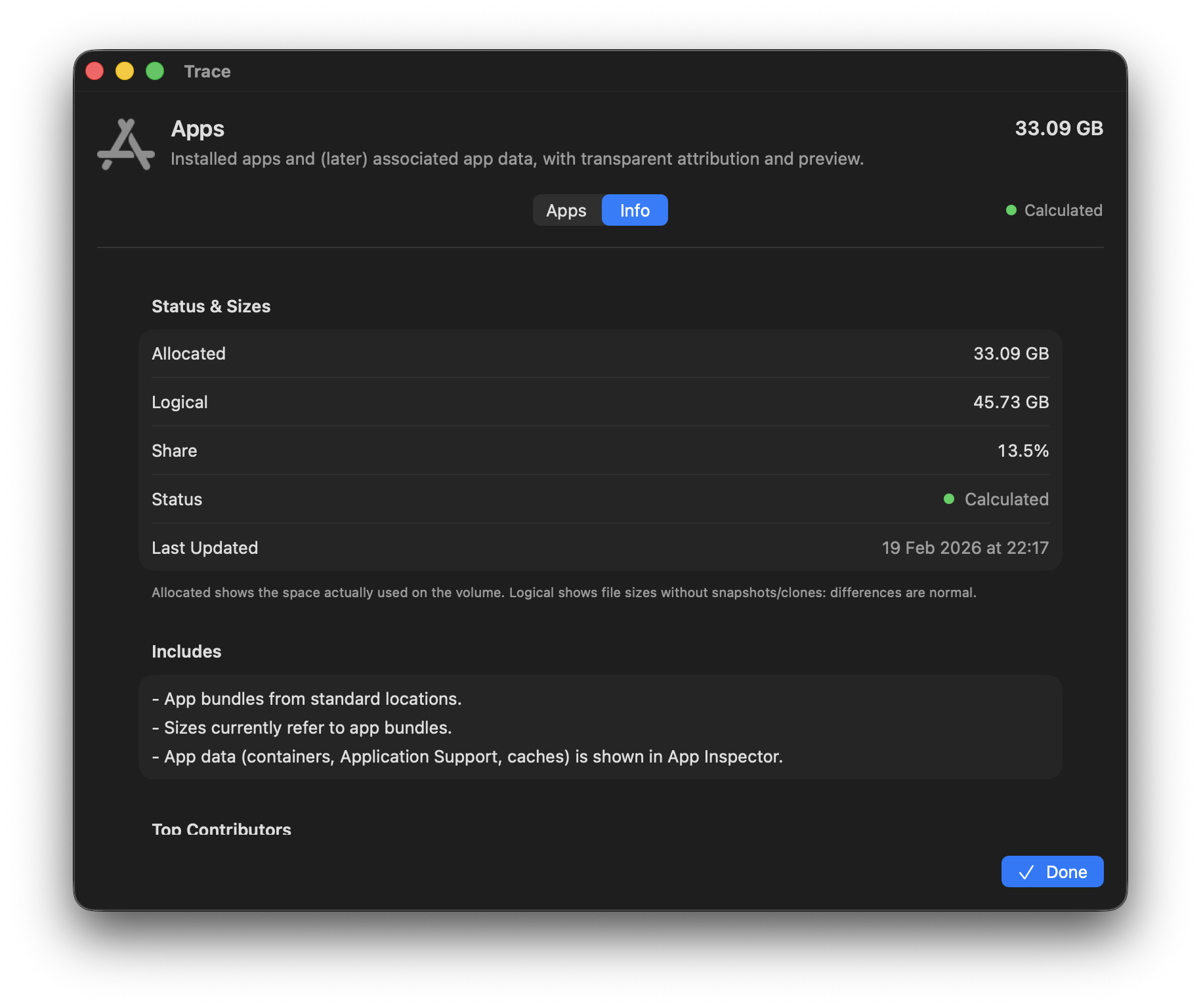
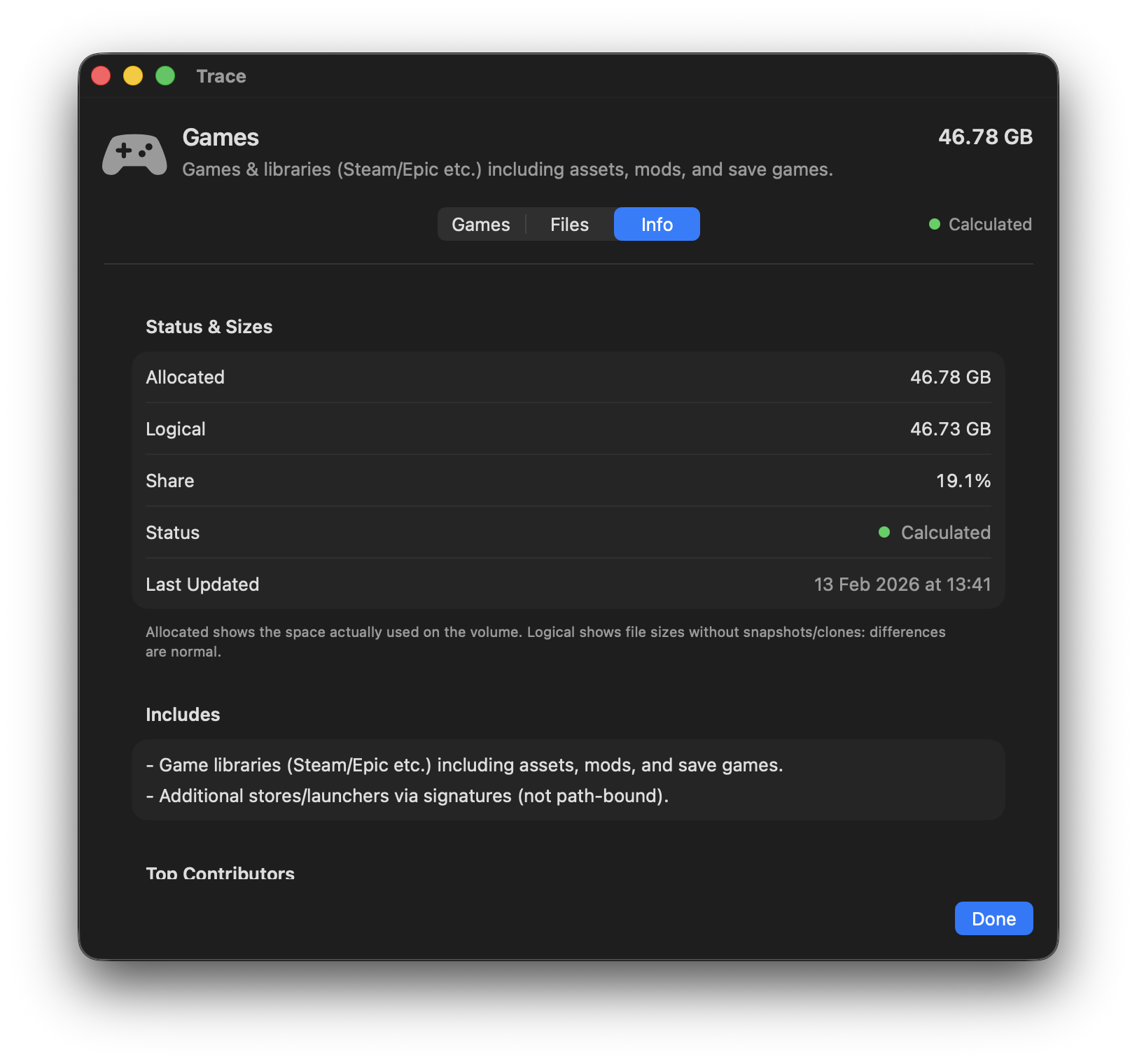
Trace calculates file sizes and distinguishes between two values:
Allocated size
The storage physically allocated on disk. It accounts for block sizes and APFS optimizations like cloning. This is what's actually “gone”.
Logical size
The sum of file contents without considering physical storage. Relevant with duplicates and cloned files that share blocks.
Trace shows allocated size by default because it reflects the storage physically taken up. Logical size is helpful context (e.g. with APFS cloning or large libraries).
Differences vs. macOS
If you compare Trace with macOS System Settings (Storage), you'll notice differences. That's intentional:
| Aspect | macOS | Trace |
|---|---|---|
| Categories | Internal heuristics, not disclosed | Transparent categories with clear rules |
| System Data | Large “black box” | Best-effort breakdown into caches, logs, containers, snapshots, etc. |
| APFS features | Partly hidden | Snapshots, cloning, and sparse files made explicit |
| Calculation | Fast, but imprecise | Precise at file level (takes longer on large volumes) |
Why totals don't match
The sum of all Trace categories won't exactly equal “Used” in System Settings. This is due to:
- APFS metadata and reservations
- permission gaps (areas Trace can't read)
- different categorization
Trace explains the main reasons; a small remainder may be unavoidable and can't always be attributed to individual files.
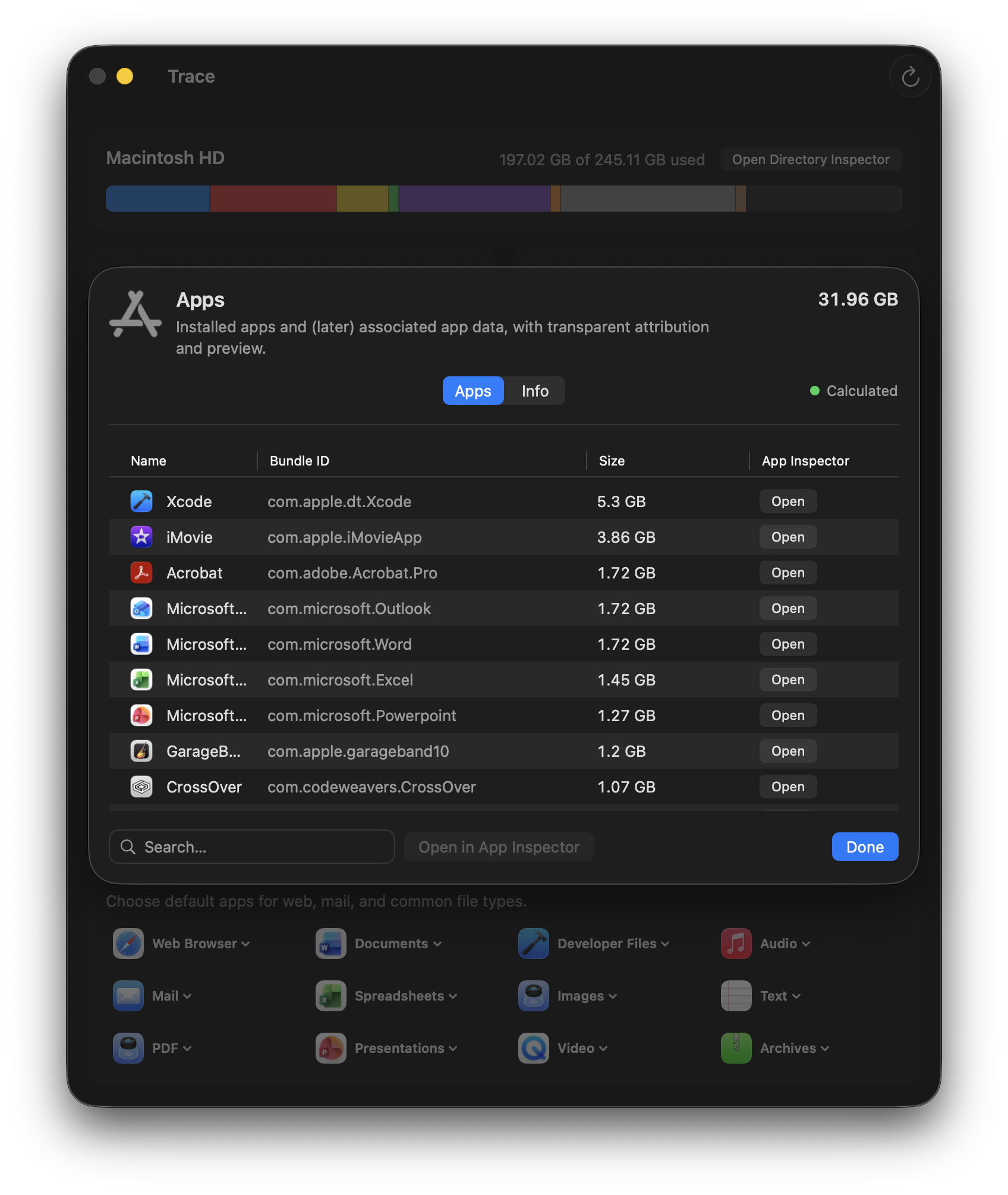
Apps
All installed apps from /Applications, ~/Applications, and system apps. Trace shows not only the bundle, but also associated app data.
What Trace includes
- App bundle (.app)
- Container (
~/Library/Containers/<bundleID>) - Group Container (
~/Library/Group Containers/...) - Caches, Preferences, Logs, Saved State
- Application Support folders
Open the largest apps in App Inspector and start with “Cache”. It's usually the safest first step before touching user data.
Typical large items
- Application Support: libraries, downloads, assets (e.g. Adobe/Microsoft/media tools)
- Caches: browsers, creative tools, messengers
- Group Containers: shared data between apps (suites) – handle with care
Apps tab
Lists installed apps by size and lets you jump straight into App Inspector.
Files
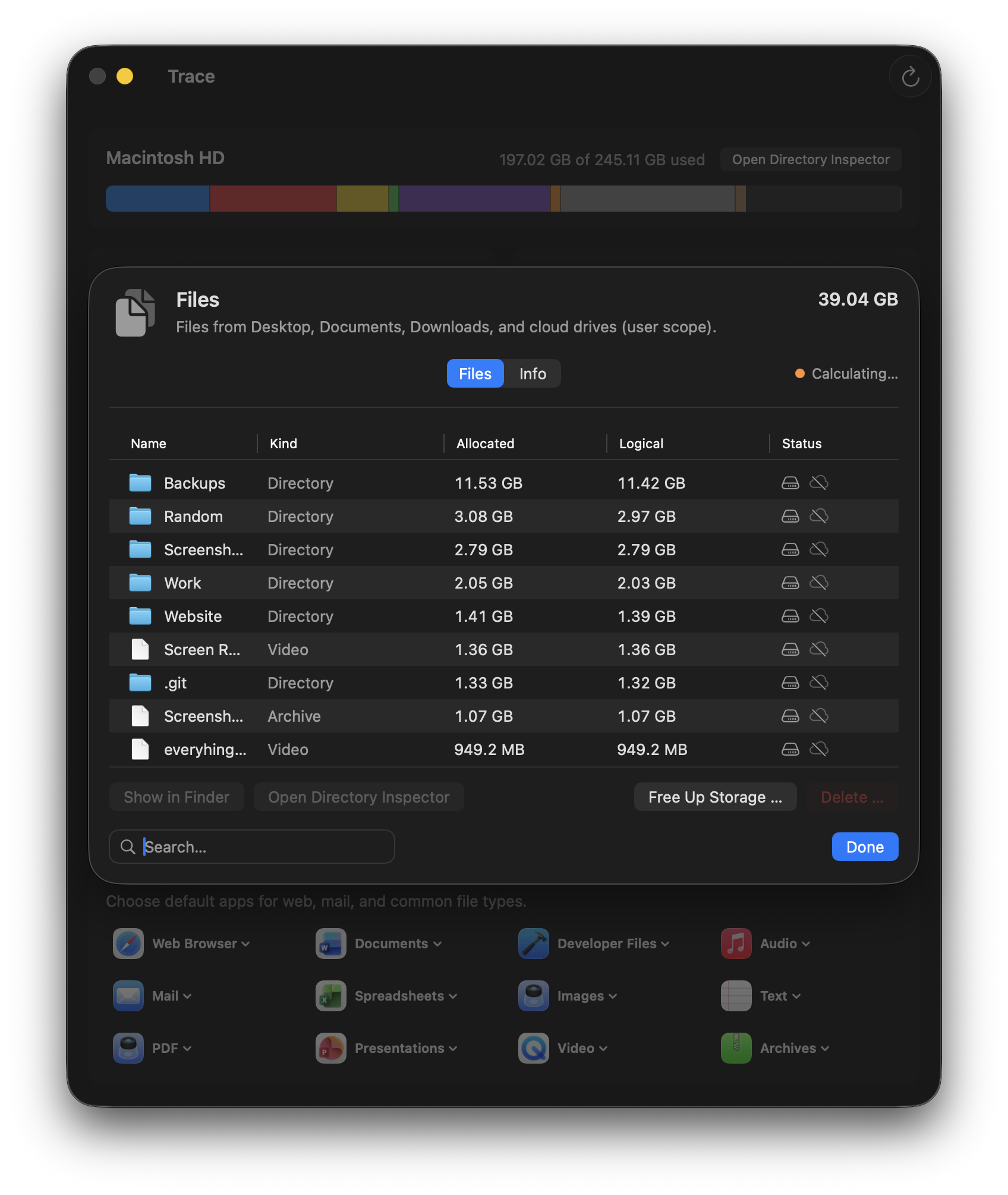
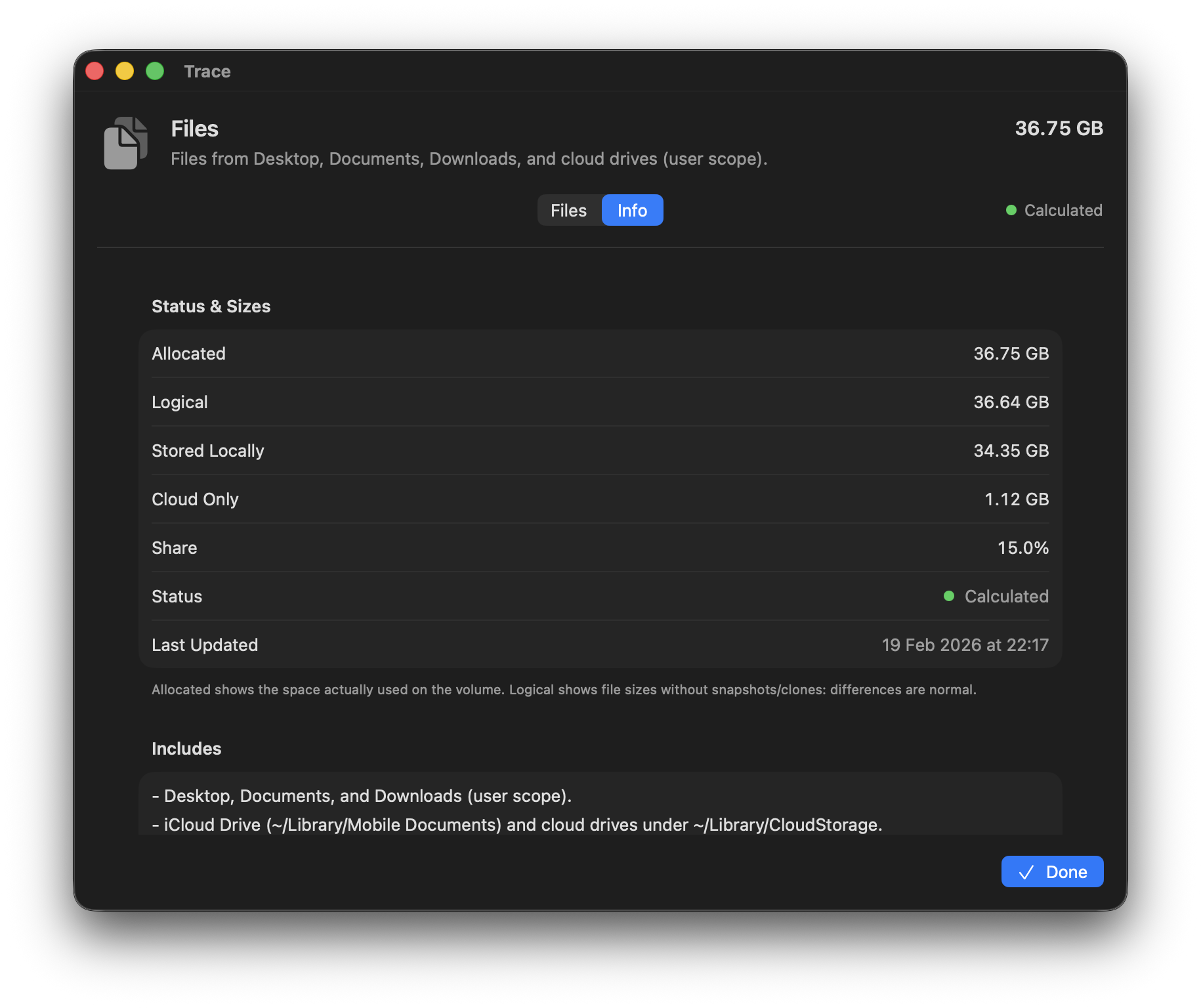
User documents and downloads – your own files, including iCloud Drive and cloud drives like Dropbox/OneDrive. Trace shows what's actually stored locally and what lives only in the cloud. Free up space without deleting cloud data.
Included paths
~/Desktop,~/Documents,~/Downloads,~/Public- Other top-level folders in your home directory (except Library, Pictures, Movies, Music)
- iCloud Drive (
~/Library/Mobile Documents/com~apple~CloudDocs) - Cloud Storage (Dropbox, OneDrive etc. via
~/Library/CloudStorage)
Cloud status
Trace detects whether items are stored locally, cloud-only, or mixed. With “Free up space”, local on-demand copies can be removed without deleting cloud data.
Trace removes only local on-demand copies and keeps data in iCloud/cloud drives. Depending on size, preparation may take a few minutes.
Practical tips
- For large folders: use Directory Inspector to drill down step by step.
- For quick wins: start with Downloads and large archive/installer files.
Media
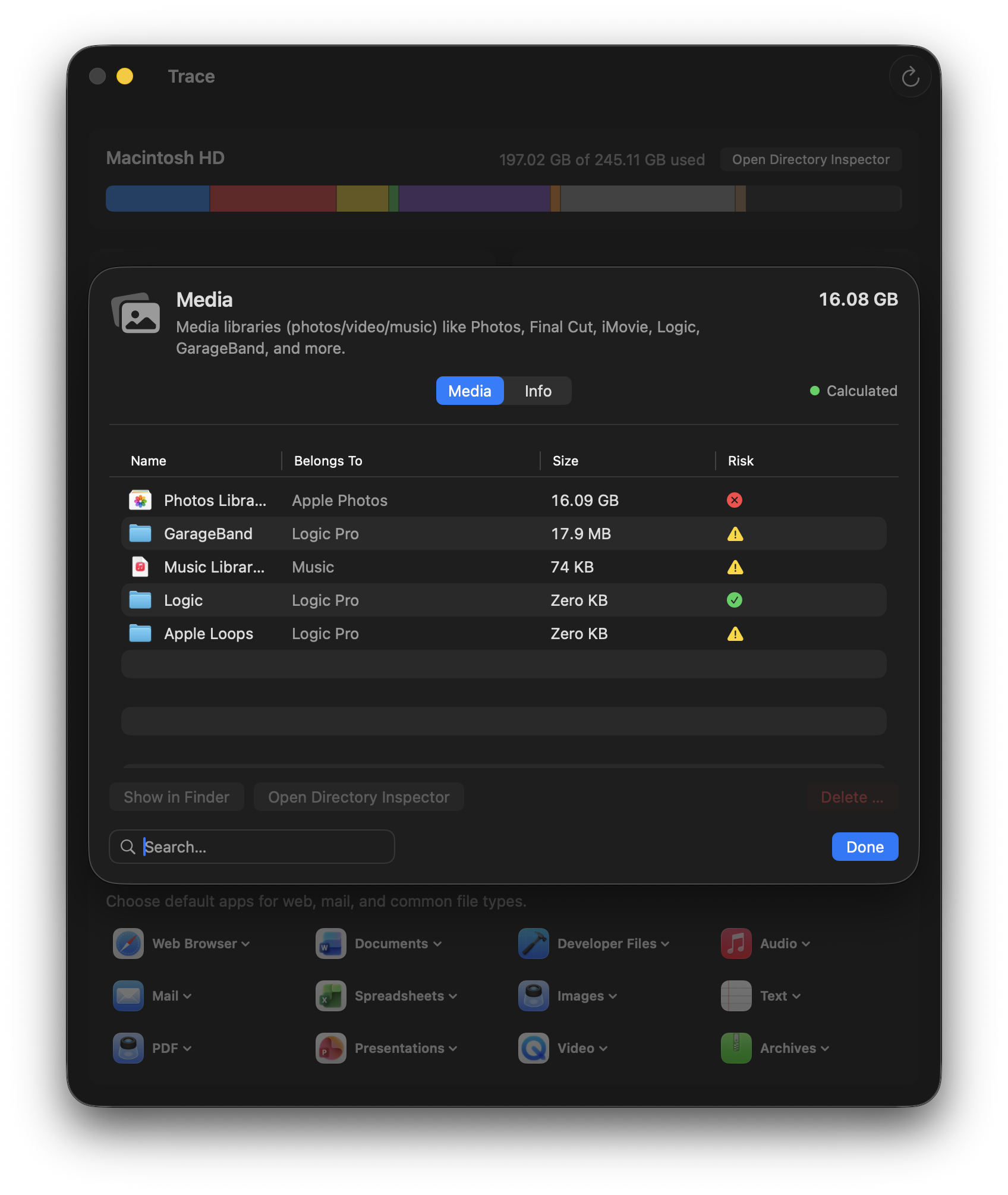
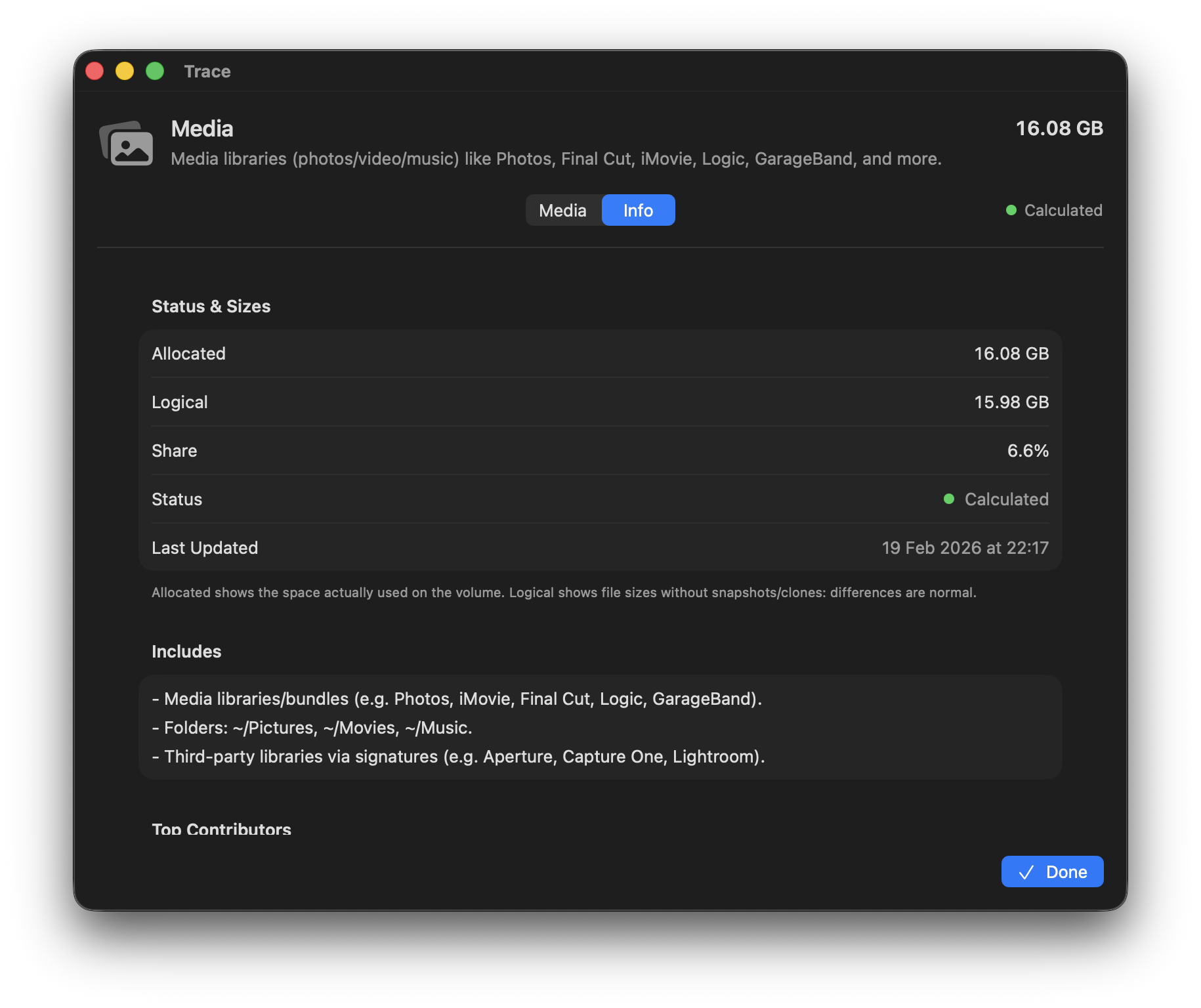
Photo, video, and audio libraries can quickly reach double-digit GB – often packaged as bundles (e.g. Photos Library, Final Cut Pro, Logic). Trace detects these libraries and shows their footprint transparently, so you can clean up without accidentally deleting an entire library.
Included paths
~/Pictures,~/Movies,~/Music- Libraries/Packages:
.photoslibrary,.fcpbundle,.imovielibrary,.logicx,.band - System-wide libraries (GarageBand, Logic)
Photo/video libraries are often “bundles” (they look like a file, but are actually a folder). Deleting can remove entire libraries. Trace helps you find and understand them – delete only what you truly no longer need.
Games
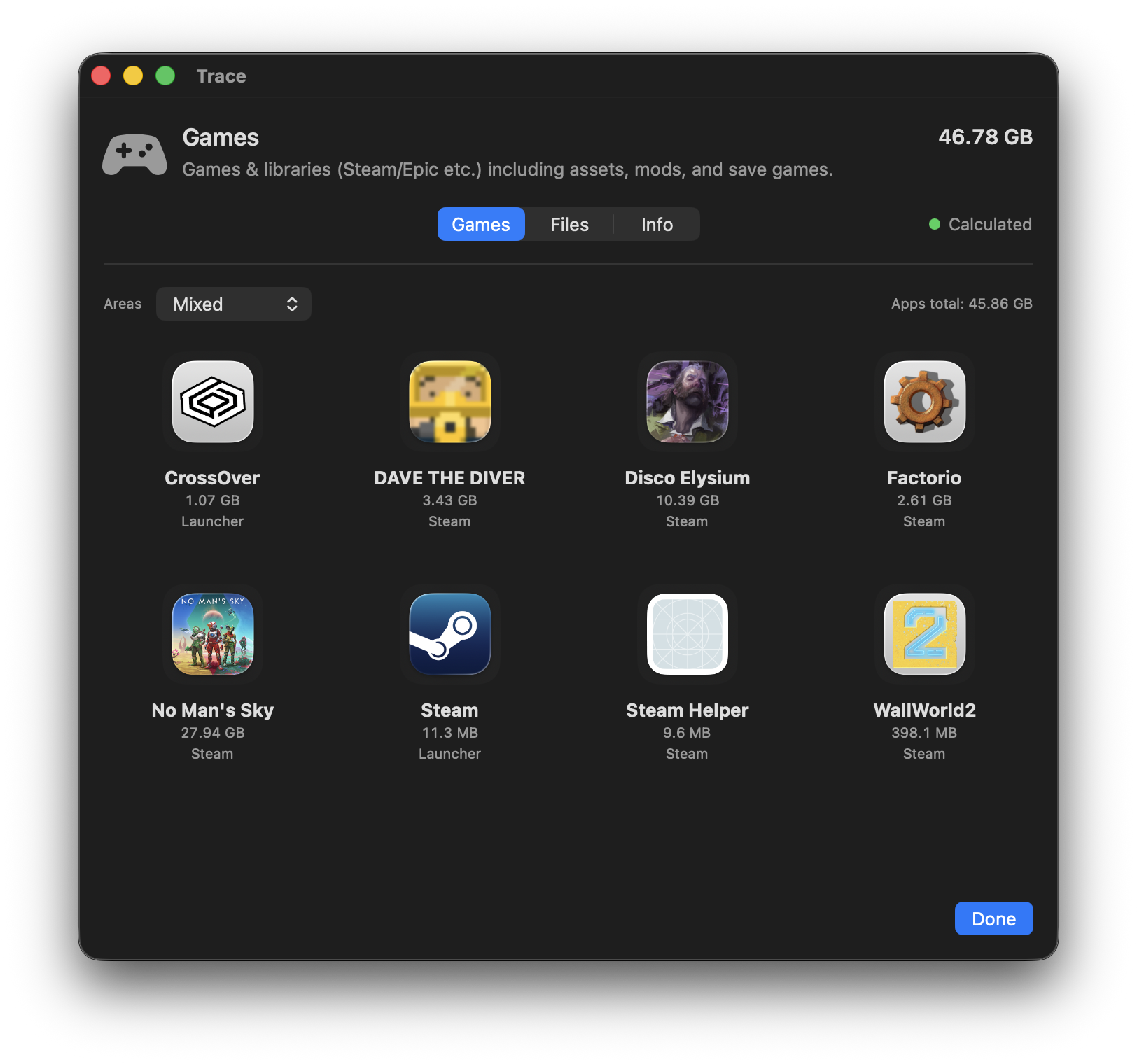
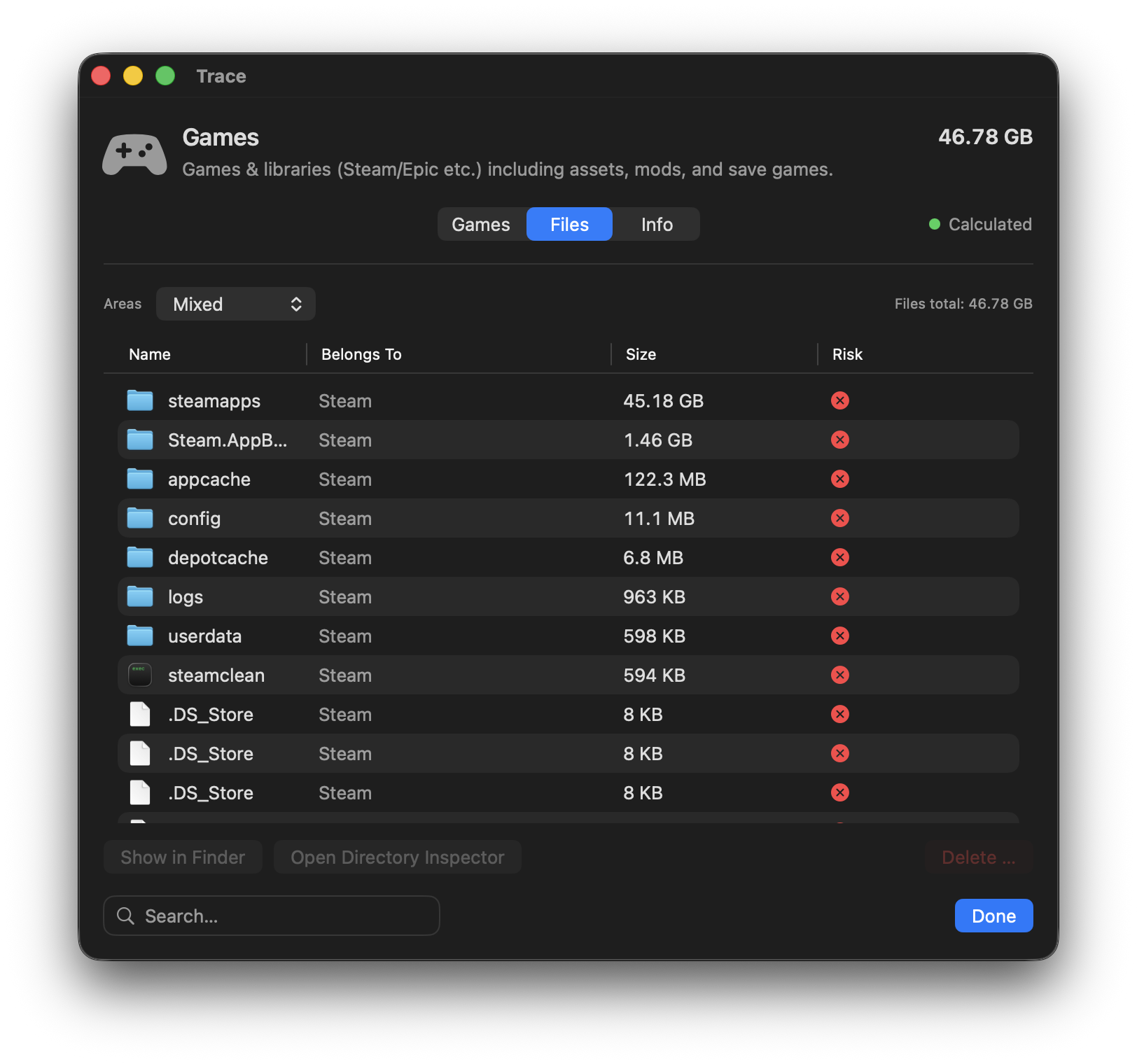
Game libraries from launchers (e.g. Steam) including assets, mods, and save games.
How Trace detects games
- Manifests/marker files: Trace uses launcher manifests (e.g. Steam
steamapps/appmanifest_*.acf) to reliably detect installed games. - Library folders: the actual data usually lives in launcher library directories (e.g.
~/Library/Application Support/Steam/steamapps) or on other volumes. - Dedicated Game Inspector: detected games show up as separate entries – apart from regular app bundles.
Note: games installed only as regular apps (without a launcher library) may show up under Apps depending on your setup.
Typical large items
- Installation assets: game data in launcher libraries (often double-digit GB)
- Mods/workshop: extra content that accumulates over time
- Caches: shader/download caches (usually rebuildable, but may take time to rebuild)
Games tab
Shows detected games and their size. For each title, open Game Inspector to manage assets, mods, caches, and saves.
Communication
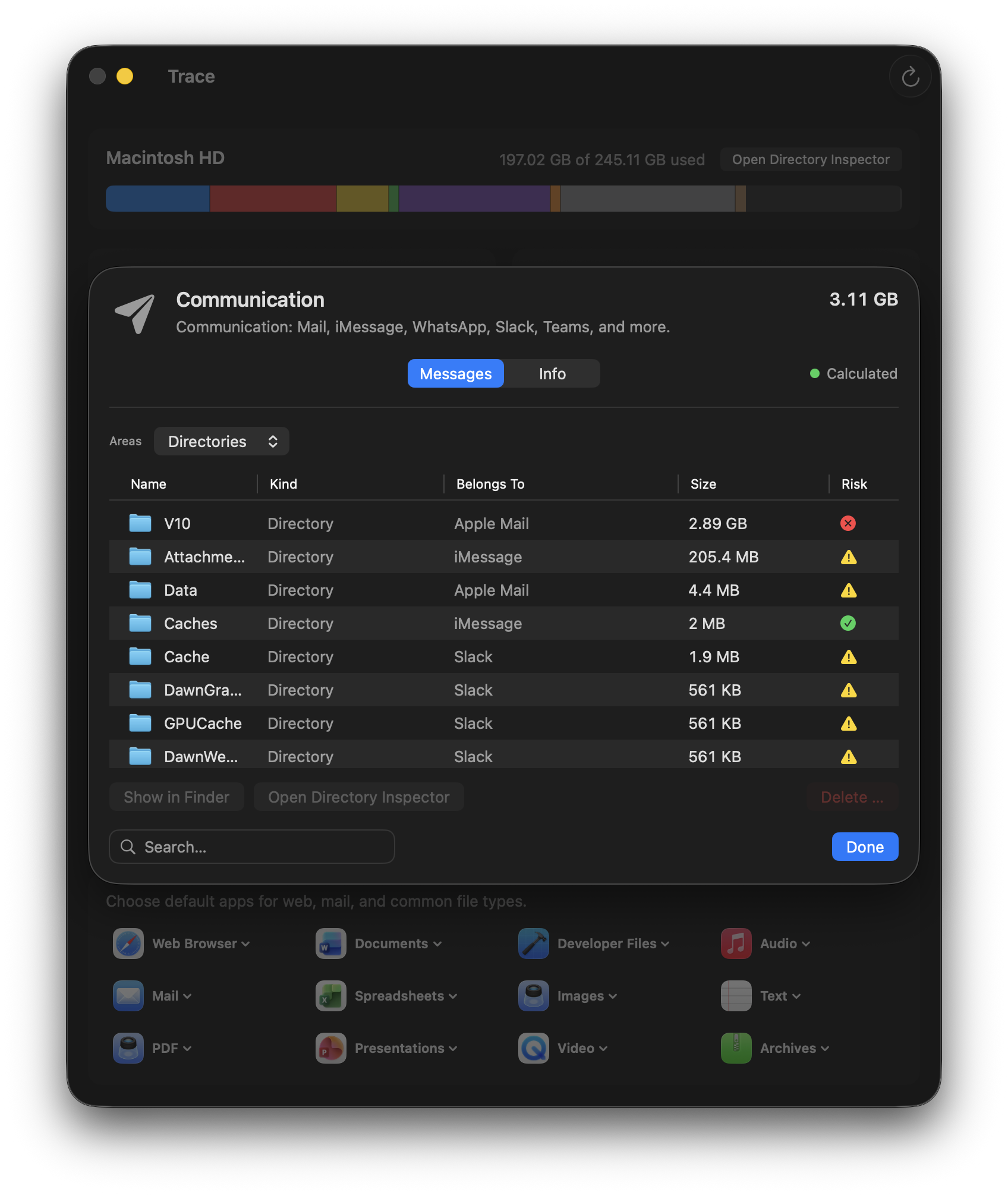
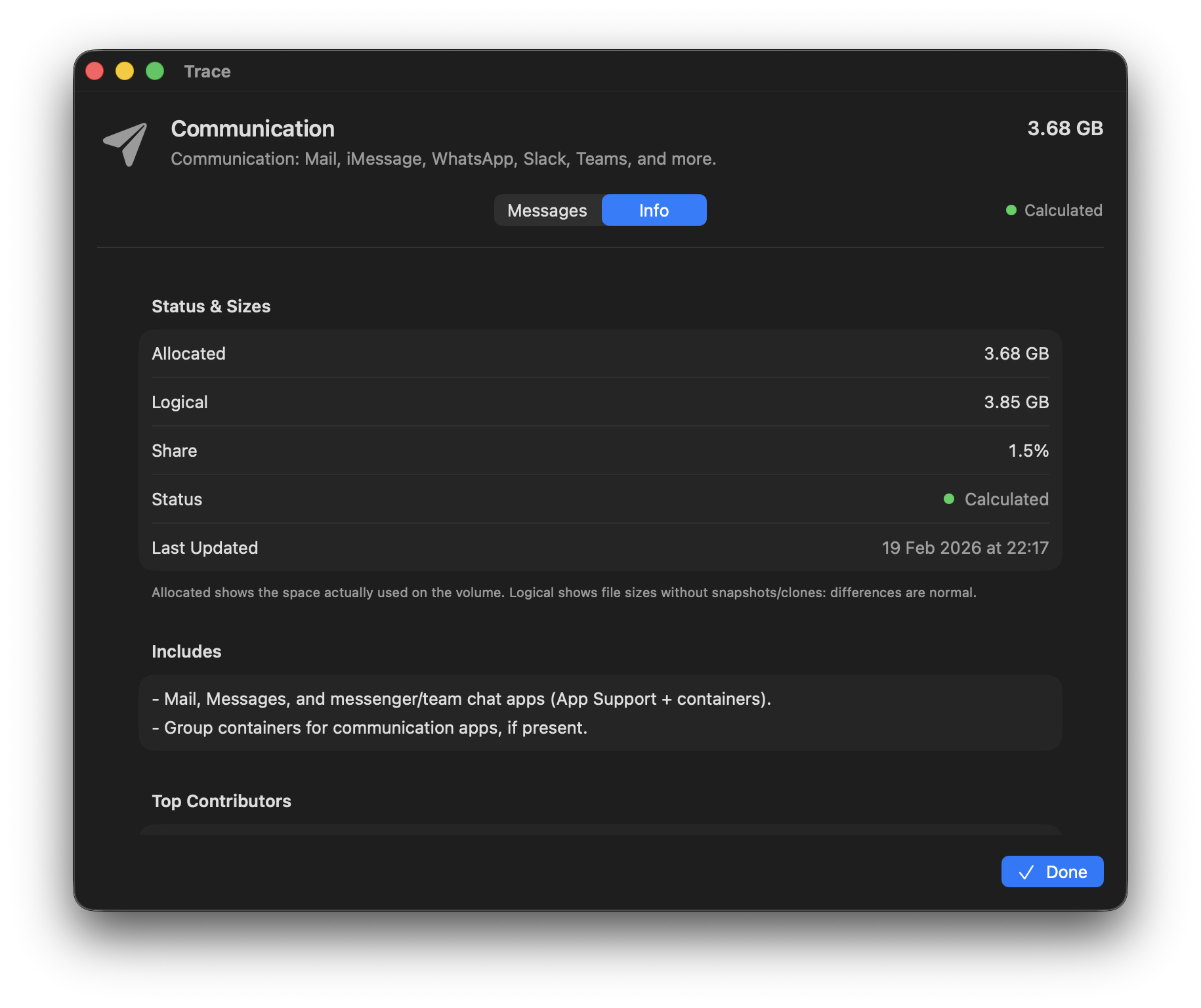
Mail and chat apps often store attachments, media, and databases locally, even when content looks “online” in the app. Trace makes these storage hogs visible and shows what they belong to. Be especially careful here, because some apps use local databases directly.
Included paths
~/Library/Mail(Apple Mail)~/Library/Messages(iMessage)- Third-party apps via containers and group containers
What this is about
- Attachments: large attachments (mail/chats) can take up a lot of space.
- Offline caches: messengers often store media locally, even if it feels “in the cloud”.
- Be careful: deleting may remove data inside the app (e.g. local copies or databases).
Development
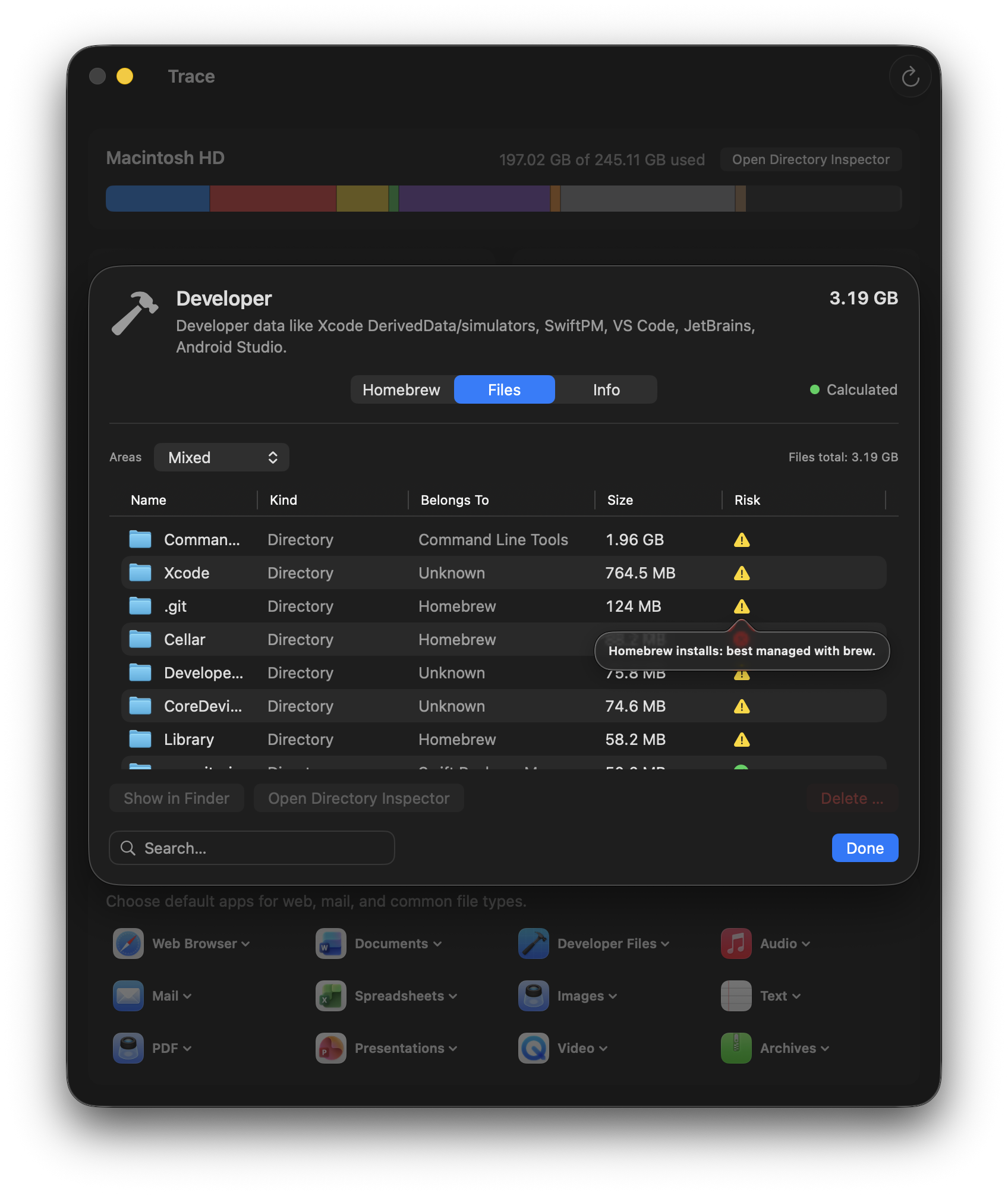
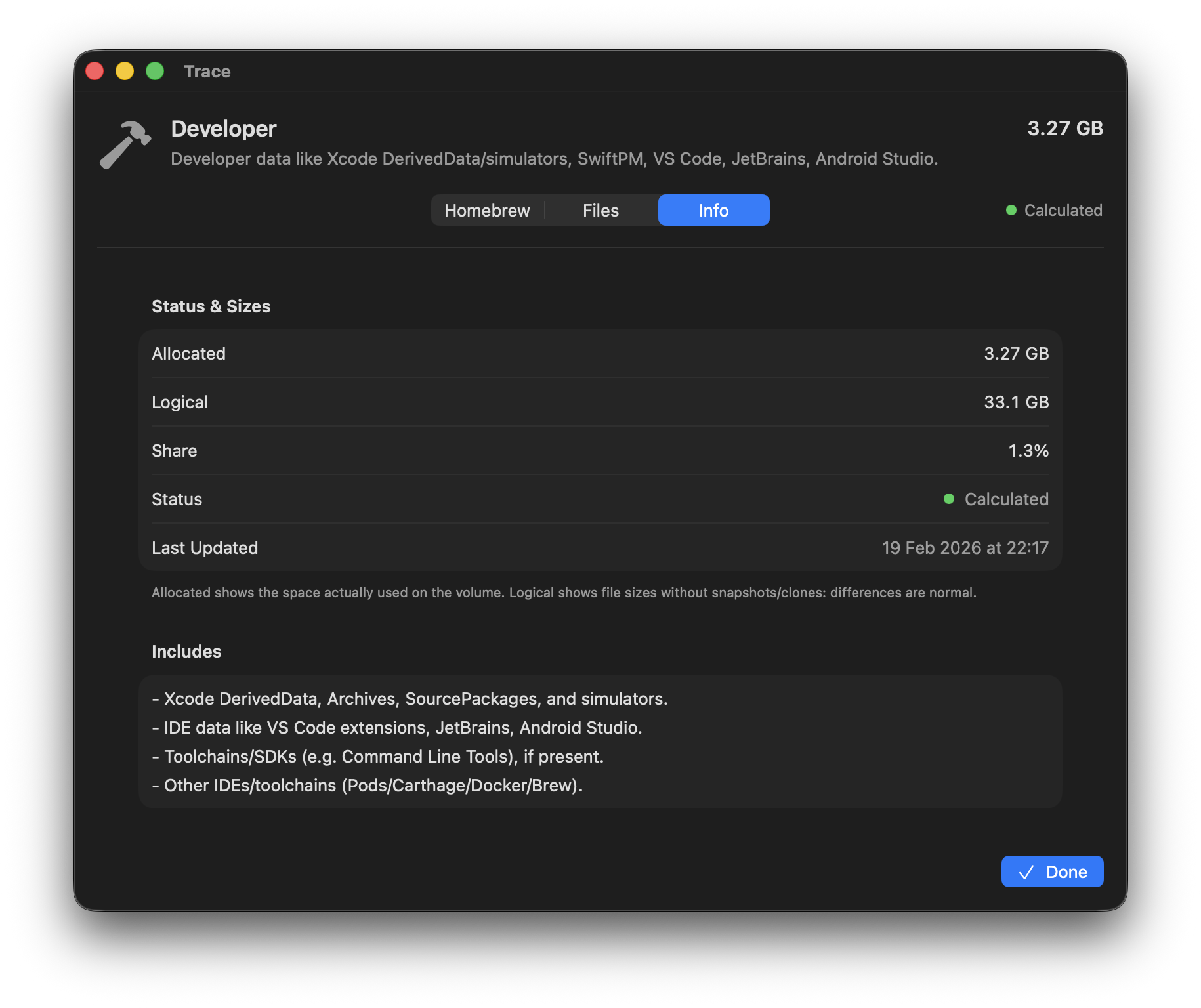
Build artifacts, simulators, toolchains, and package caches can take up a lot of space – not just in Xcode. Much of it is rebuildable and may reappear after cleanup. Trace helps you tell apart “safe to remove” vs. “better keep it”.
Included paths (selection)
~/Library/Developer(Xcode, simulators)~/Library/Caches/org.swift.swiftpm~/Library/Application Support/Code(VS Code)~/.vscode/extensions~/Library/Application Support/JetBrains
~/.android(Android SDK)/opt/homebrew,/usr/local~/.gradle,~/.m2,~/.npm~/.cargo,~/.rustup~/.pub-cache,~/.composer
Typical space hogs
- Xcode: DerivedData, simulators, device support
- Toolchains: Homebrew, Docker images, package caches (npm, Gradle, Maven, Cargo, …)
- IDEs: VS Code/JetBrains caches and indexes
Many of these are rebuildable – but rebuilding can take time. Trace helps you find large items and make informed decisions.
Homebrew
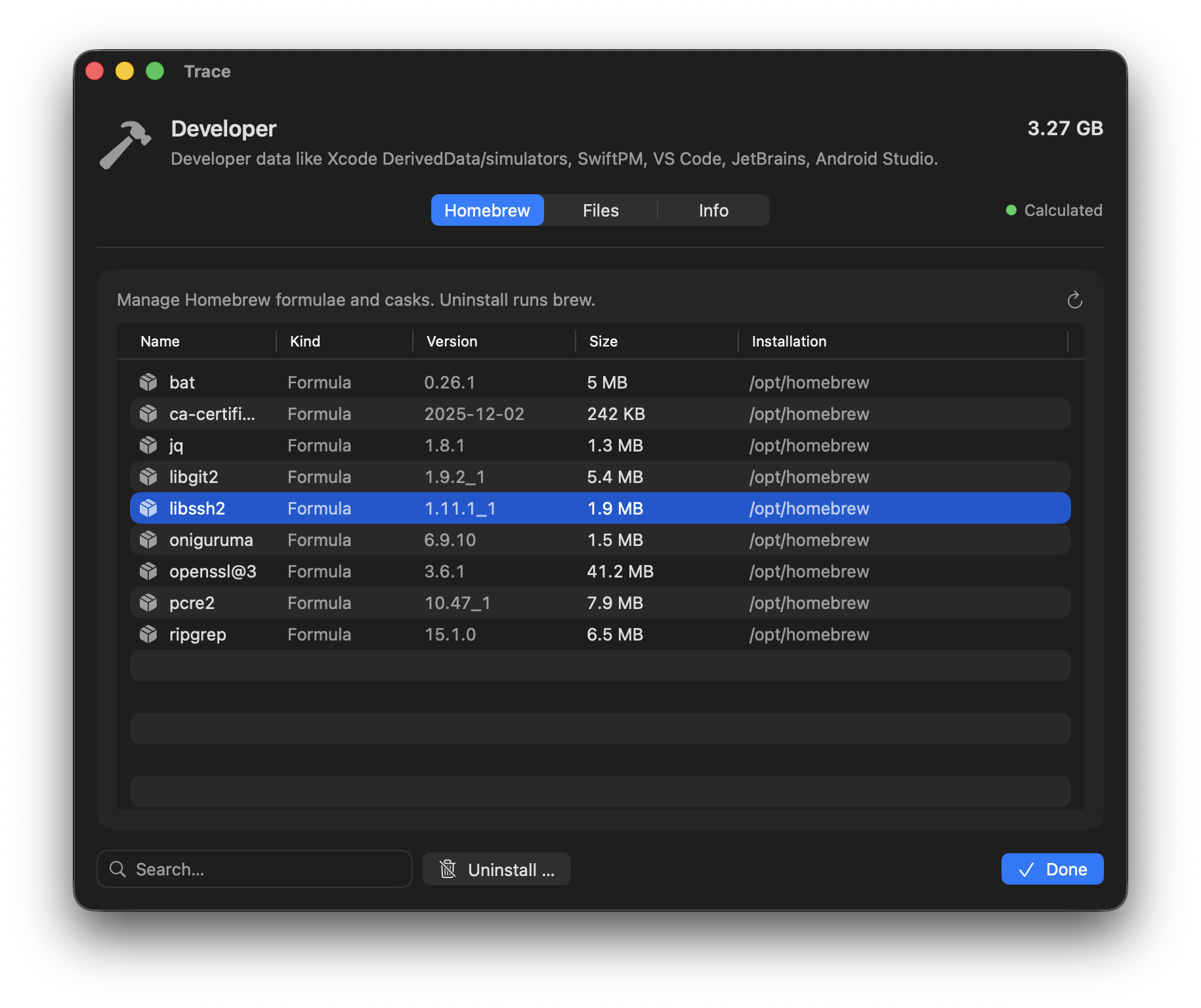
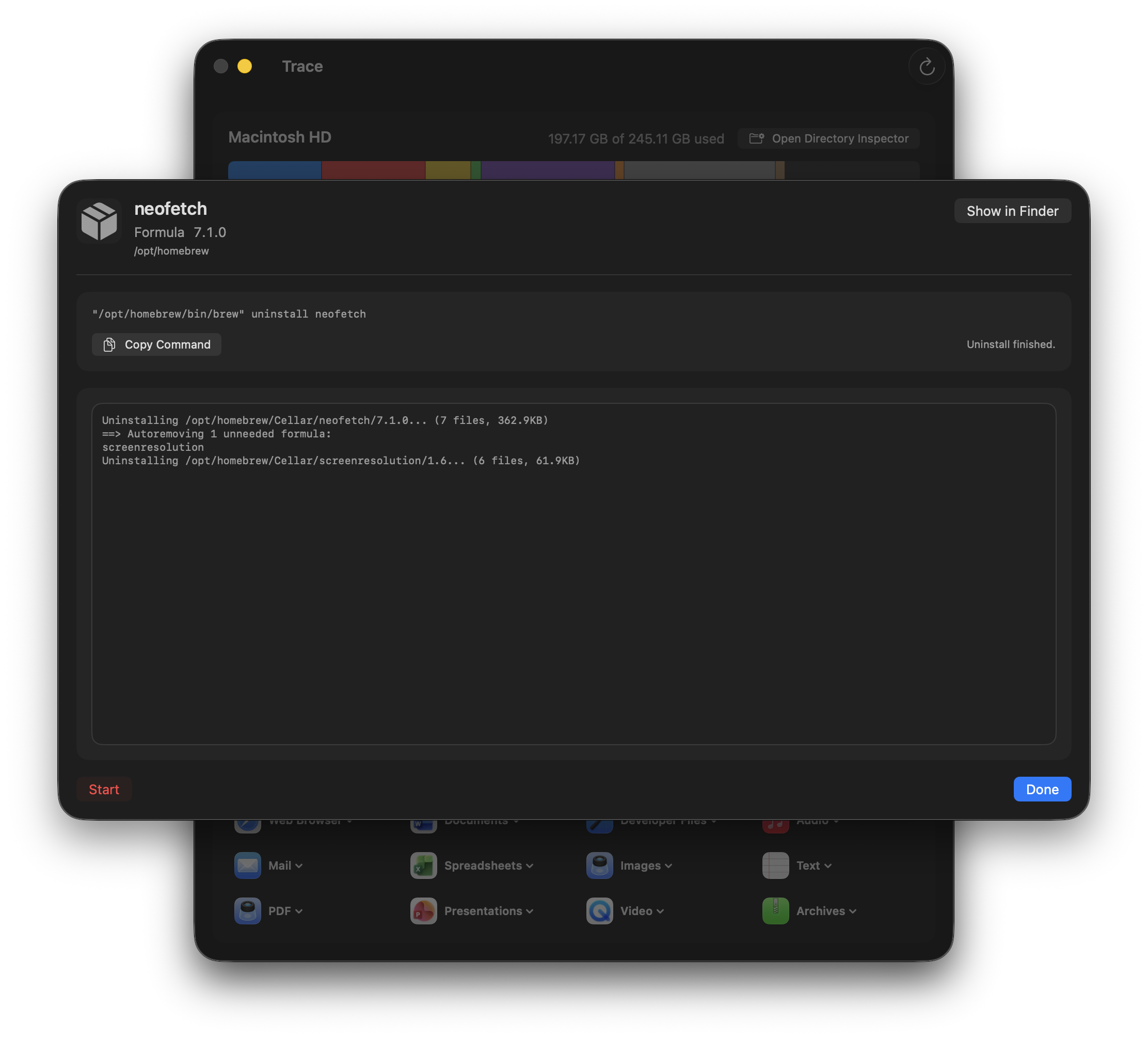
In the Development category details, the Homebrew tab lists installed formulae and casks and lets you uninstall individual packages via brew uninstall with live output.
- Detection: Looks for
/opt/homebrew/bin/brewand/usr/local/bin/brew(best effort). - Uninstall: Select a package and click Uninstall ….
System Data
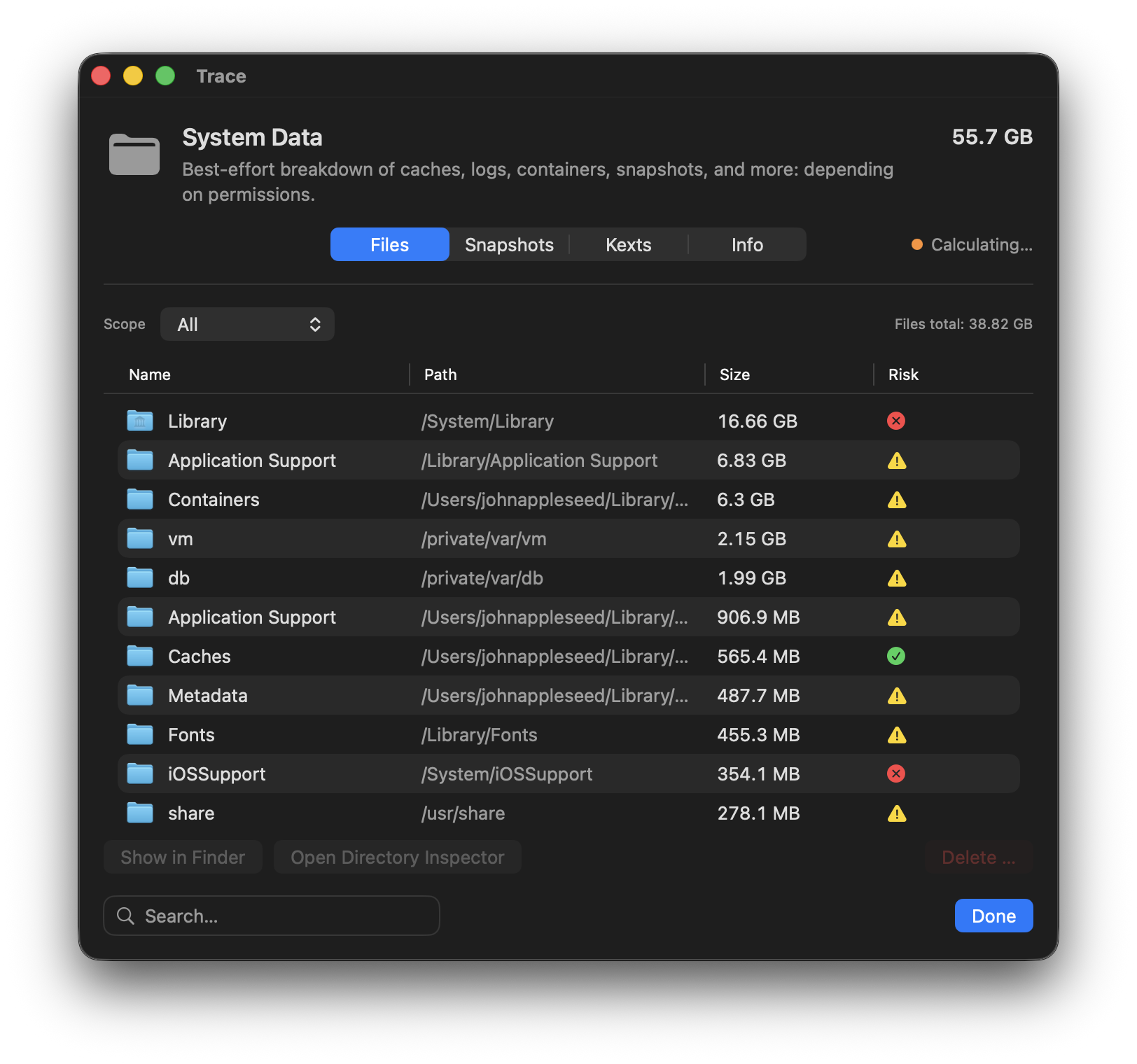
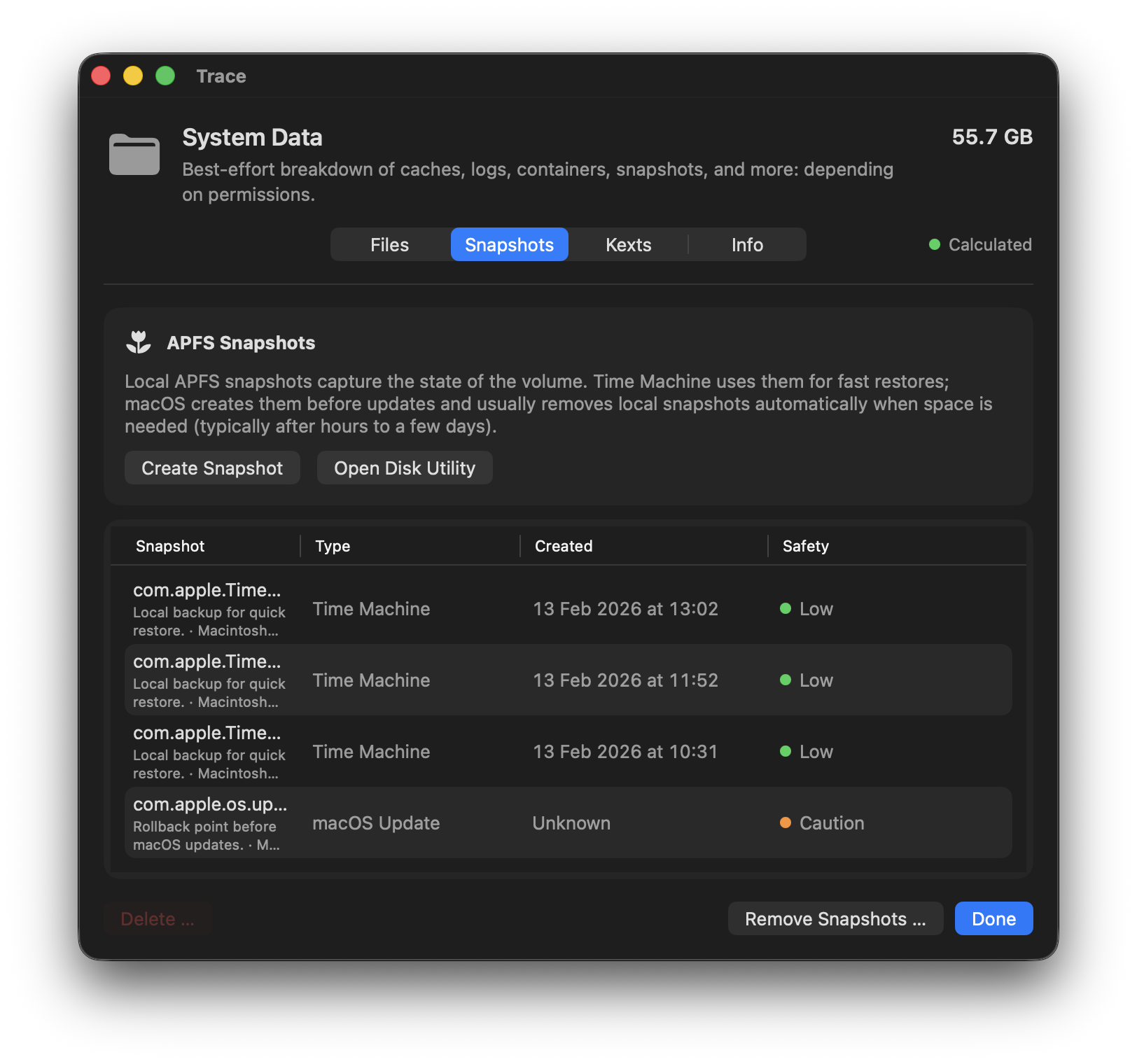
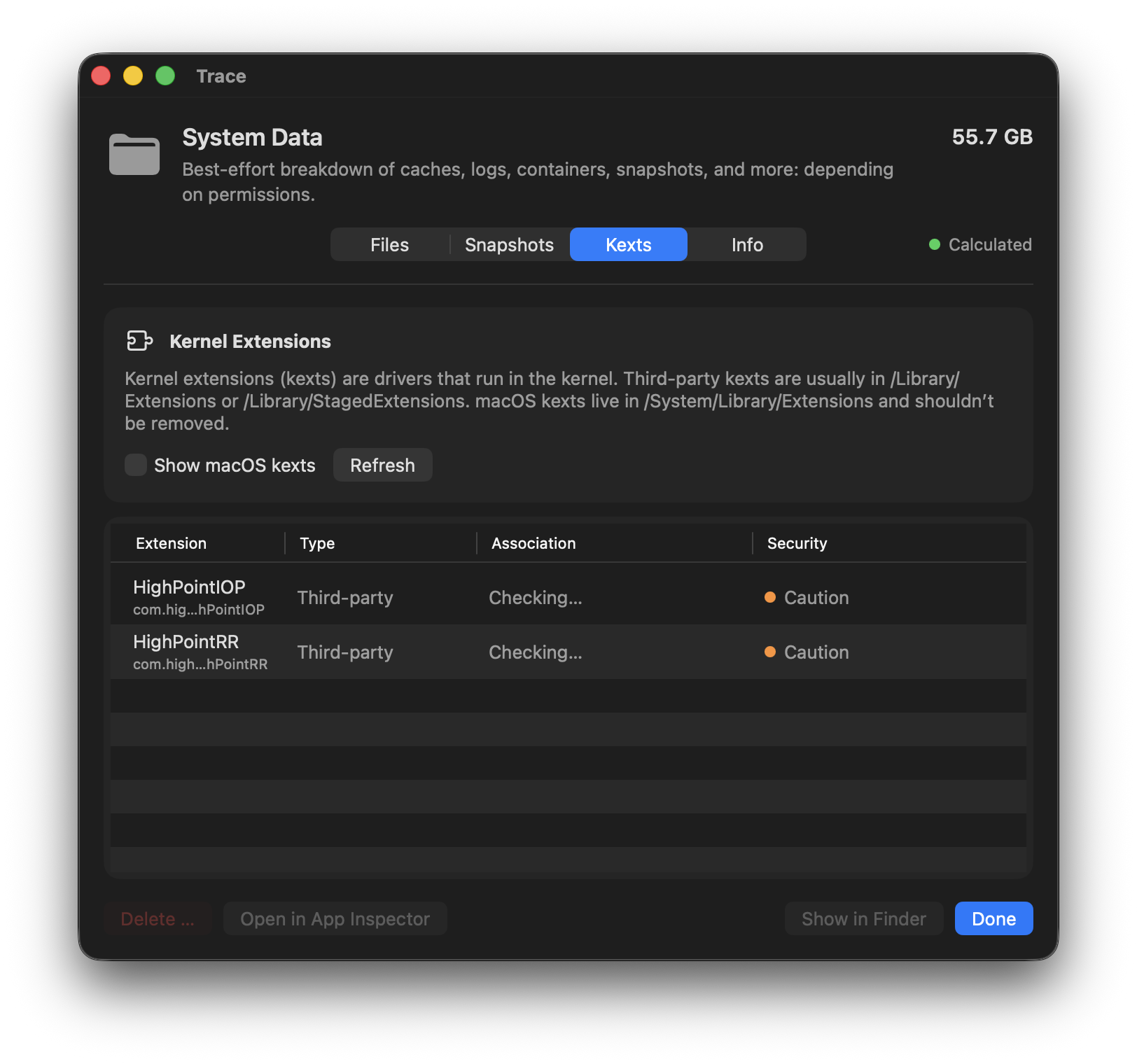
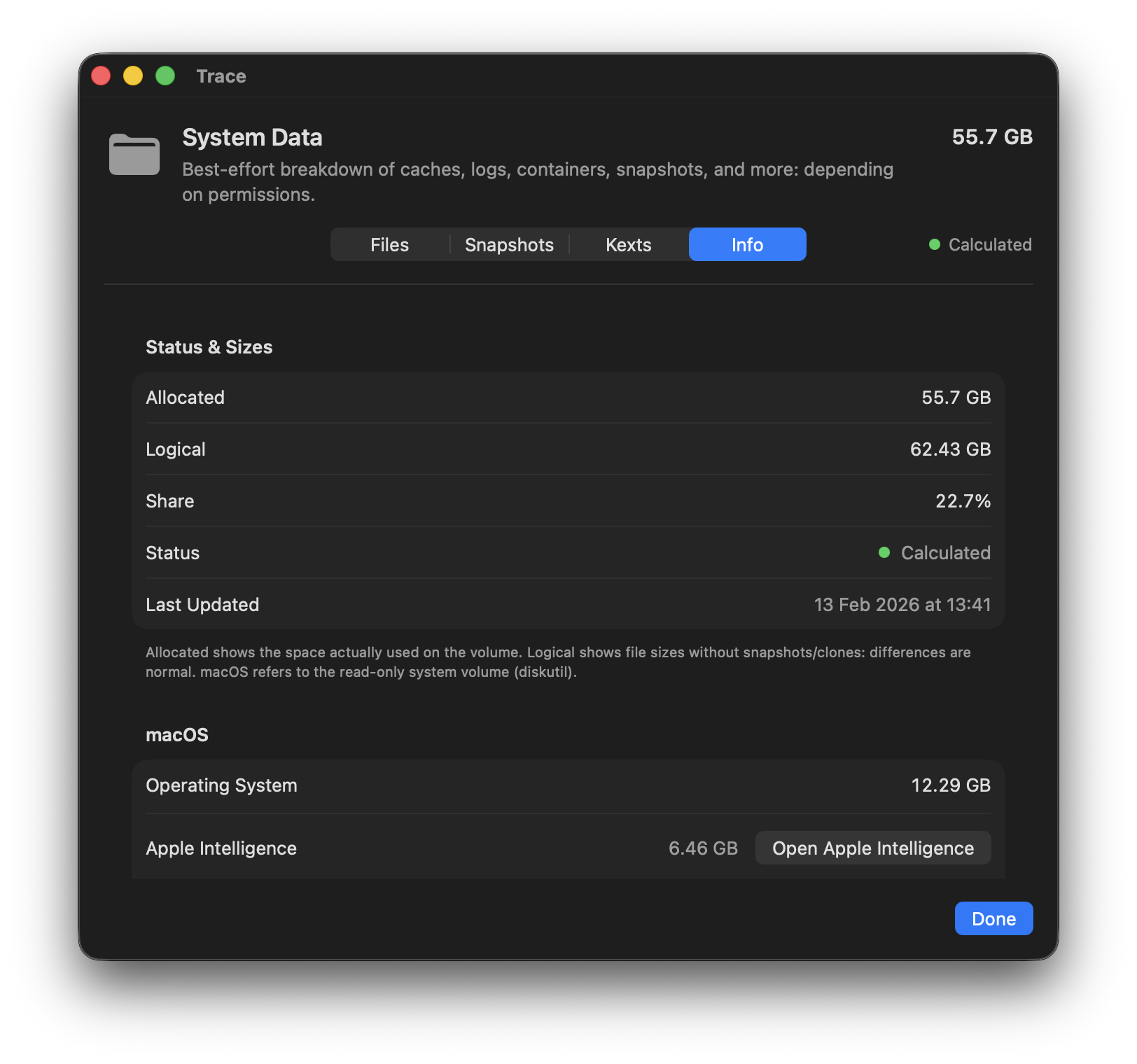
macOS lumps many things into “System Data”: caches, logs, containers, metadata, snapshots, and more. Trace tries to break this black box down best effort and explains the main causes. Depending on permissions and system state, some areas may only be partially visible.
Files tab
Shows the first level of large system areas (best effort) – with hints about type/risk.
~/Library(with carve-outs for other categories)/Library/System/private/var/usr/Users/Shared
Start in the Files tab, use filters (e.g. caches/containers/backups), and work your way to the biggest culprits. Don't delete blindly – follow the rationale/type.
Other
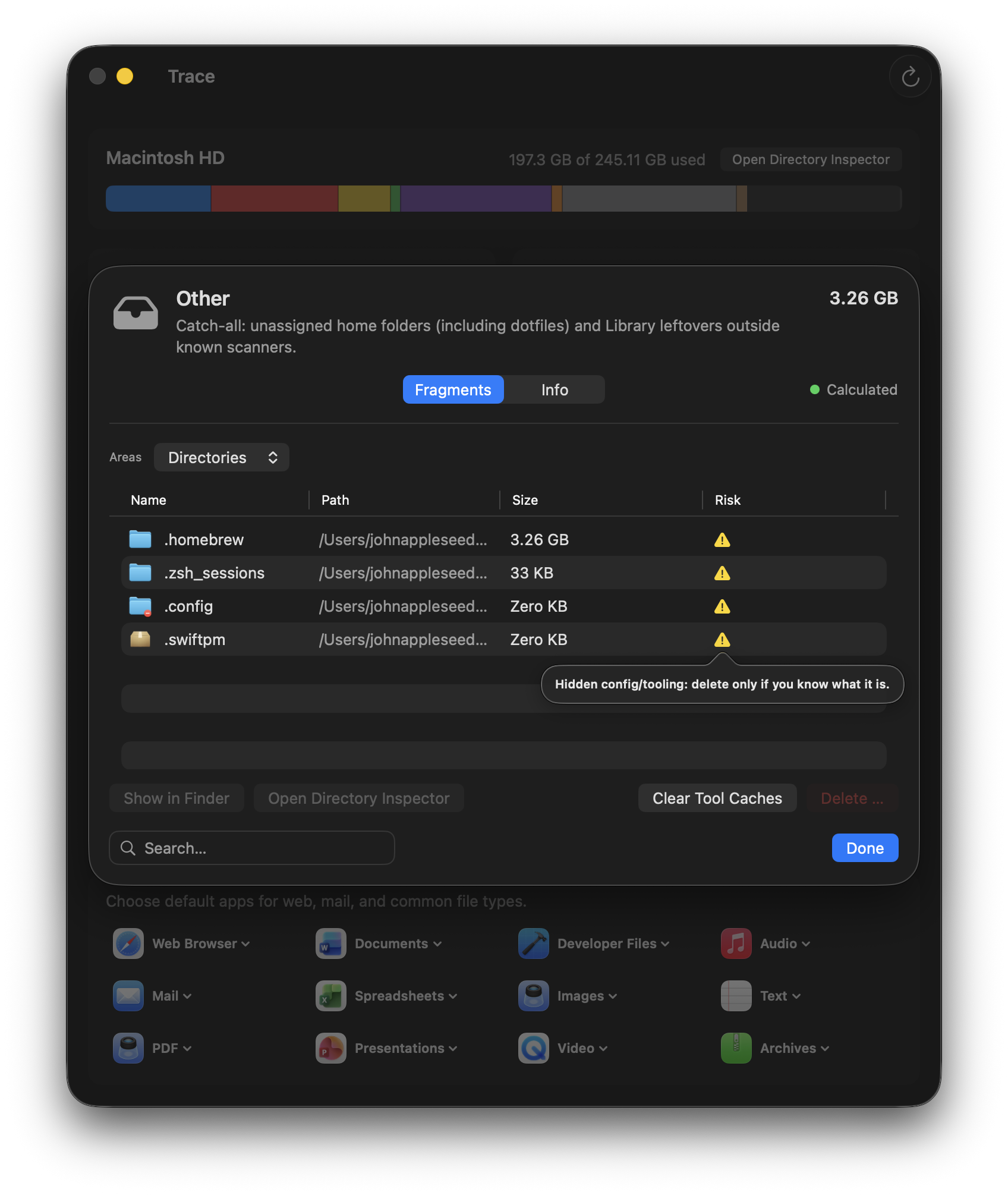
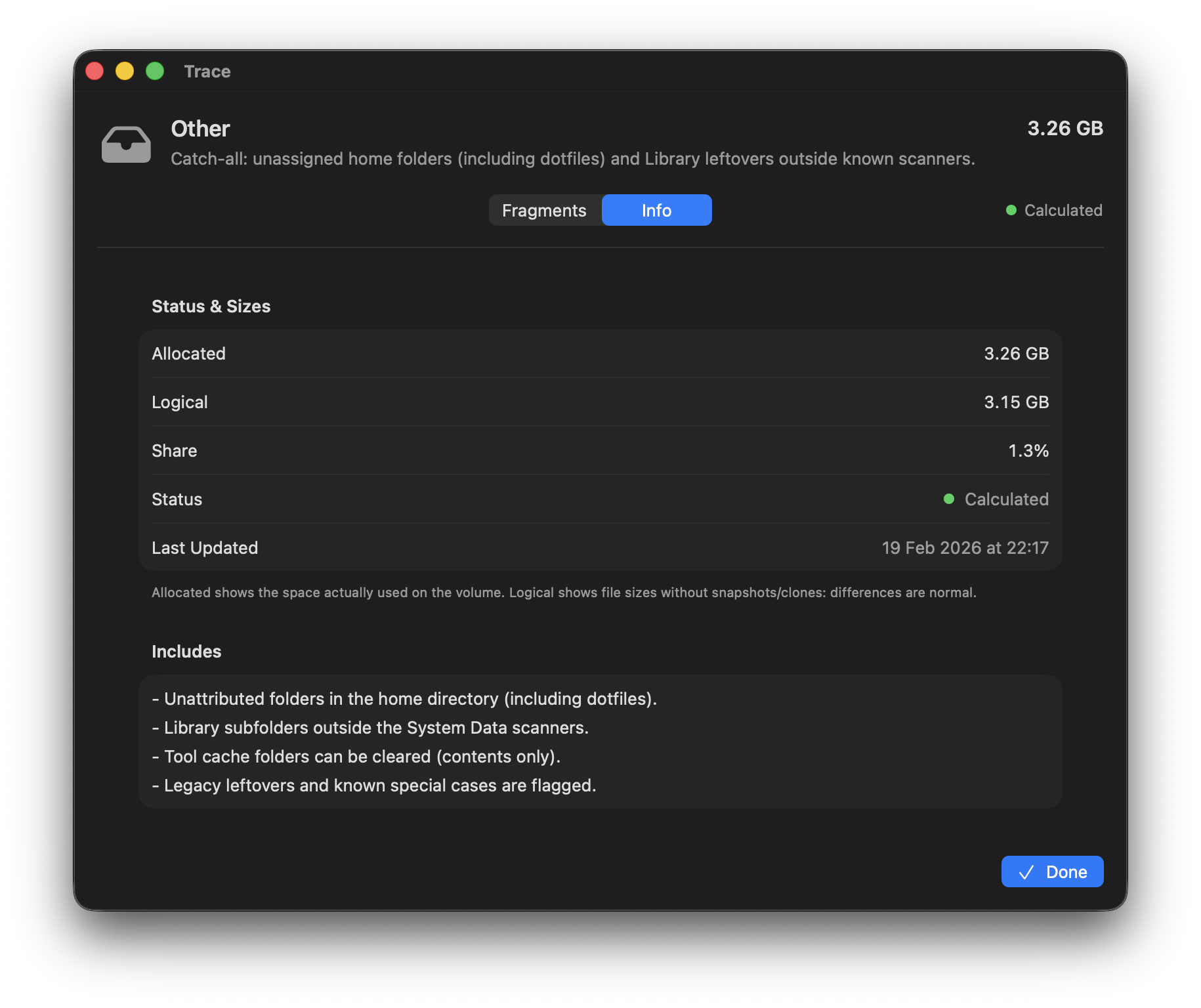
Catch-all category for paths that can't be clearly attributed to another category – especially unassigned folders in your home directory (including dotfiles) and library leftovers outside known scanners. Trace lists the largest fragments and helps you classify them.
Contains
- Home dotfiles/dotfolders not recognized as dev dots
- Library leftovers outside known scanners (best effort)
Fragments tab
- View: mixed / folders / files
- Sorted by size (largest first)
- For details, use Directory Inspector (drill-down)
Clear tool caches
Trace can clear typical tool cache folders in your home directory (e.g. ~/.cache, ~/.npm, ~/.gradle). These folders are detected heuristically.
- Recommendation: move to Quarantine first (Undo possible)
- Space is freed only once the quarantine session is permanently deleted
What to do with a large “Other”?
- First check if Full Disk Access is missing (scans are intentionally incomplete without it).
- Use the view menu to find large folders or individual files faster.
- Volume bytes that can't be cleanly attributed (APFS/snapshots/overhead/permission gaps) are shown under “System Data” – not under “Other”.
App Inspector
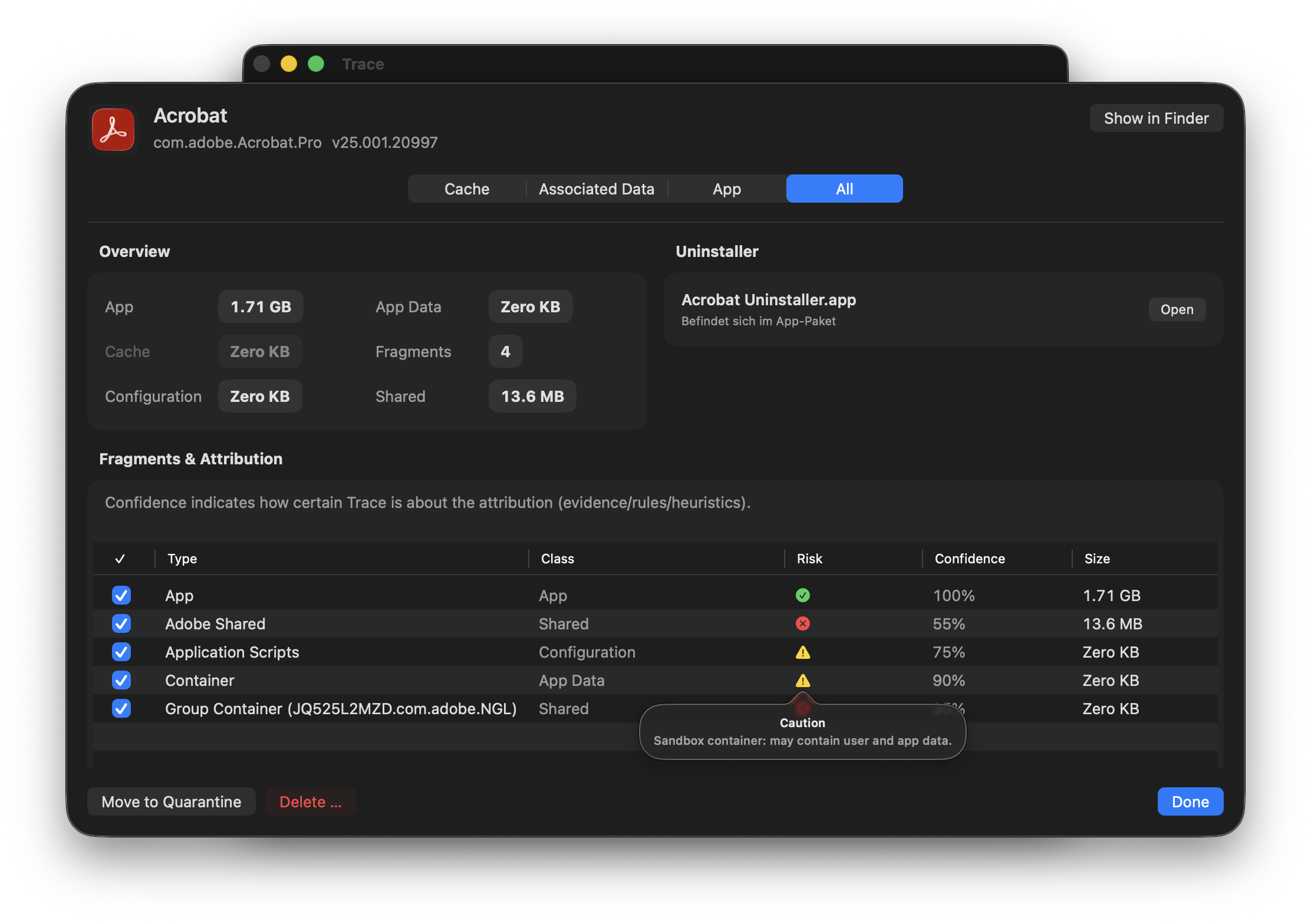
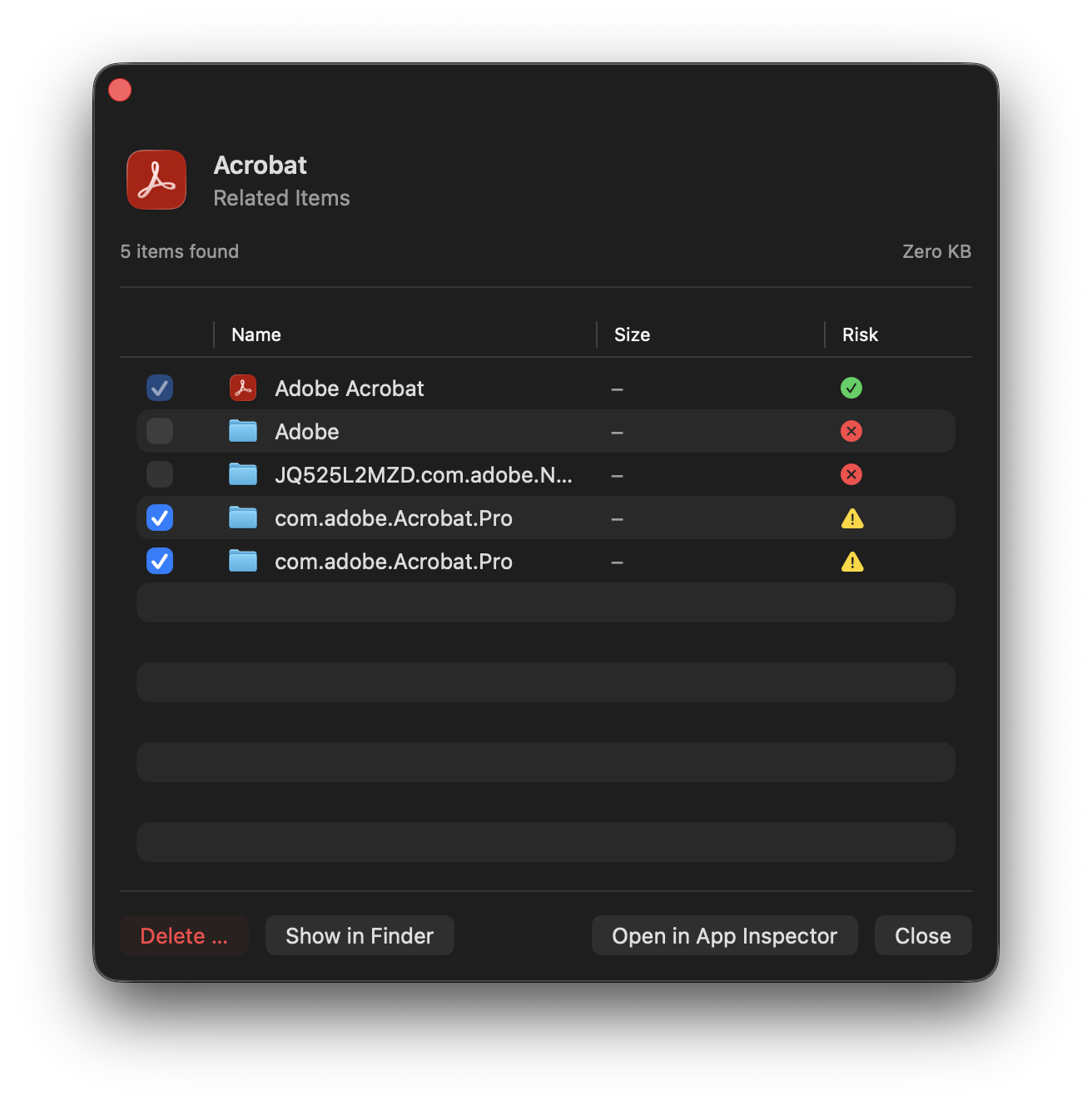
App Inspector shows all paths belonging to an app – along with the rationale (evidence).
Mapping methods
Deterministic
Bundle ID-based paths with high match quality:
- Containers, Application Scripts
- Caches, Logs, Preferences
- Saved Application State
- HTTP Storages
Heuristic
Name/path matches with lower match quality:
- Application Support (by app name)
- Deep search in whitelisted roots
- Vendor-specific rules
Each entry shows a Match badge (for example Exact/Heuristic), risk level (safe/caution/danger), and a “Why?” explanation.
The UI intentionally avoids raw percentages. Match explains ownership rationale; the Risk overlay explains impact and recommendation.
How Match and internal mapping signals work (technical)
- Not an ML probability: internal confidence signals are rule-based scores from
0.0to1.0per finding. - The internal policy uses two values: Attribution and Removal; both remain technical internals and are not shown as raw values in the UI.
- Signal-based weighting: Trace applies boosts/penalties (for example exact app identity/path evidence, wildcard/heuristic matches, shared/system scope, receipts, launchd evidence).
- UI display: the table shows a compact Match badge instead of percentages.
- Policy thresholds: visibility is policy-based per artifact kind/context (not one fixed global value).
dangerartifacts stay visible even when internal scores are low. - Dedup decision: when duplicates exist, Trace keeps the artifact with higher final attribution confidence.
- Removal behavior: removal confidence is used for warnings/confirmation context, not for silently removing items from “Everything”.
- App and Game Inspector: both use the same policy; low-attribution entries stay visible and are no longer hidden behind a toggle.
Exact means strong ownership evidence. Heuristic is intentionally conservative; check Match/Risk overlays before destructive actions.
New in the inspector flow
- Delete … does not launch uninstallers; only the dedicated uninstaller action does.
- Uninstaller rows now include a Finder quick-reveal icon.
- System-wide leftovers under
/Libraryare now included by default in App/Game Inspector scans. - For launchd matches, referenced helpers under
/Library/PrivilegedHelperToolsare detected as dedicated artifacts. - Nested
.appbundles inside other apps (for example SparkleAutoupdate.app) are no longer listed separately in the Apps tab. - The Match column stays compact (badges); Match overlay shows the reason (for example Exact/Heuristic), Risk overlay shows impact and recommendation.
- Use the per-row Marking column to add manual labels (Belongs to App / Not Related / Unsure).
- Share Feedback … opens the bug-report flow with a redacted diagnostics archive (including inspector snapshots). No telemetry, only explicit user action.
Game Inspector
Game Inspector uses the same Match/Risk model as App Inspector, but maps data specifically per game and launcher.
- Shows app files, related data, cache/mods, and savegame-related fragments per title.
- Keeps launcher attribution (for example Steam) visible so impact is easier to assess.
- Match, risk, and “Why?” rationale work the same way as in App Inspector.
- Launcher aliases/stubs (for example in
~/Applications) are deduplicated across launchers and mapped to the correct game.
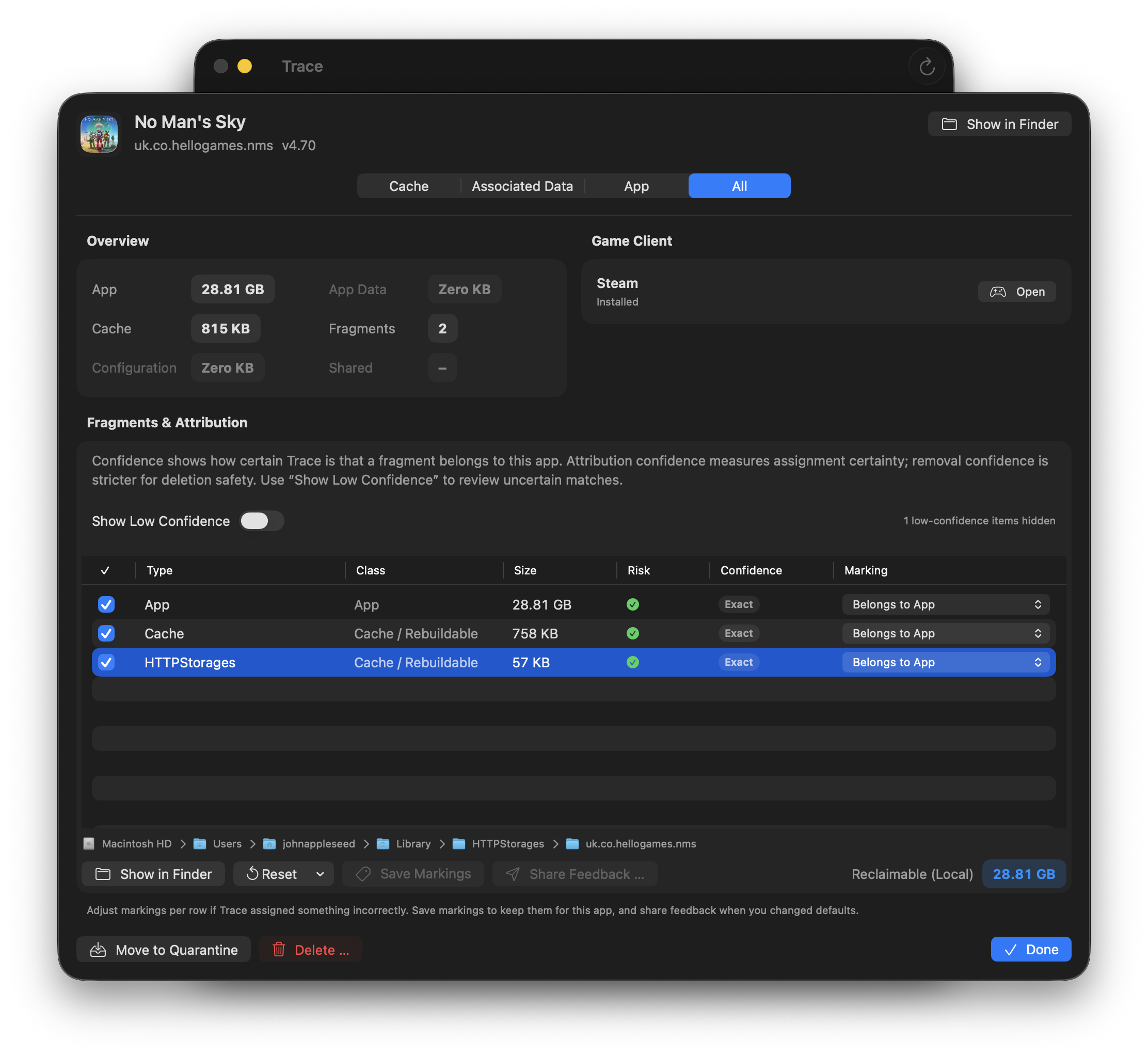
The four cleanup modes
Trace offers four presets that only control the default selection. You can always select/deselect individual paths manually.
Cache
Rebuildable artifacts: caches, logs, saved state, and HTTP storages.
SafeAssociations
Cache plus data that can often be restored automatically (e.g. re-downloadable content or sync data) – depending on the app.
SafeApp
App bundle + cache. Preferences and user data remain.
CautionEverything
App + cache + preferences + app data. Potentially irreversible.
DangerData shared by multiple apps (e.g. Microsoft Office, Adobe) is marked as “Shared/Danger” and is never selected by default in any preset.
Start with “Cache” or “Associations”. “Everything” can remove user data and may be irreversible.
Quarantine & Undo
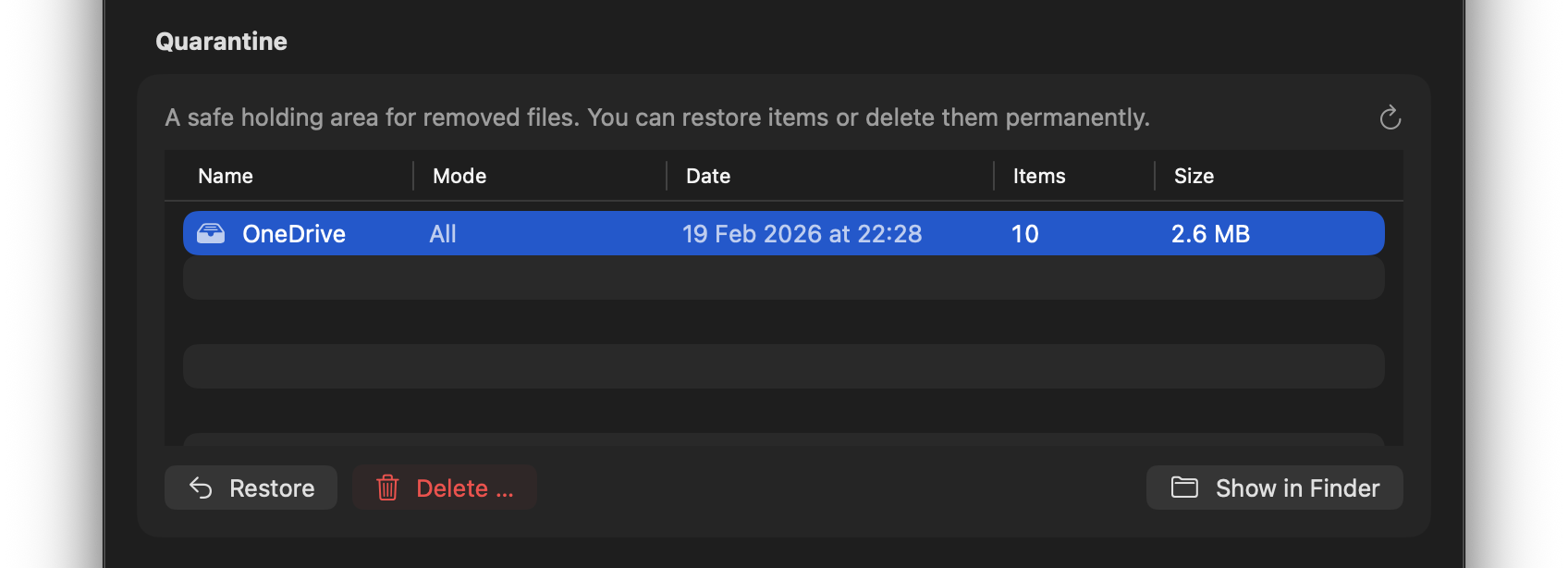
Trace does not permanently delete data by default. Instead, files are moved to Quarantine.
How it works
- User-scope paths are moved to
~/Library/Application Support/Trace/Quarantine/...(same-volume move) - System-wide paths go to the Trash (reversible)
- Only explicit “Delete” removes files directly
- Empty directories are cleaned up after moves up to a safe root
In the dashboard you can see the quarantine size and restore or delete permanently.
Directory Inspector
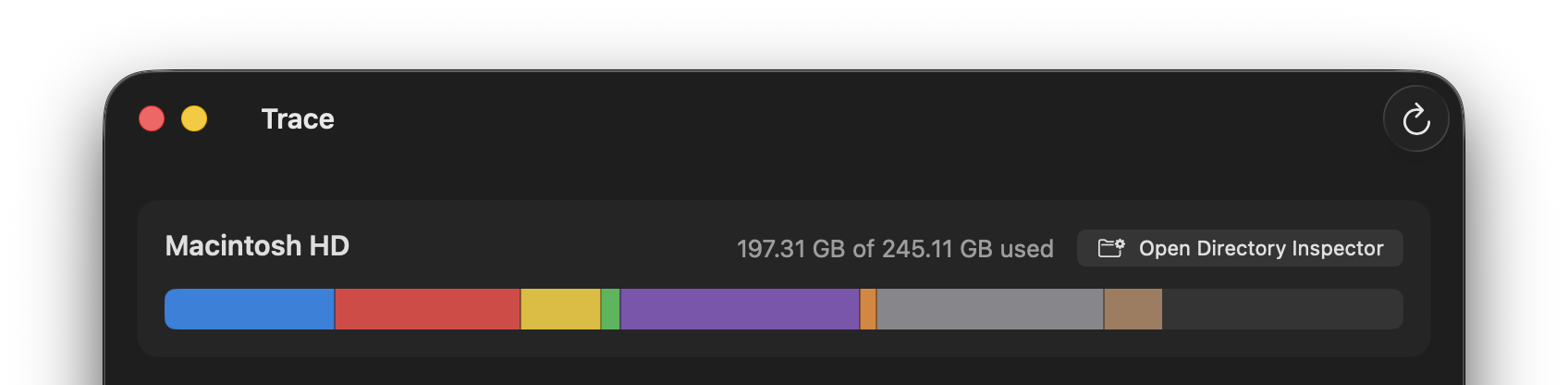
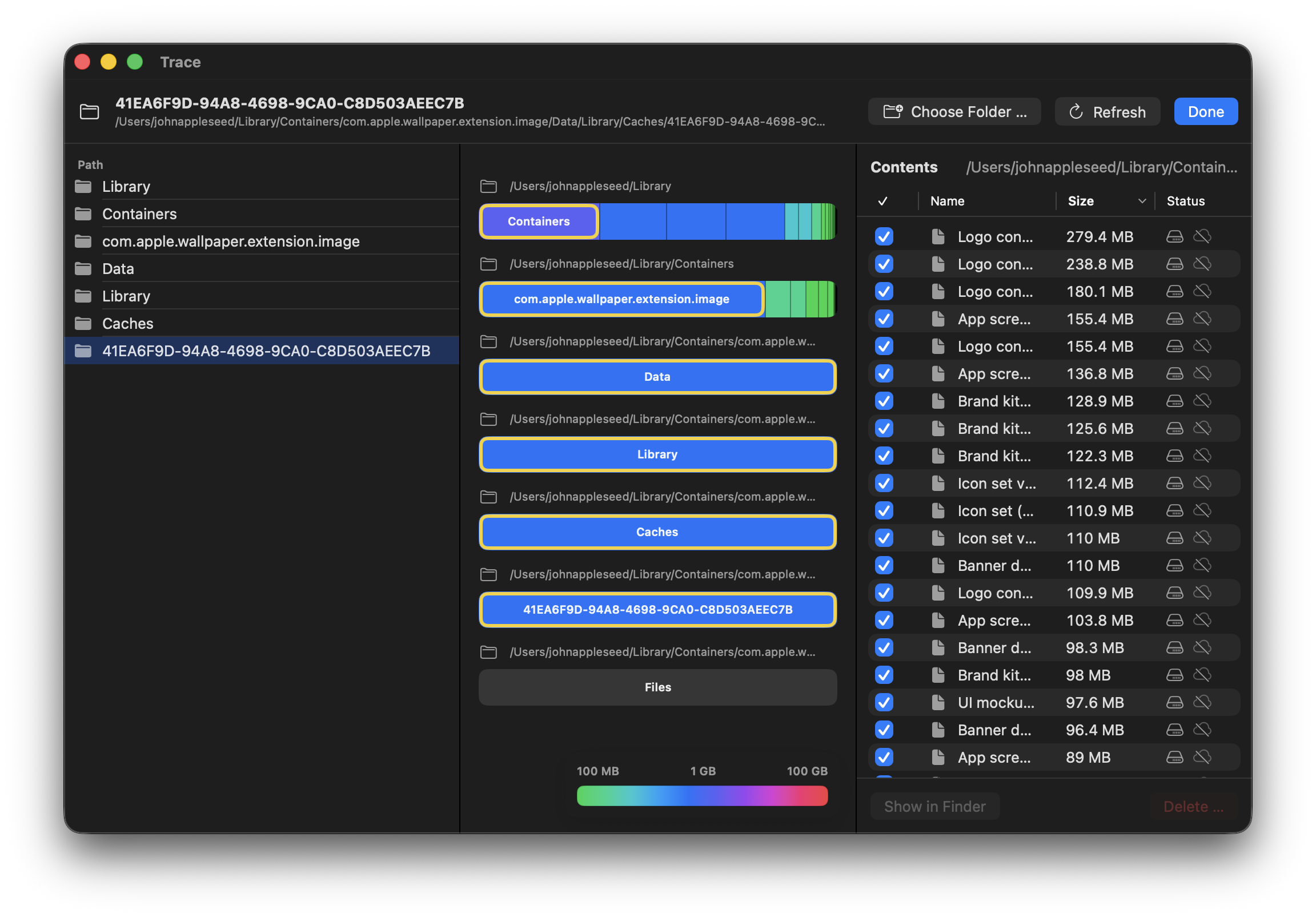
Directory Inspector lets you analyze any folder or drive – independent of predefined categories.
Features
- Stacked storage bars: each level shows the size distribution as color-coded bars (folders by size, files gray)
- Drill-down: click a folder to navigate deeper
- Size legend: shows allocated and logical size
- Cloud status: icons show whether items are local, cloud-only, or mixed
- Context menus: right-click to open in Finder, delete, and more
- Filter: checkbox to show/hide hidden files
Access
You can open Directory Inspector from the dashboard (“Open Directory Inspector …”) or via the context menu in category views.
Default apps
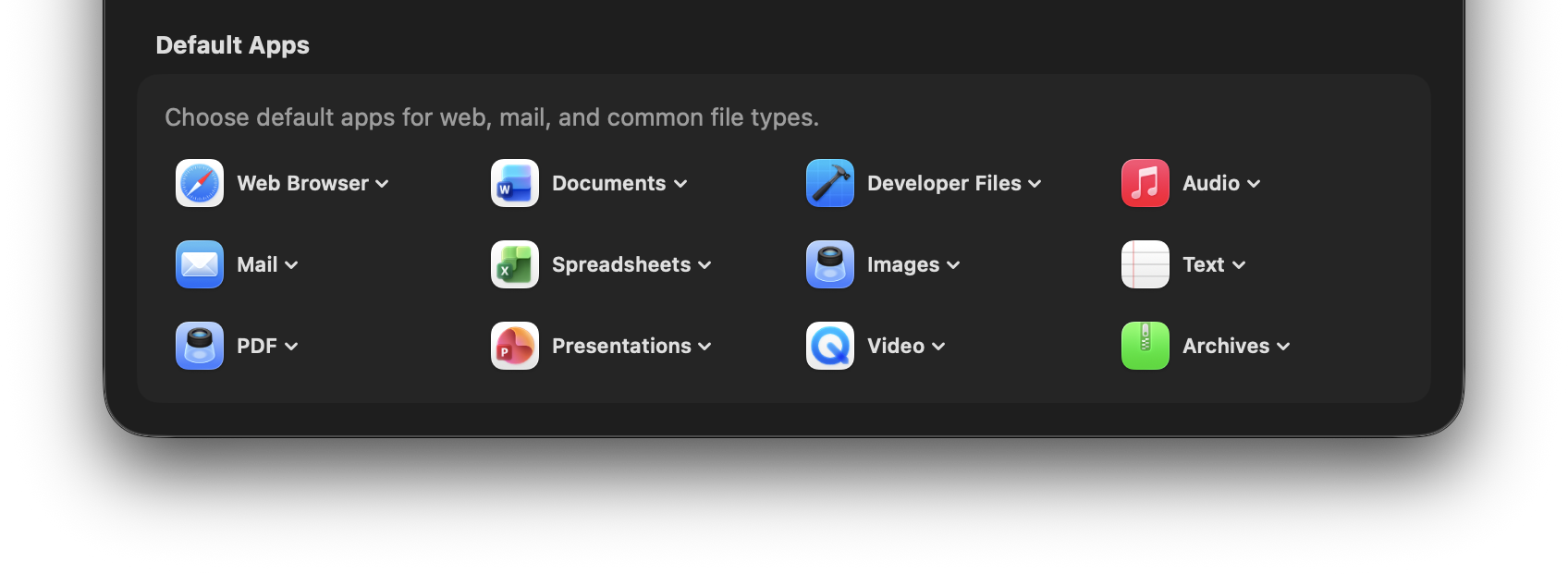
Manage all default apps in one place – without digging through different System Settings screens.
Supported categories
- Web: default browser
- Mail: email client
- PDF: PDF viewer
- Documents: word processor
- Spreadsheets: spreadsheet app
- Presentations: presentation app
- Developer files: code editor
- Images: image viewer
- Video: video player
- Audio: music player
- Text: plain text editor
- Archives: archive manager
Trace uses the macOS Launch Services API to set default apps for UTI types (Uniform Type Identifiers). Changes apply system-wide.
Vendor Inspector
Vendor Inspector includes curated profiles for well-known apps – with specific rules for paths, shared data, and cleanup behavior.
Why vendor profiles?
Many large software vendors don't follow Apple conventions for app data. They store files in unexpected locations, share data between apps, or use proprietary folder structures. Vendor Inspector knows these patterns.
Supported vendors (selection)
- Adobe: Creative Cloud, Photoshop, Lightroom, Premiere, etc.
- Microsoft: Office 365, Teams, OneDrive, VS Code
- JetBrains: IntelliJ, WebStorm, PyCharm, etc.
- Google: Chrome, Drive for Desktop
- Browsers: Firefox, Safari, Arc, Brave, Edge
- Development: Xcode, Docker, Homebrew
- Communication: Slack, Discord, Zoom, Telegram
- Media: Spotify, Final Cut Pro, DaVinci Resolve
Vendor profiles override the generic heuristic with app-specific knowledge. This prevents false attributions and finds hidden data paths.
Shared data warnings
Vendor Inspector detects shared data between apps (e.g. Adobe Creative Cloud Shared, Microsoft Office Shared) and marks it as “Shared/Danger” – it is never selected automatically in any cleanup mode.
TraceHelper & TraceAgent
Trace consists of the app itself and optional components that macOS manages separately. You can use Trace without them – but some features will be limited.
TraceHelper (Admin)
TraceHelper is a privileged helper for actions that require admin privileges. It is used only when you start a feature that needs it.
- System-wide actions: e.g. delete APFS snapshots
- Clean up system paths: e.g. remove kernel extensions (if offered)
- More robust calculations: e.g. “Other Users & Shared Data”
TraceAgent (Background)
TraceAgent can optionally run in the background and detects when apps are moved to the Trash. Trace can then show appropriate removal suggestions.
- No auto-delete: TraceAgent doesn't delete anything by itself
- Transparent: suggestions are based on Trace's attributions and vendor profiles
- Optional: you can enable/disable TraceAgent in Trace
- Demo: TraceAgent is fully usable for free in the demo version of Trace
If “Allow in the background” is disabled, TraceHelper/TraceAgent may be blocked or not respond. See Allow background activity.
Permissions
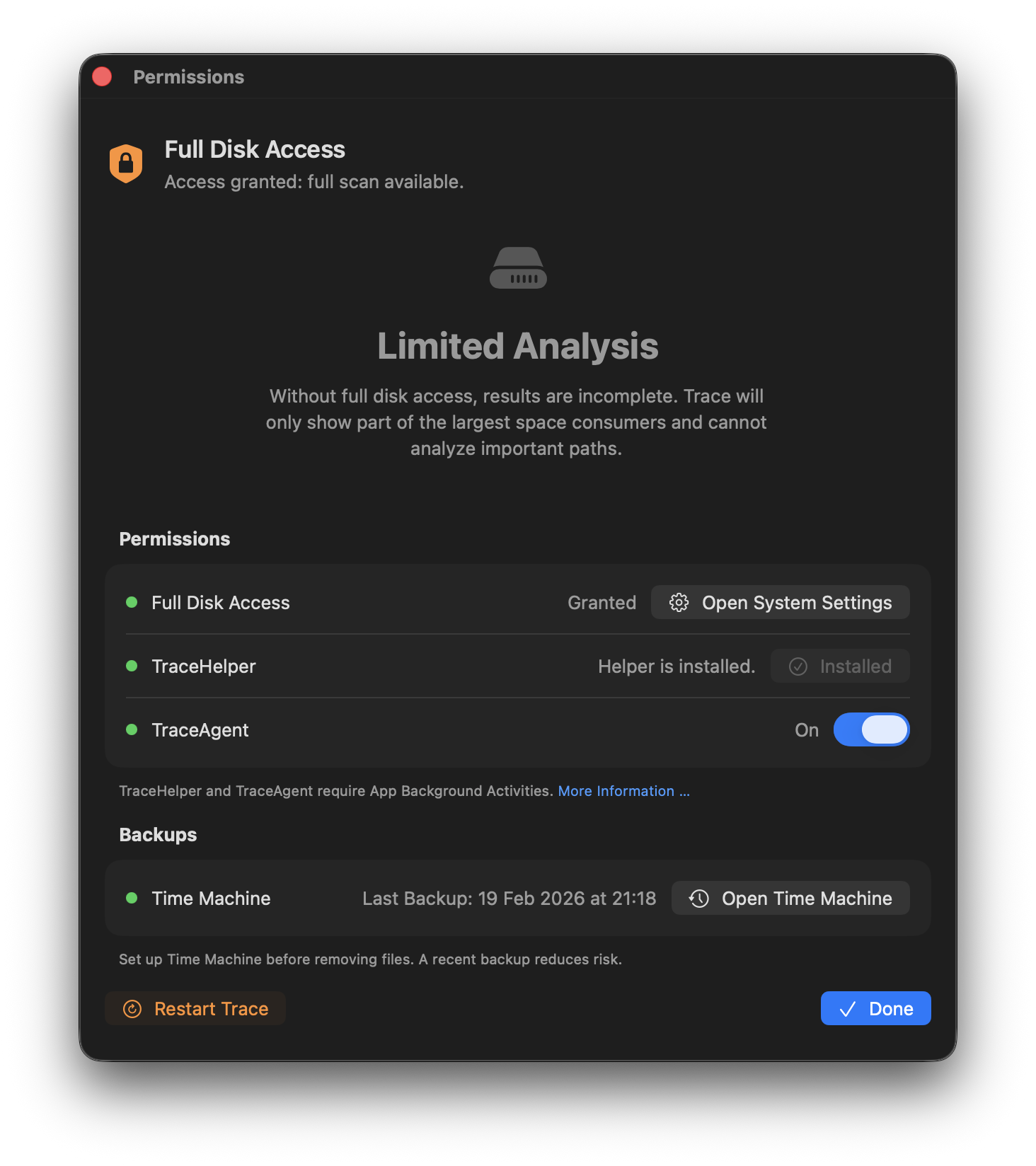
Trace requires several permissions for full functionality:
| Permission | Used for | Without it |
|---|---|---|
| Full Disk Access | Full storage analysis, all categories | Results marked as “incomplete” |
| Admin (Helper) | System-wide actions, delete snapshots | Only user-scope actions possible |
| Background activity | TraceHelper & TraceAgent can start/run in the background | Helper/agent may be blocked (timeouts/errors) |
Enable Full Disk Access
- Open System Settings → Privacy & Security → Full Disk Access.
- If Trace isn't listed: click
+and add it from/Applications. - Enable Trace in the list.
- Restart Trace to complete the analysis.
Install the helper
- In Trace: Settings → Permissions → Install helper.
- Confirm the macOS dialog (admin password/Touch ID).
- After that, system-wide actions (e.g. snapshots) are available.
Enable TraceAgent
- In Trace: Settings → Permissions → enable TraceAgent.
- If macOS asks for confirmation: open Login Items and enable Trace under Allow in the background.
- After that, TraceAgent can run in the background and show suggestions.
Allow background activity
- Open System Settings → General → Login Items.
- Enable Trace under Allow in the background.
- If disabled, TraceHelper/TraceAgent may not start or may not respond (e.g. “Operation not permitted” / timeouts).
- This does not automatically enable TraceAgent; you can enable/disable it in Trace.
If background activity for Trace is disabled in System Settings, TraceHelper/TraceAgent may not start or may not respond.
APFS Snapshots
APFS automatically creates snapshots for Time Machine, updates, and other system operations. These can take up significant space.
What Trace shows
- Snapshots on system and data volumes
- Best-effort sizes (exact sizing is complex on APFS)
- Timestamp and source (Time Machine, OS update, etc.)
Deleting snapshots
Deleting snapshots is irreversible. Trace warns about OS/update-related snapshots and requires admin confirmation. The Remove snapshots … action skips OS/update snapshots (for example, macOS update snapshots) and only removes reclaimable local snapshots.
Release Notes
Here you can find the latest patch notes for published Trace versions.