Single license
Your Mac.
One activation.
Updates and email support included.
29EUR
Buy a license  Download demo
Storage inspector for macOS
Trace shows what’s filling your Mac, breaks down System Data, and finds the files that belong to each app. You decide what to keep.
macOS 15+ · Apple Silicon & Intel
Built for Mac. Analyzed on your Mac.
Take a closer look01 / In action
From a first look to a considered cleanup. See how Trace helps you follow the details.
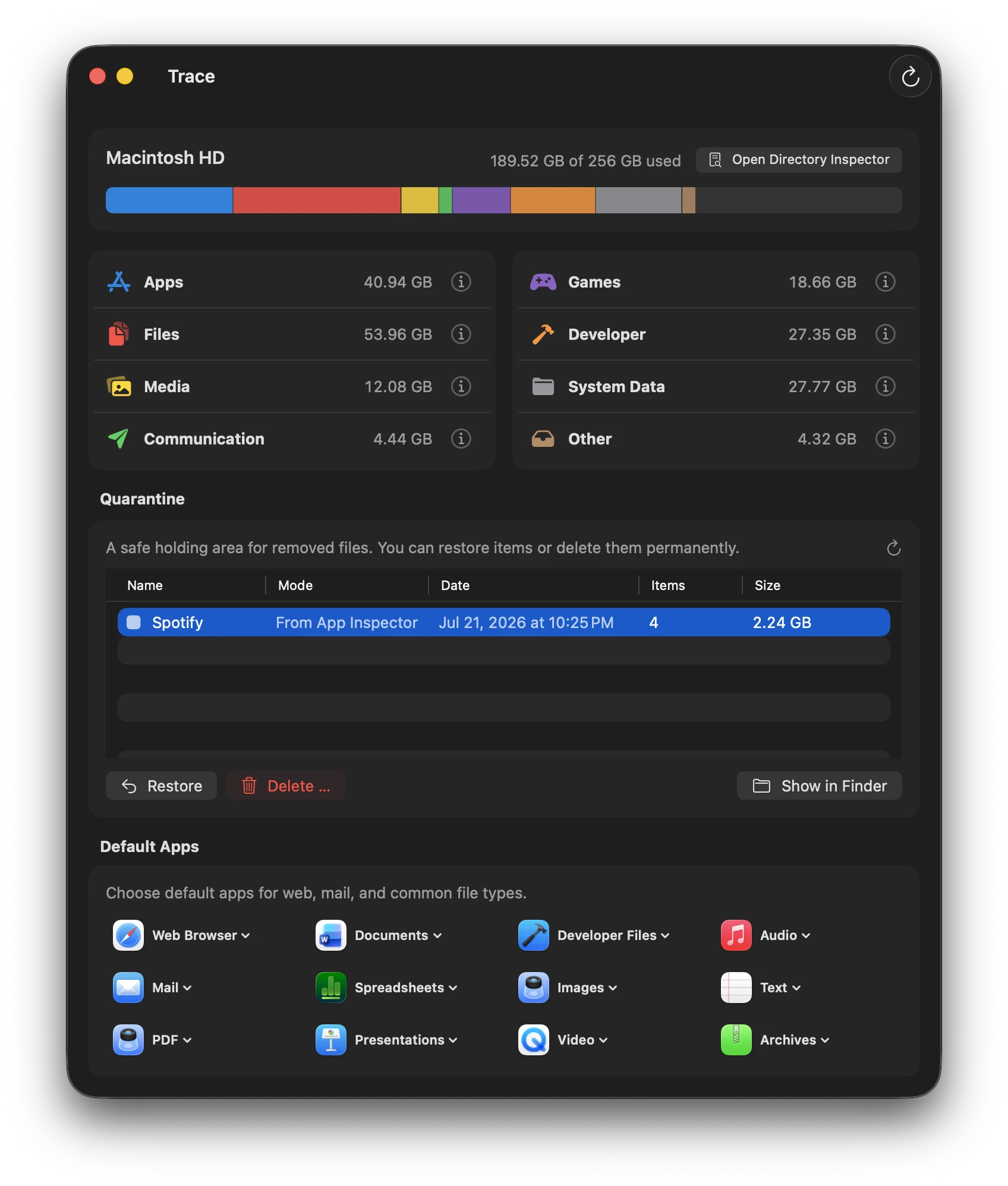
Trace groups storage into Apps, Files, Media, Communication, Games, Development, System Data, and Other. It breaks System Data down into caches, containers, logs, and snapshots. The Directory Inspector lets you drill down to individual files. Trace Agent notices apps moved to the Trash and suggests associated files for review. Risk indicators highlight data that may be shared by several apps. Eligible items can be held in quarantine and restored later. All sizes shown are examples; not every removal action can be undone.
02 / Features
A storage total only tells part of the story. Trace shows how the files fit together.
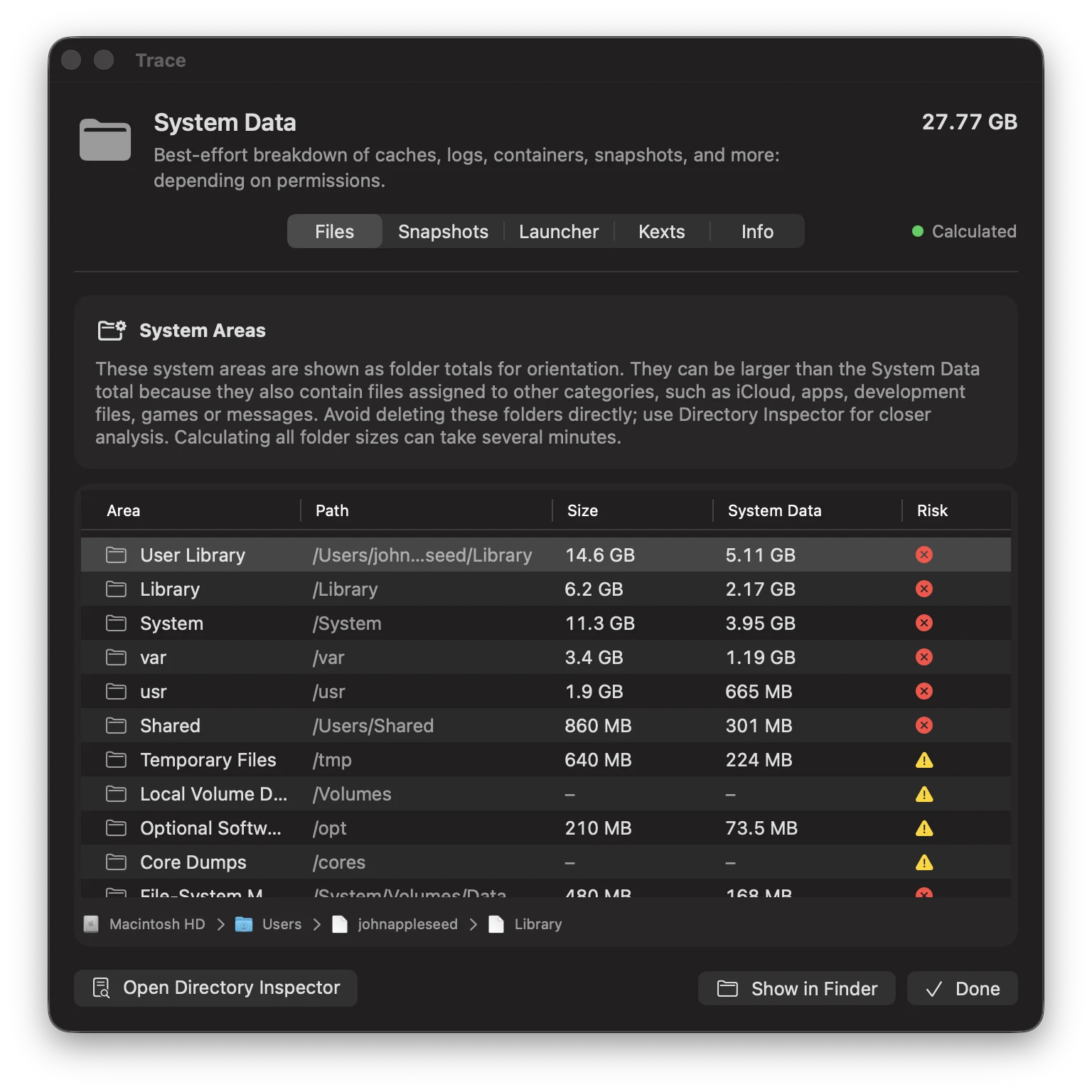
See what macOS groups under “System Data.” Trace breaks it down using the data it can access.
Find installations, mods, caches, and saves from supported launchers.
See which files are stored on your Mac and which are available only in the cloud.
Manage formulas and casks. Check status and diagnostics in Terminal with tracectl.
03 / Control
See what belongs together, what else might be affected, and which removal option fits.
How Trace worksTrace explains why a file is associated with an app. Shared data is marked separately.
Before removing anything, review the files and their risk levels. You control the selection.
Eligible files can be set aside and restored if needed. Permanent deletion and certain system actions cannot be undone this way.
04 / Licenses
Every feature in every license.
Try the demo before you choose.
Single license
One activation.
Updates and email support included.
Multi-Mac license
Three activations.
Updates and priority support included.
Business
Volume licensing and invoicing.
Tailored to your needs.
All prices in EUR, excluding VAT.
Trace is a storage inspector and app uninstaller. It shows disk usage, file associations, and risks so you can make informed choices. It does not promise to make every Mac faster.
macOS protects certain data locations. Full Disk Access lets Trace analyze those areas too. Without it, the overview may be incomplete.
Logical file size, disk space used, and category totals measure different things. Trace explains these differences and the limits of its analysis.
Files still in Trace’s quarantine can be restored. Permanent deletion, snapshot removal, and other irreversible actions cannot be undone.
Trace requires macOS 15 or later and supports both Apple silicon and Intel Macs.
Use the demo to analyze storage and review file associations. Trace Agent is fully usable for free, including removal actions. A license unlocks the other paid actions.
Try Trace on your Mac.