
Basics / 01
Overview
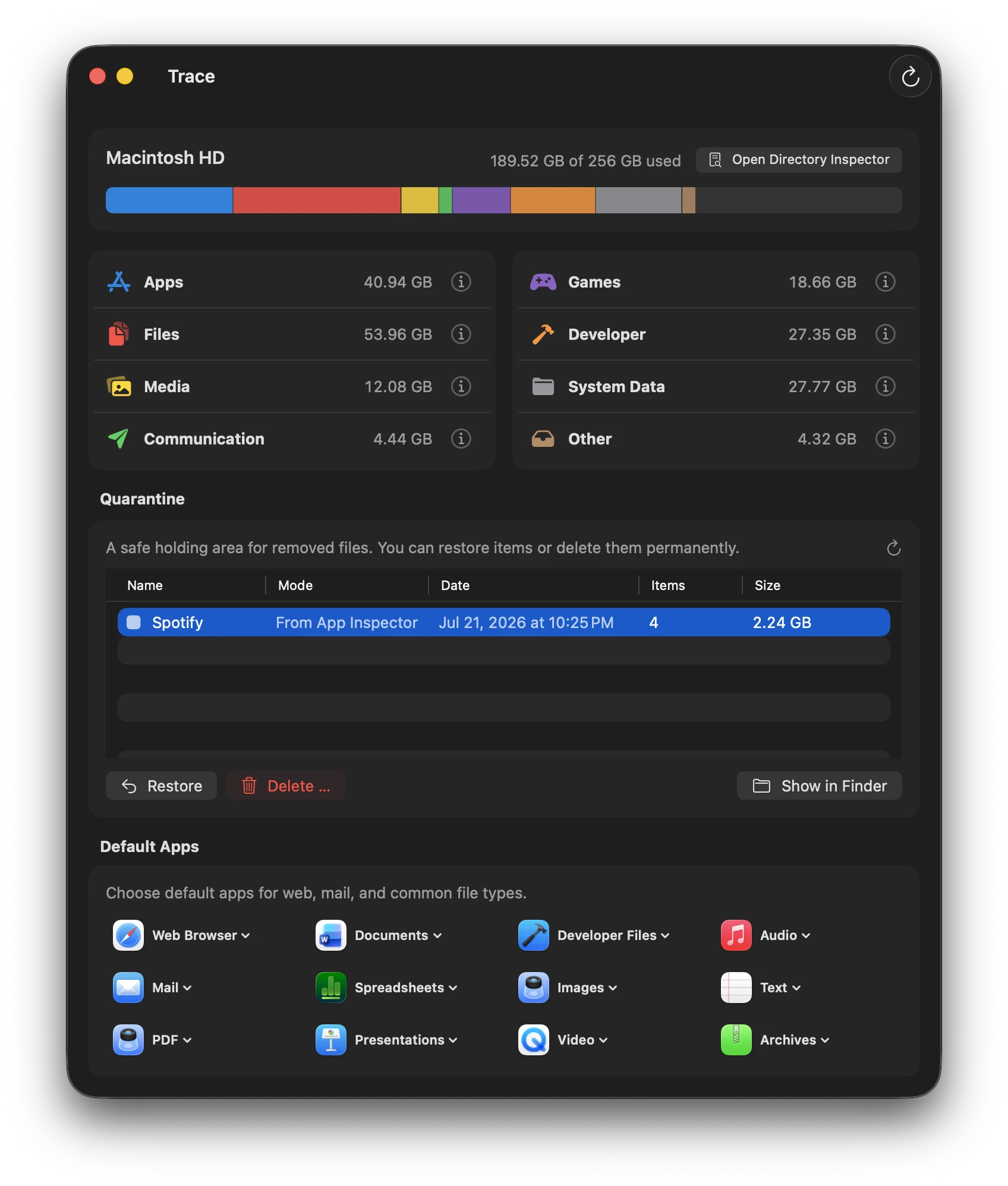
Trace shows what occupies your Mac’s storage, associates files with apps and categories, and helps you review the effects before removing anything. Open a category from the dashboard or explore a folder in the Directory Inspector.
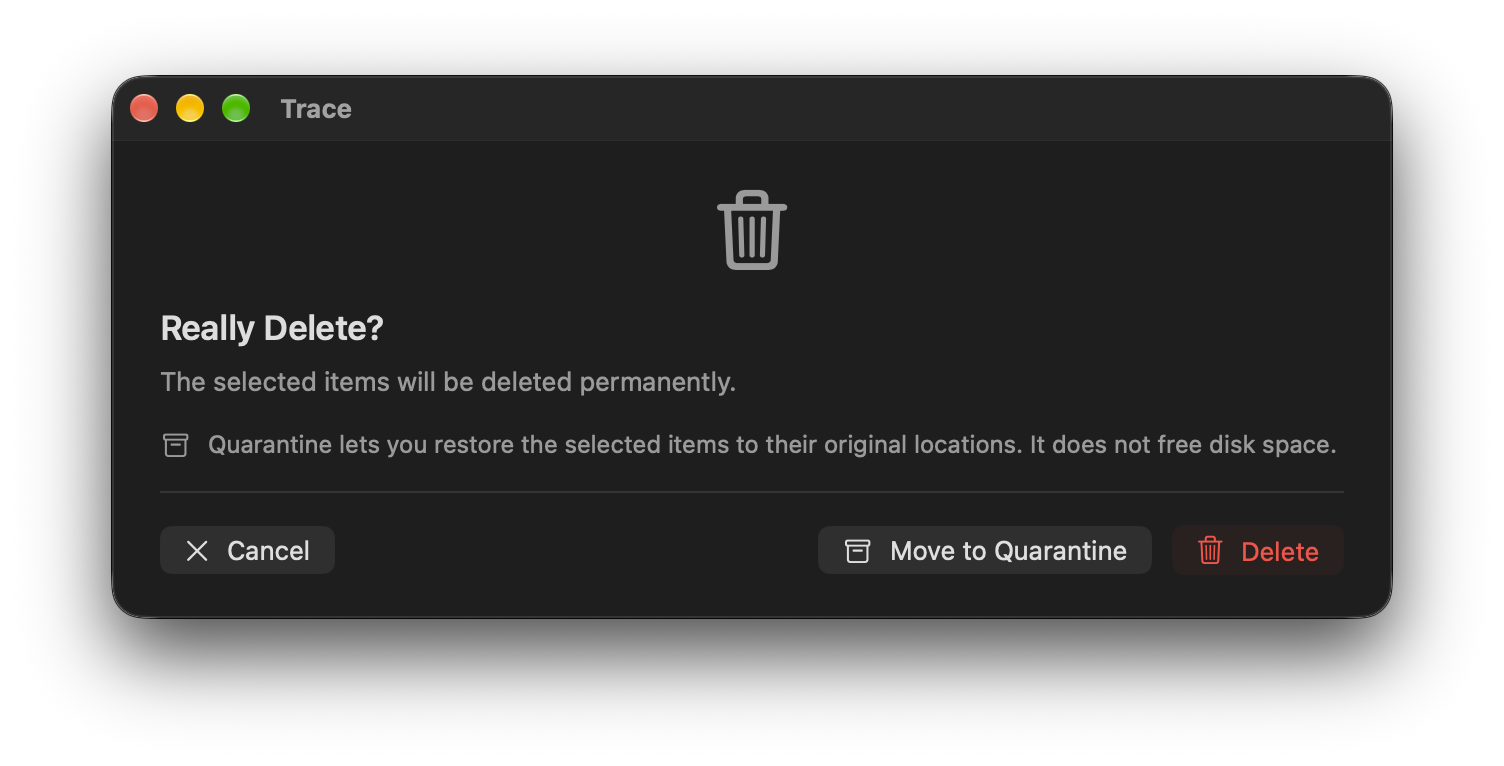
On first launch, a full scan starts automatically once permissions and required services are ready. Existing results remain visible while further checks run. Before removal, the confirmation explains whether items will go to the Trash, into quarantine, or be deleted permanently. These actions have different consequences.
Basics / 02
Storage calculation
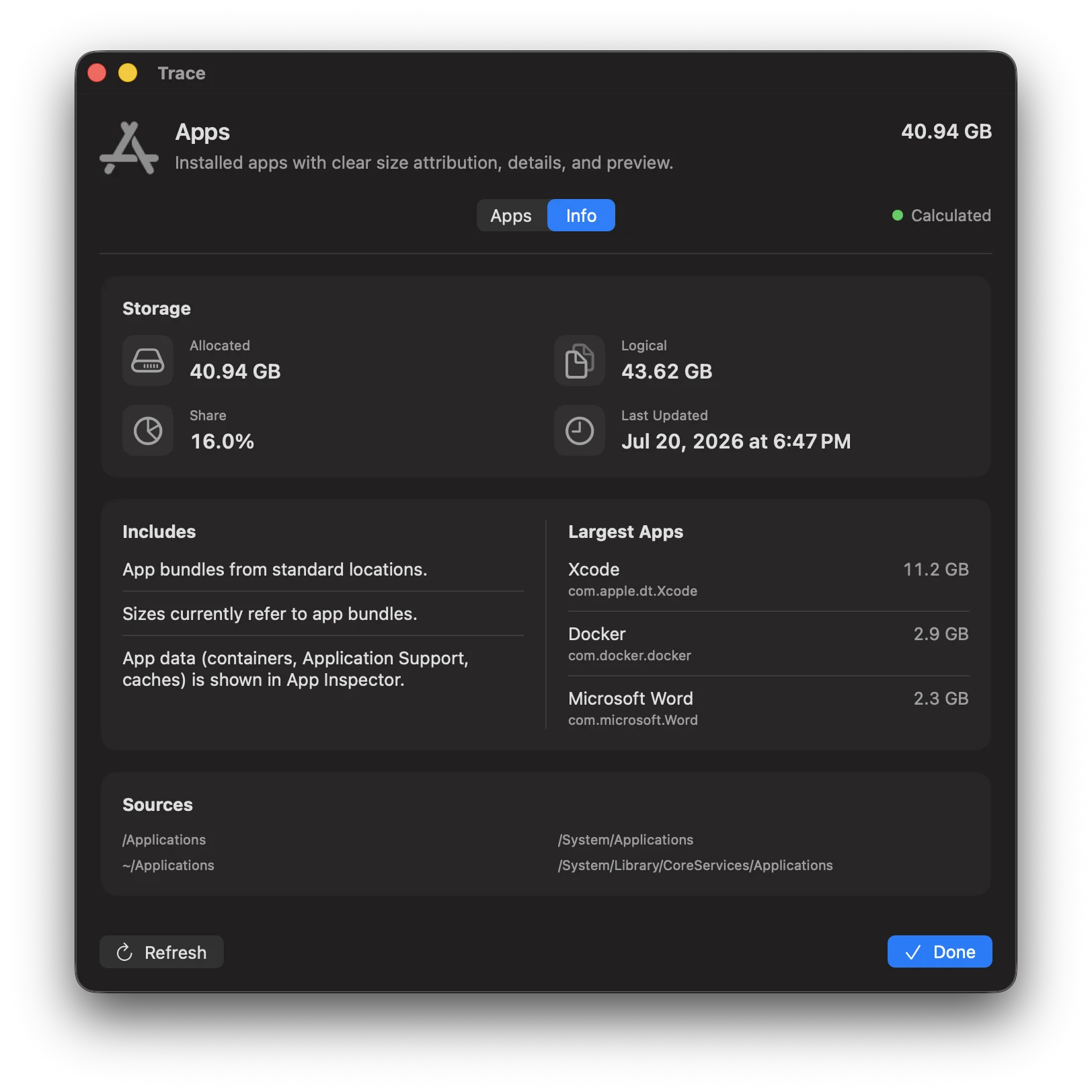
Trace distinguishes logical file size from bytes allocated on disk. Sparse files such as Docker.raw can have a much larger logical size than their disk usage. A folder’s size already includes its subfolders and files: a folder and a file inside it are not two independent contributions to total usage.
Hard links and APFS clones can share storage. An allocated size is therefore not automatically the amount that deleting that item would reclaim. Trace uses available filesystem information and avoids assigning the same data to multiple categories. Protected areas, snapshots, and APFS metadata can limit exact attribution of individual bytes.

Basics / 03
Differences vs. macOS
If you compare Trace with macOS System Settings (Storage), you'll notice differences. That's intentional:
| Aspect | macOS | Trace |
|---|---|---|
| Categories | Internal heuristics, not disclosed | Transparent categories with clear rules |
| System Data | Large “black box” | Best-effort breakdown into caches, logs, containers, snapshots, etc. |
| APFS features | Partly hidden | Snapshots, cloning, and sparse files made explicit |
| Calculation | Fast, but imprecise | Precise at file level (takes longer on large volumes) |
Why totals don't match
The sum of all Trace categories won't exactly equal “Used” in System Settings. This is due to:
- APFS metadata and reservations
- permission gaps (areas Trace can't read)
- different categorization
Trace explains the main reasons; a small remainder may be unavoidable and can't always be attributed to individual files.
Basics / 04
Scans and the Watcher
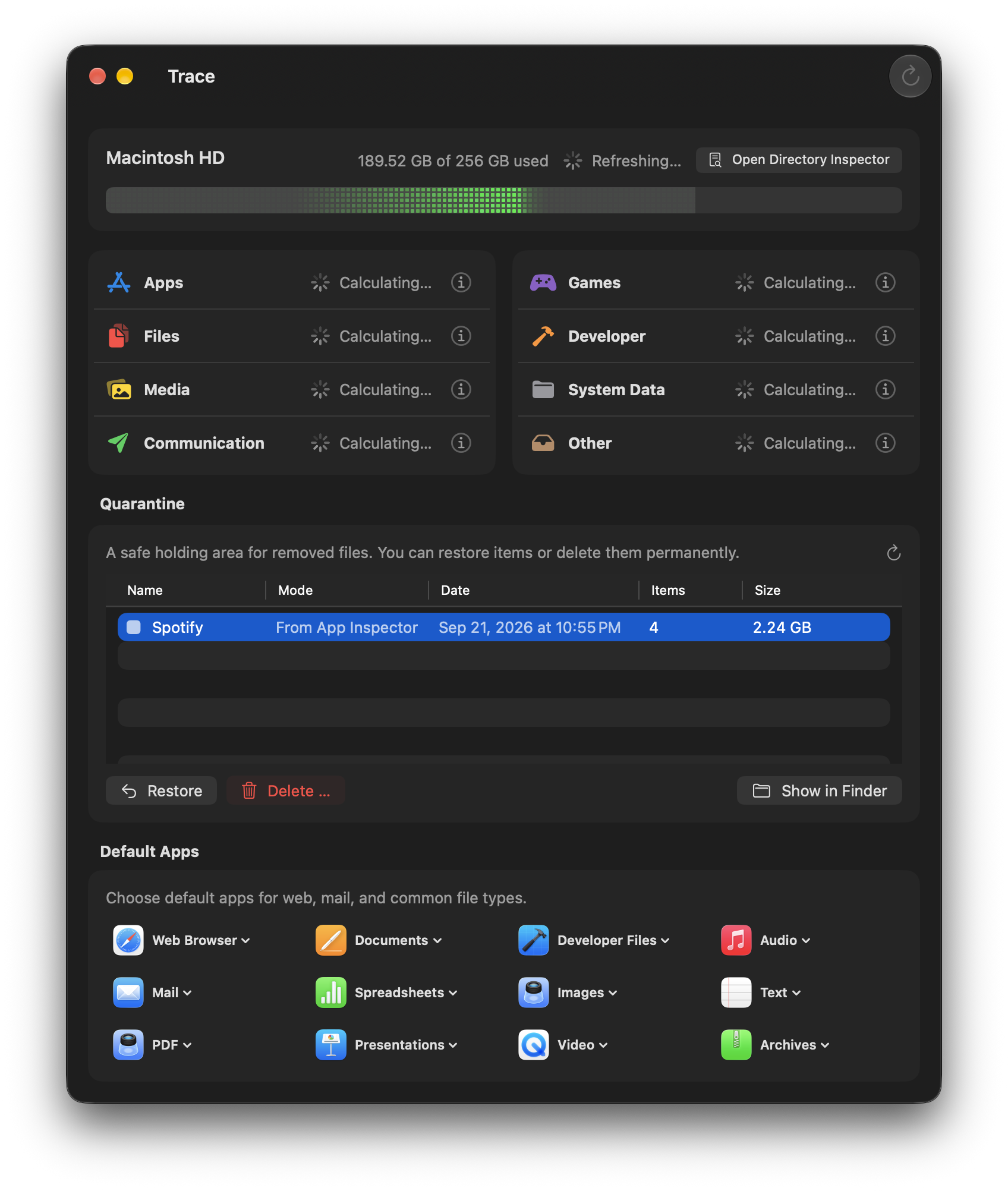
Trace first shows drive usage and available preliminary results, then runs the full scan automatically. More files can mean a longer scan; a time or file-count limit alone must not turn unfinished work into a completed result. Use Refresh when you want to start a new run.
The Watcher detects filesystem changes and records which areas need another check. Valid saved results can be reused on the next launch. It does not run a continuous full scan or delete anything automatically. Hiding the menu bar icon does not necessarily stop background monitoring.
“Calculated” means the requested run finished normally. macOS access restrictions may still limit the detail available. A confirmed empty area is 0 KB; an unknown value is not automatically zero. The estimated duration is guidance, not a deadline that stops the scan.
Categories / 05
Apps
All installed apps from /Applications, ~/Applications, and system apps. Trace shows not only the bundle, but also associated app data.
What Trace includes
- App bundle (.app)
- Container (
~/Library/Containers/<bundleID>) - Group Container (
~/Library/Group Containers/...) - Caches, Preferences, Logs, Saved State
- Application Support folders
Open the largest apps in App Inspector and start with “Cache”. It's usually the safest first step before touching user data.
Typical large items
- Application Support: libraries, downloads, assets (e.g. Adobe/Microsoft/media tools)
- Caches: browsers, creative tools, messengers
- Group Containers: shared data between apps (suites) – handle with care
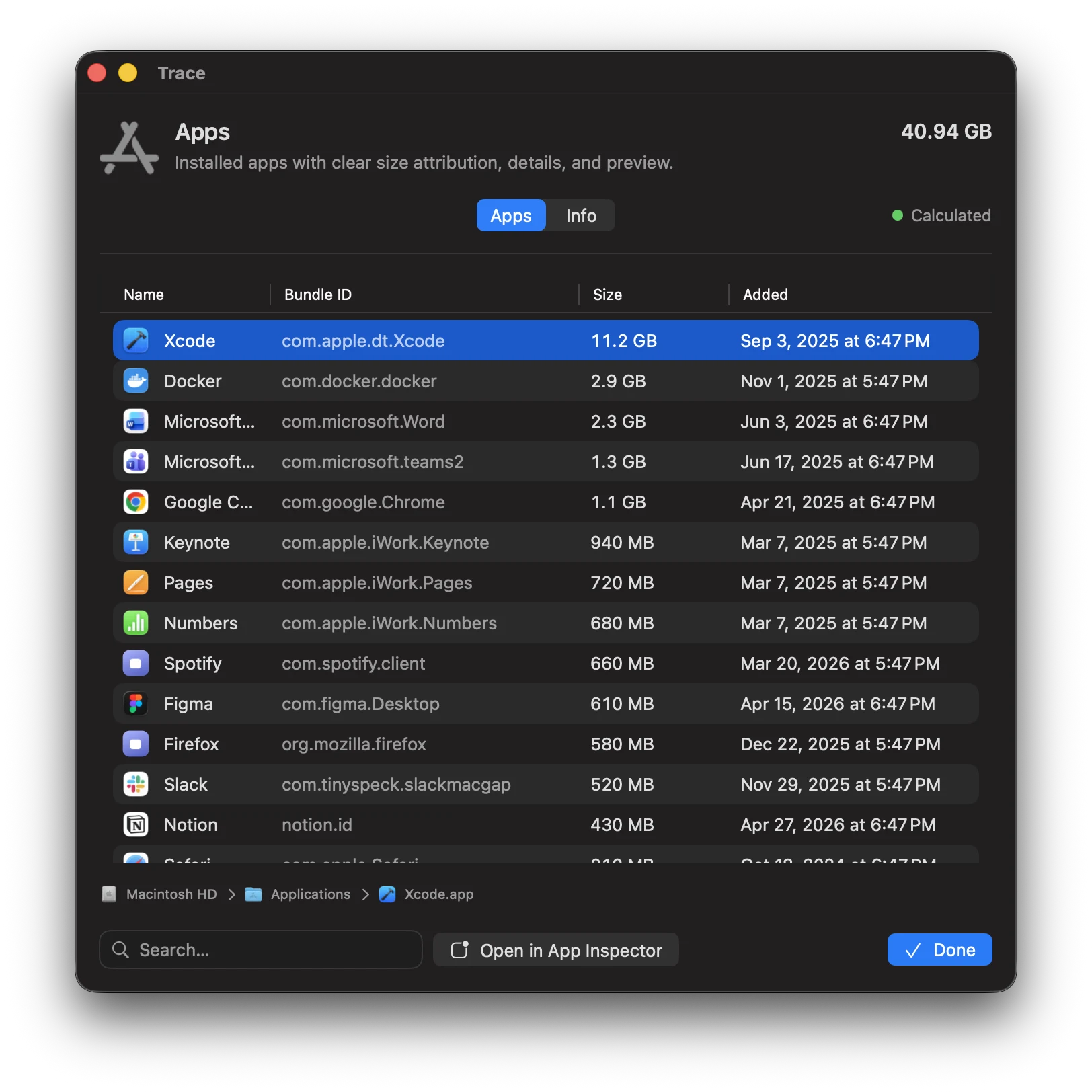
Apps tab
Lists installed apps by size and lets you jump straight into App Inspector.
Categories / 06
Files
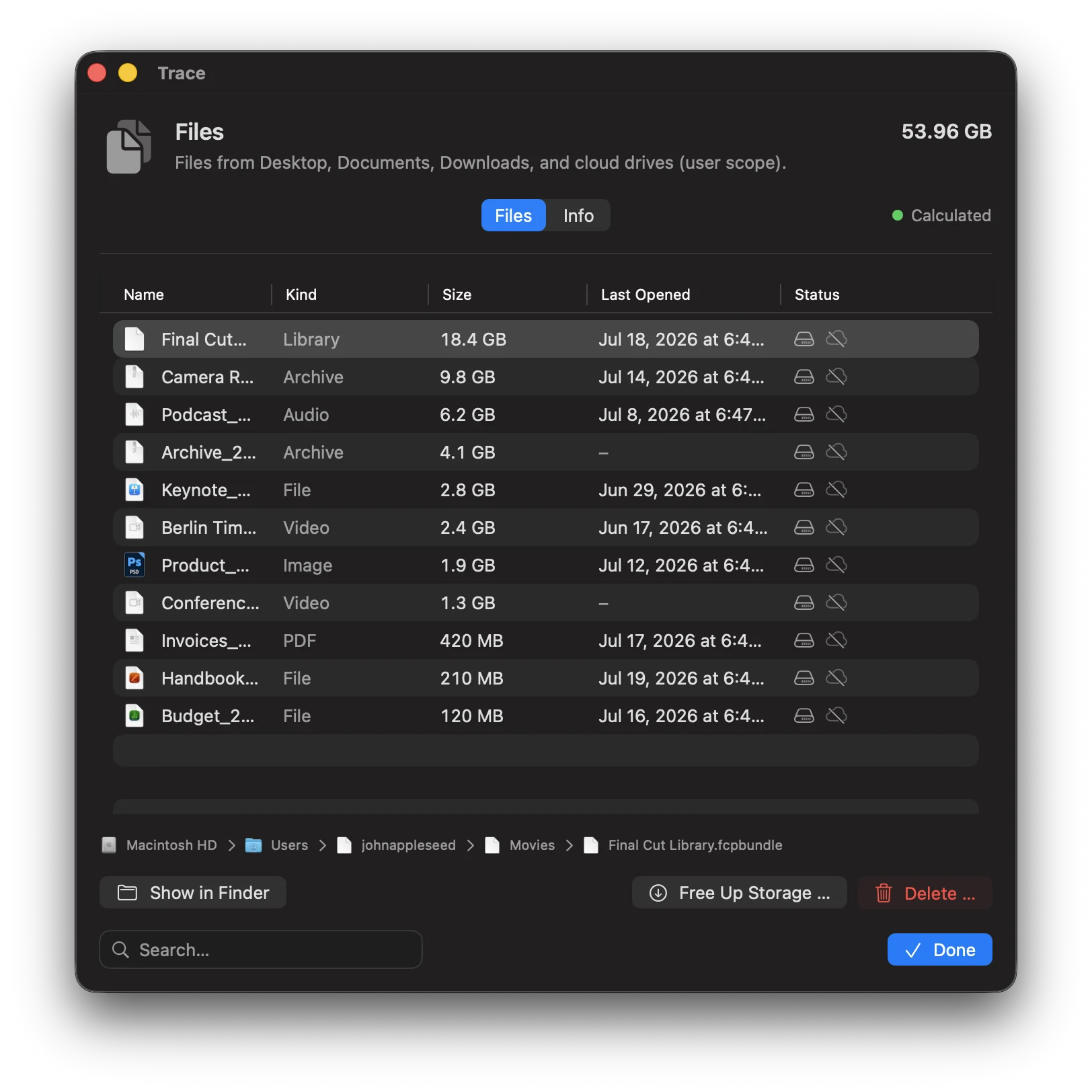
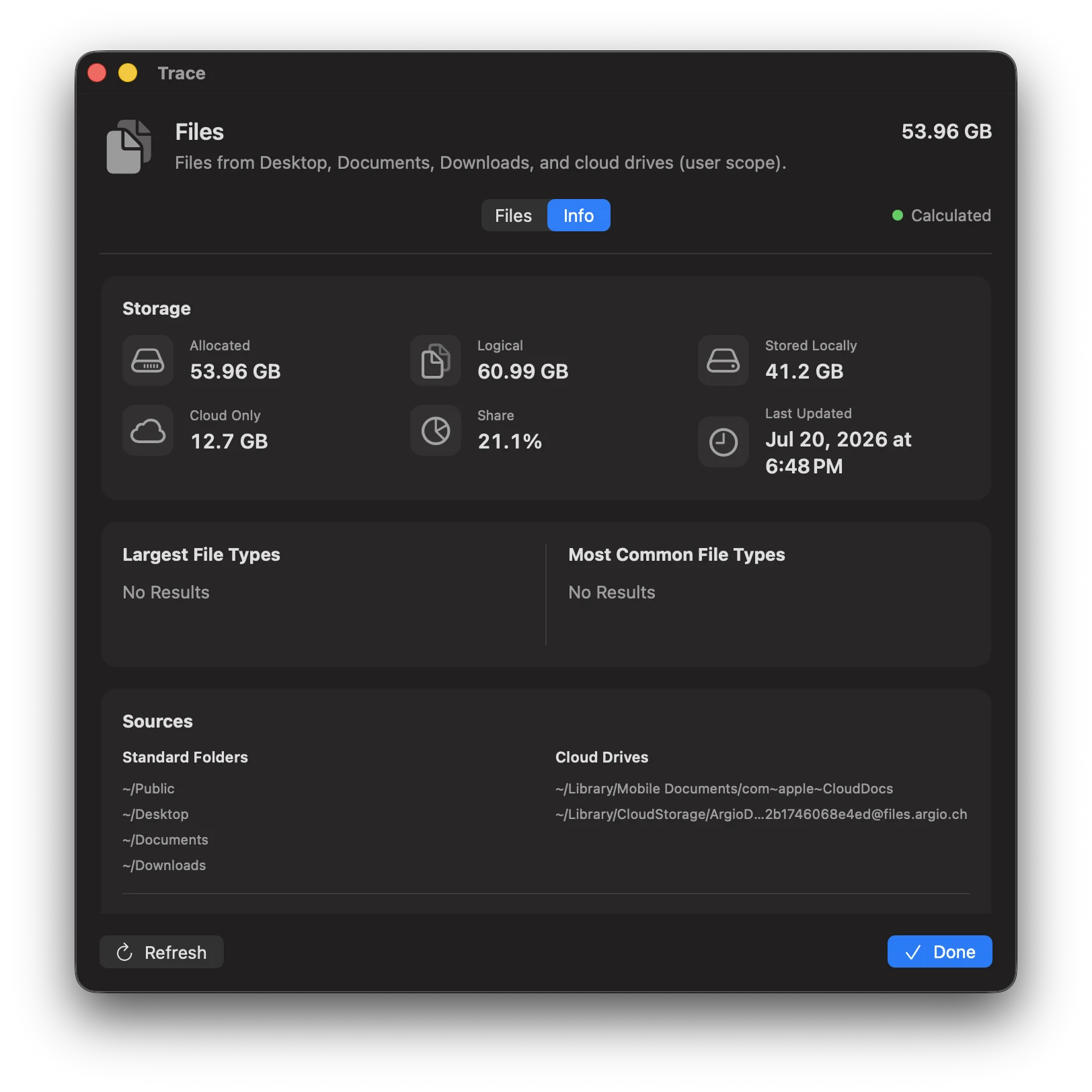
User documents and downloads – your own files, including iCloud Drive and cloud drives like Dropbox/OneDrive. Trace shows what's actually stored locally and what lives only in the cloud. Free up space without deleting cloud data.
Included paths
~/Desktop,~/Documents,~/Downloads,~/Public- Other top-level folders in your home directory (except Library, Pictures, Movies, Music)
- iCloud Drive (
~/Library/Mobile Documents/com~apple~CloudDocs) - Cloud Storage (Dropbox, OneDrive etc. via
~/Library/CloudStorage)
Cloud status
Trace detects whether items are stored locally, cloud-only, or mixed. With “Free up space”, local on-demand copies can be removed without deleting cloud data.
Trace removes only local on-demand copies and keeps data in iCloud/cloud drives. Depending on size, preparation may take a few minutes.
Practical tips
- For large folders: use Directory Inspector to drill down step by step.
- For quick wins: start with Downloads and large archive/installer files.
Categories / 07
Media
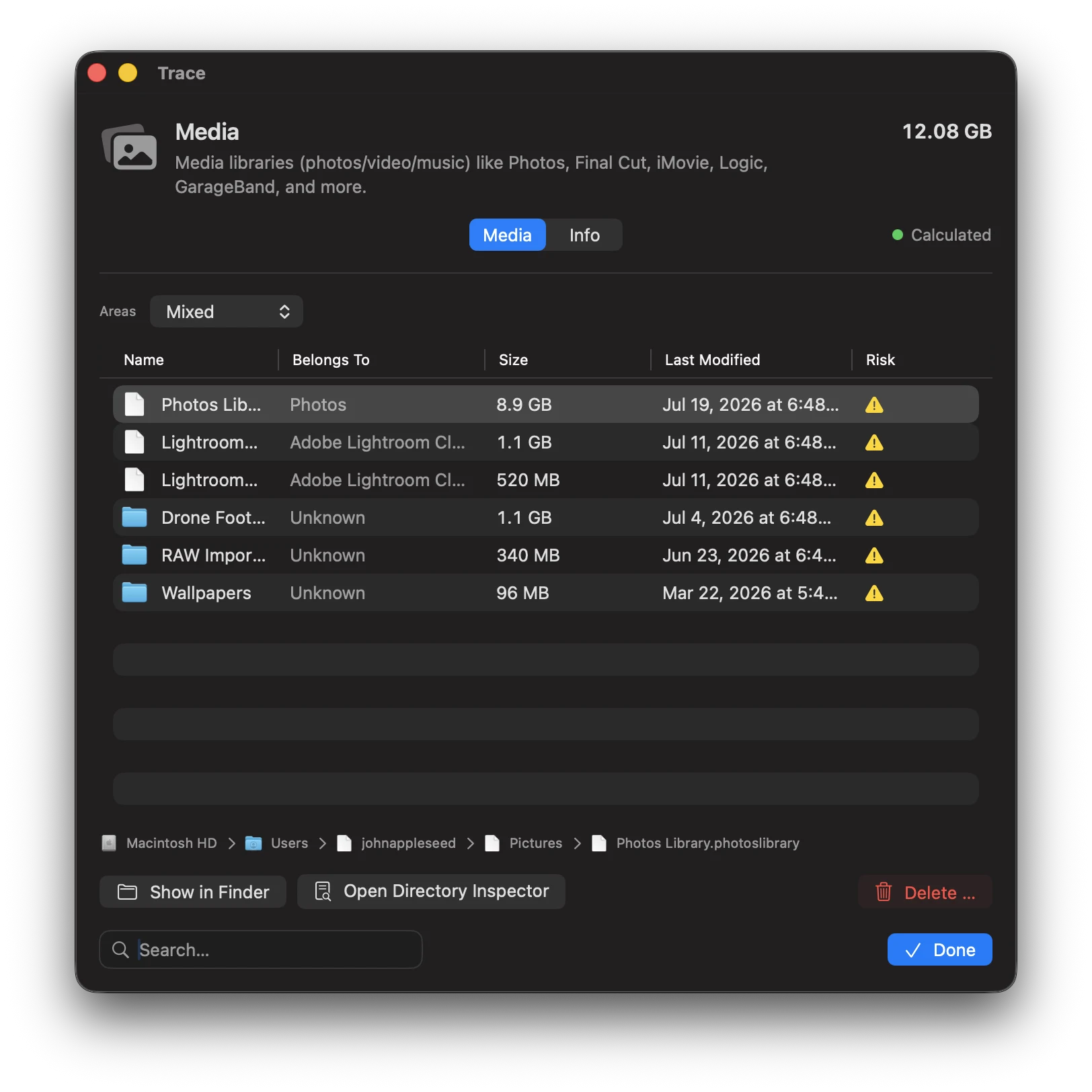
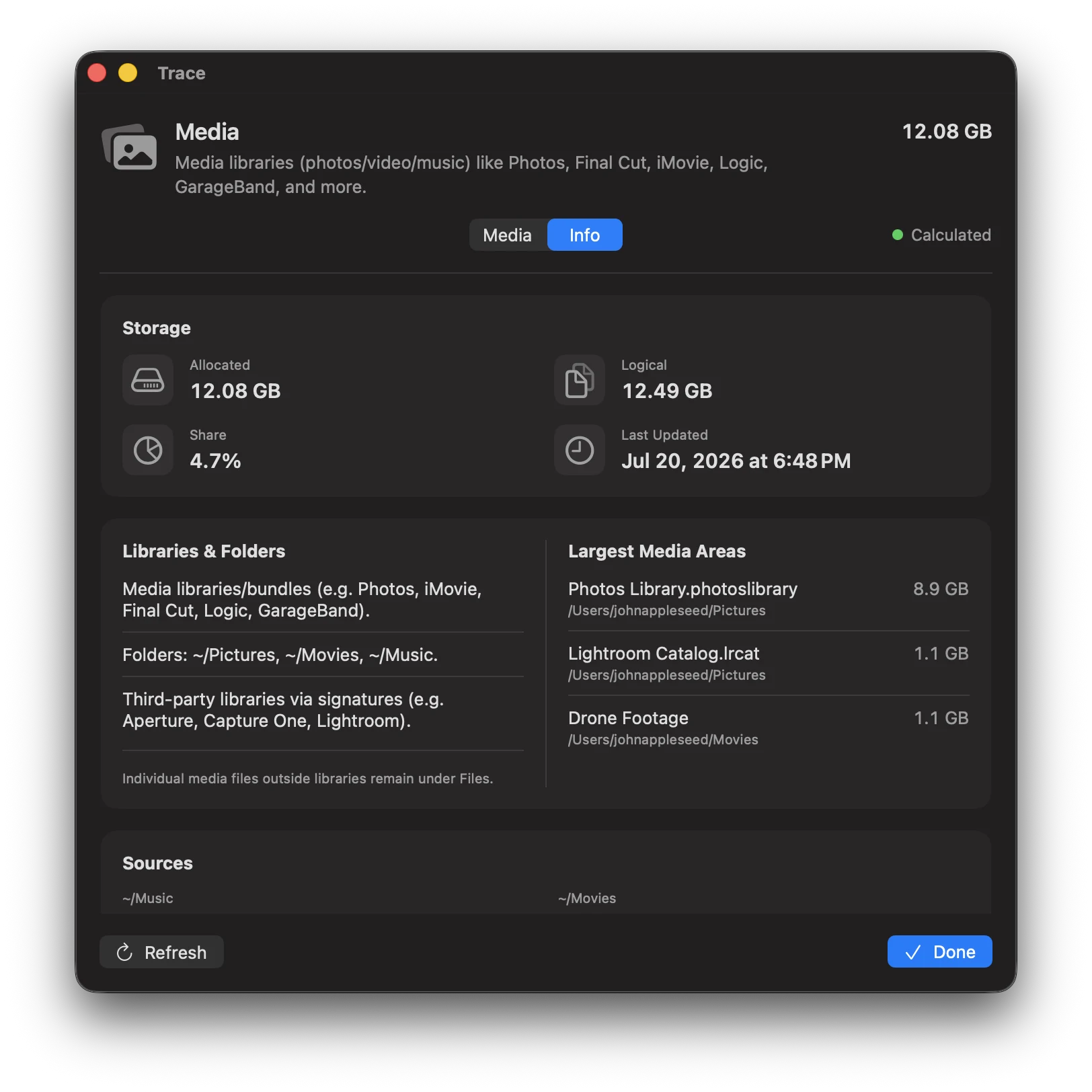
Photo, video, and audio libraries can quickly reach double-digit GB – often packaged as bundles (e.g. Photos Library, Final Cut Pro, Logic). Trace detects these libraries and shows their footprint transparently, so you can clean up without accidentally deleting an entire library.
Included paths
~/Pictures,~/Movies,~/Music- Libraries/Packages:
.photoslibrary,.fcpbundle,.imovielibrary,.logicx,.band - System-wide libraries (GarageBand, Logic)
Photo/video libraries are often “bundles” (they look like a file, but are actually a folder). Deleting can remove entire libraries. Trace helps you find and understand them – delete only what you truly no longer need.
Categories / 08
Games
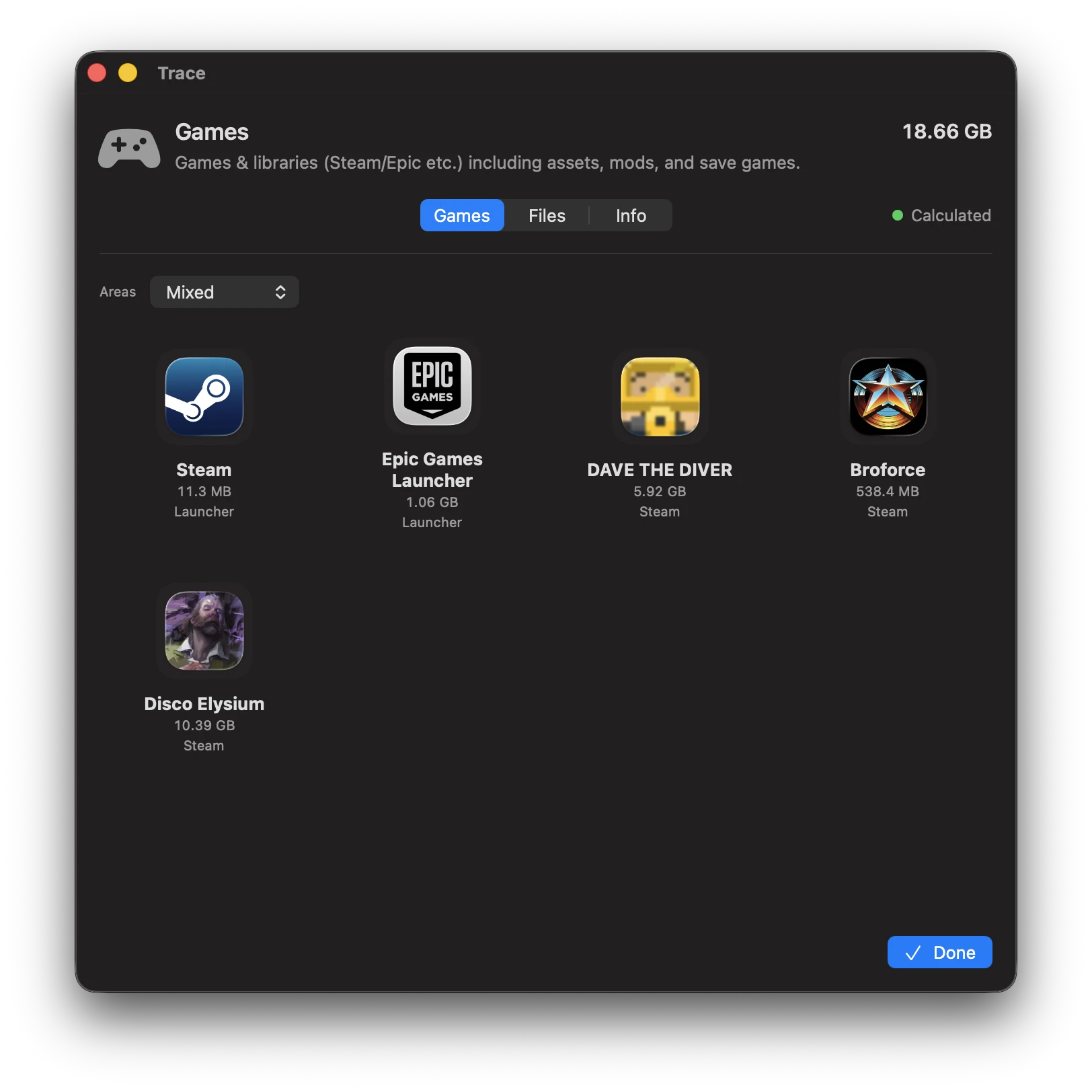
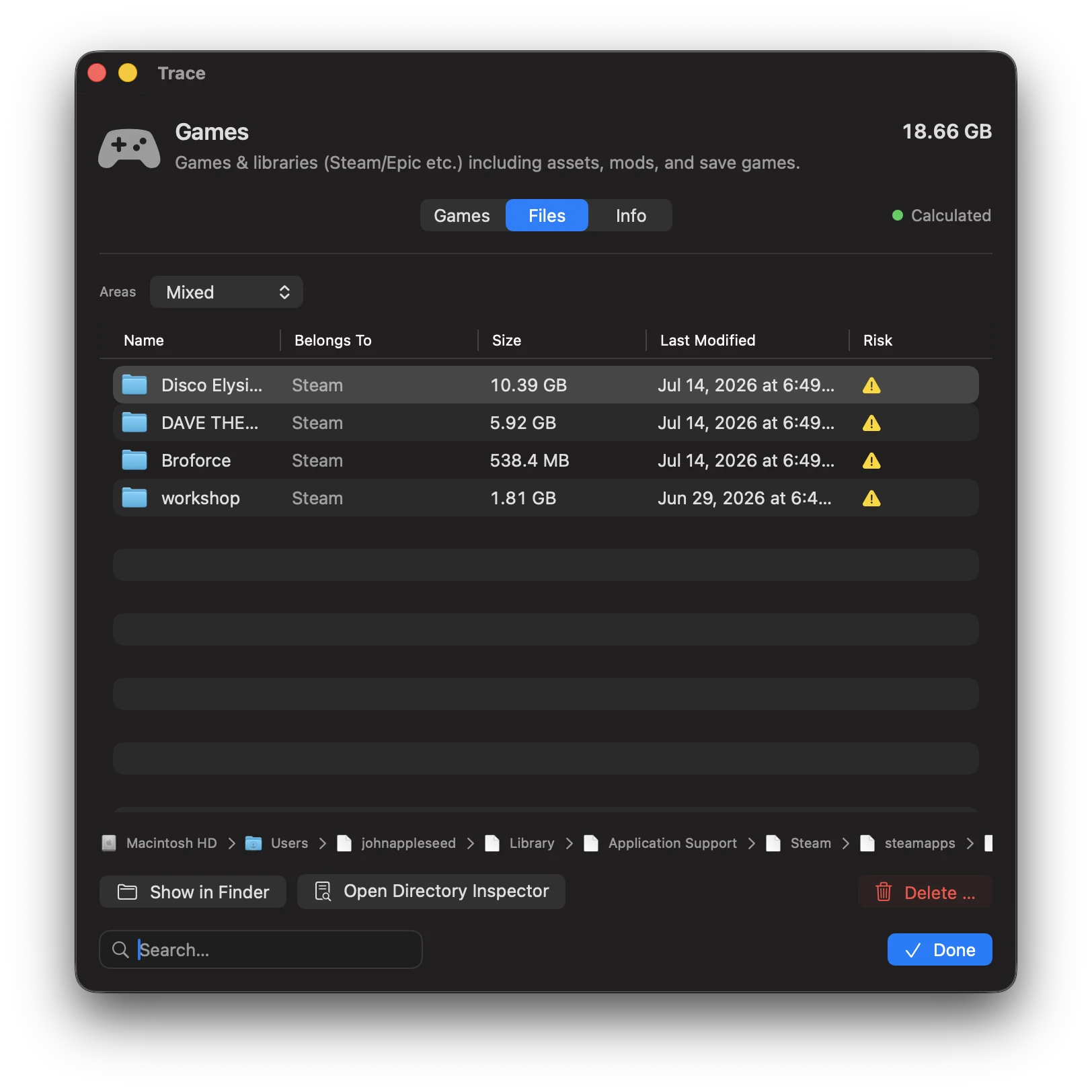
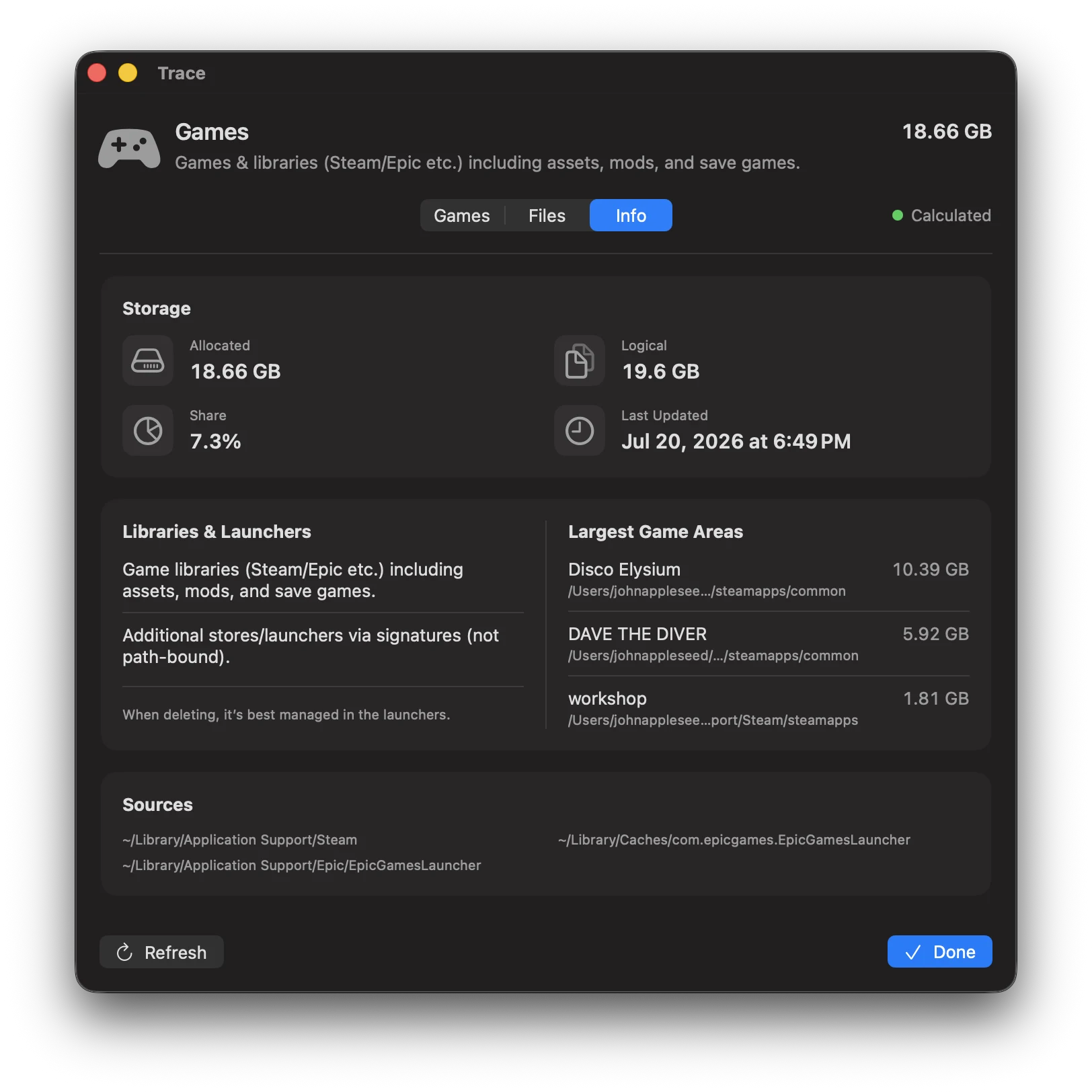
Game libraries from launchers (e.g. Steam) including assets, mods, and save games.
How Trace detects games
- Manifests/marker files: Trace uses launcher manifests (e.g. Steam
steamapps/appmanifest_*.acf) to reliably detect installed games. - Library folders: the actual data usually lives in launcher library directories (e.g.
~/Library/Application Support/Steam/steamapps) or on other volumes. - Dedicated Game Inspector: detected games show up as separate entries – apart from regular app bundles.
Note: games installed only as regular apps (without a launcher library) may show up under Apps depending on your setup.
Typical large items
- Installation assets: game data in launcher libraries (often double-digit GB)
- Mods/workshop: extra content that accumulates over time
- Caches: shader/download caches (usually rebuildable, but may take time to rebuild)
Games tab
Shows detected games and their size. For each title, open Game Inspector to manage assets, mods, caches, and saves.
Categories / 09
Communication
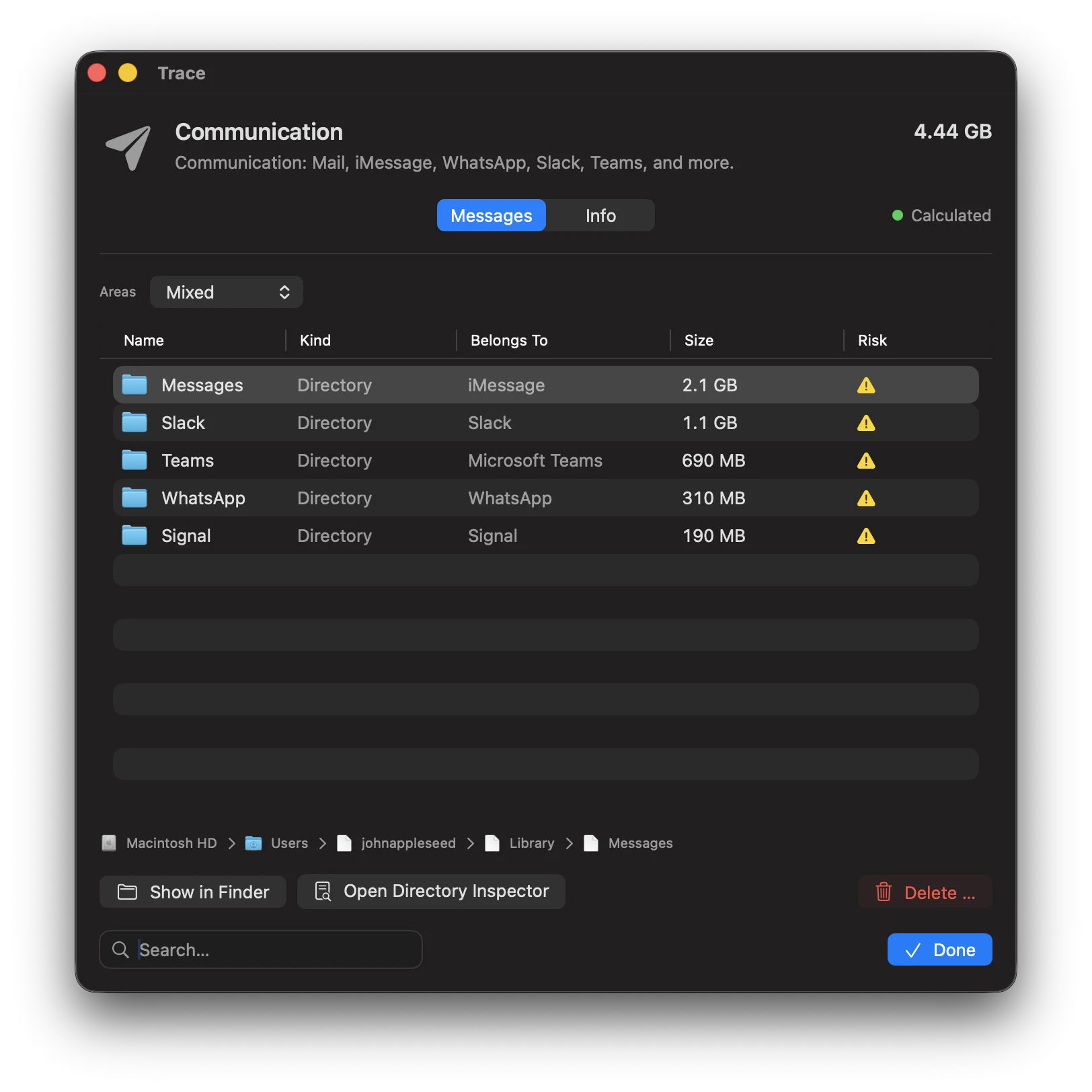
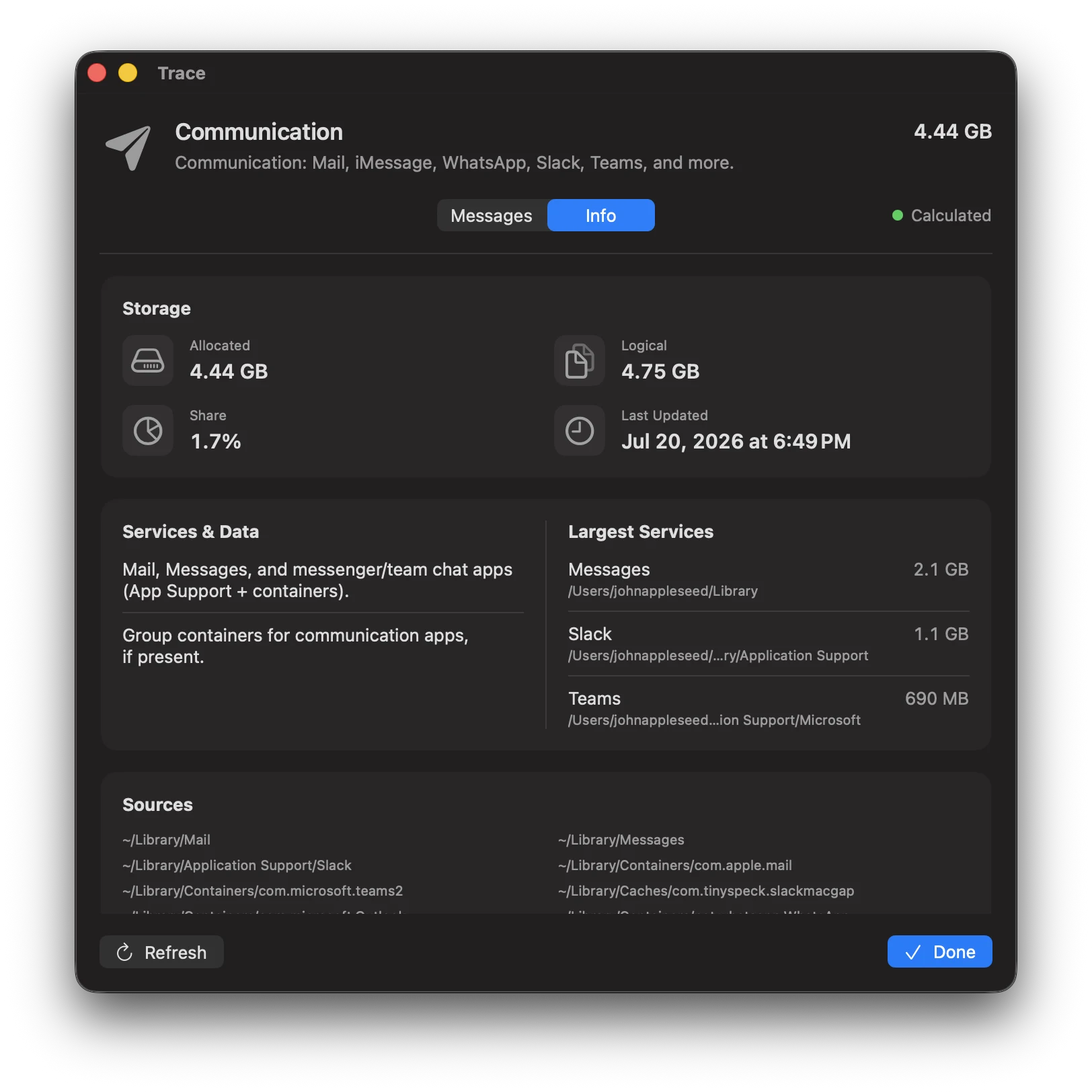
Mail and chat apps often store attachments, media, and databases locally, even when content looks “online” in the app. Trace makes these storage hogs visible and shows what they belong to. Be especially careful here, because some apps use local databases directly.
Included paths
~/Library/Mail(Apple Mail)~/Library/Messages(iMessage)- Third-party apps via containers and group containers
What this is about
- Attachments: large attachments (mail/chats) can take up a lot of space.
- Offline caches: messengers often store media locally, even if it feels “in the cloud”.
- Be careful: deleting may remove data inside the app (e.g. local copies or databases).
Categories / 10
Development
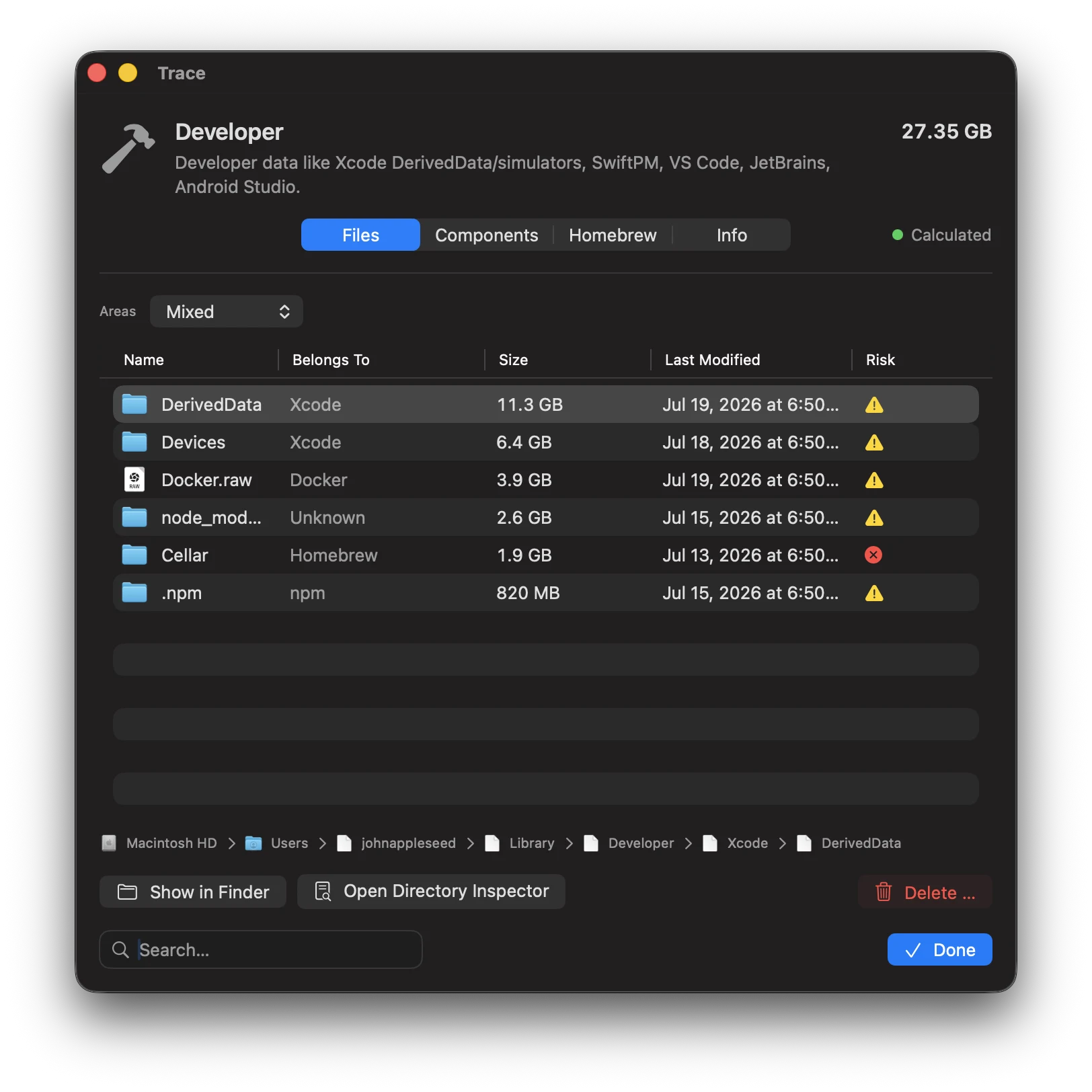
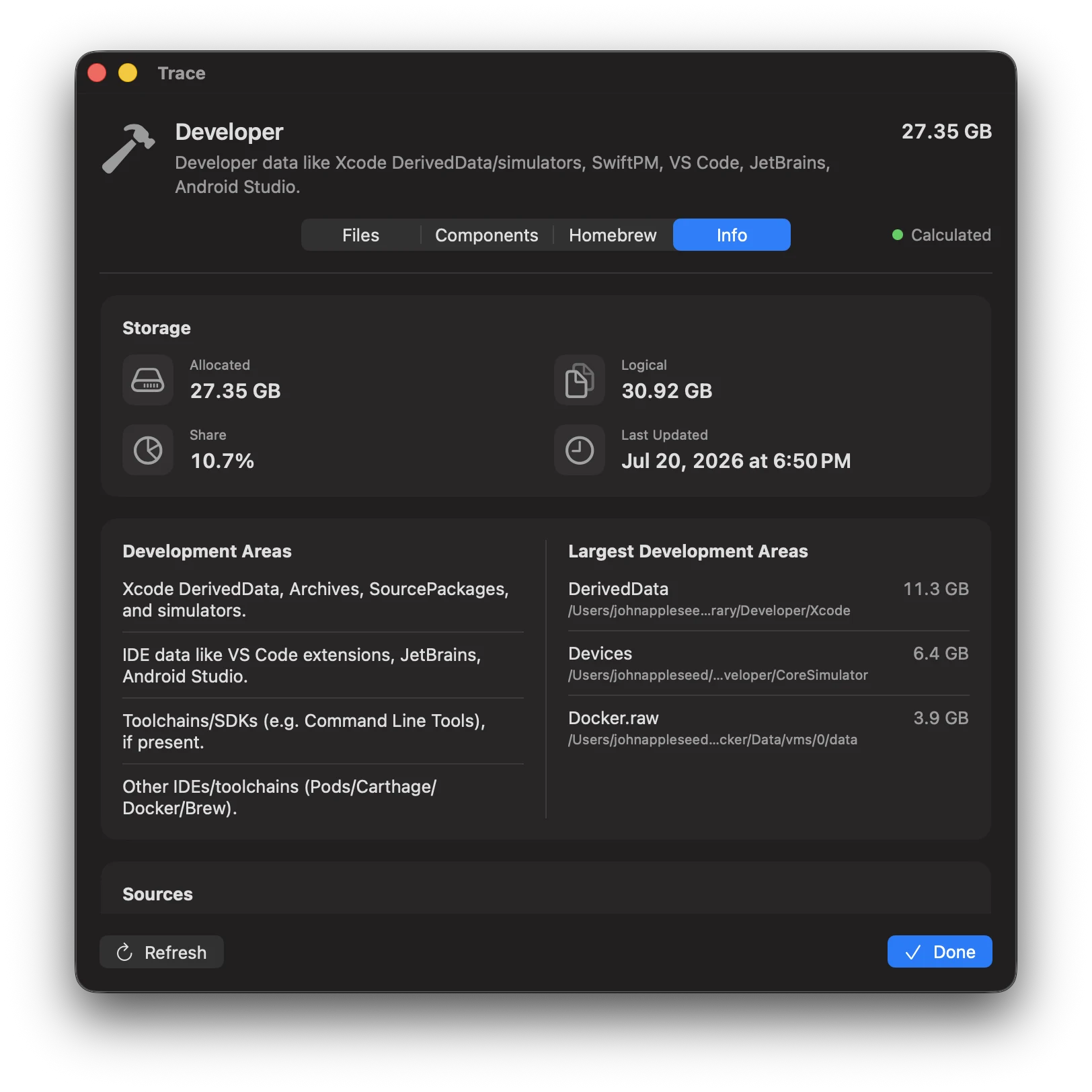
Build artifacts, simulators, toolchains, and package caches can take up a lot of space – not just in Xcode. Much of it is rebuildable and may reappear after cleanup. Trace helps you tell apart “safe to remove” vs. “better keep it”.
Included paths (selection)
~/Library/Developer(Xcode, simulators)~/Library/Caches/org.swift.swiftpm~/Library/Application Support/Code(VS Code)~/.vscode/extensions~/Library/Application Support/JetBrains
~/.android(Android SDK)/opt/homebrew,/usr/local~/.gradle,~/.m2,~/.npm~/.cargo,~/.rustup~/.pub-cache,~/.composer
Typical space hogs
- Xcode: DerivedData, simulators, device support
- Toolchains: Homebrew, Docker images, package caches (npm, Gradle, Maven, Cargo, …)
- IDEs: VS Code/JetBrains caches and indexes
Many of these are rebuildable – but rebuilding can take time. Trace helps you find large items and make informed decisions.
Homebrew
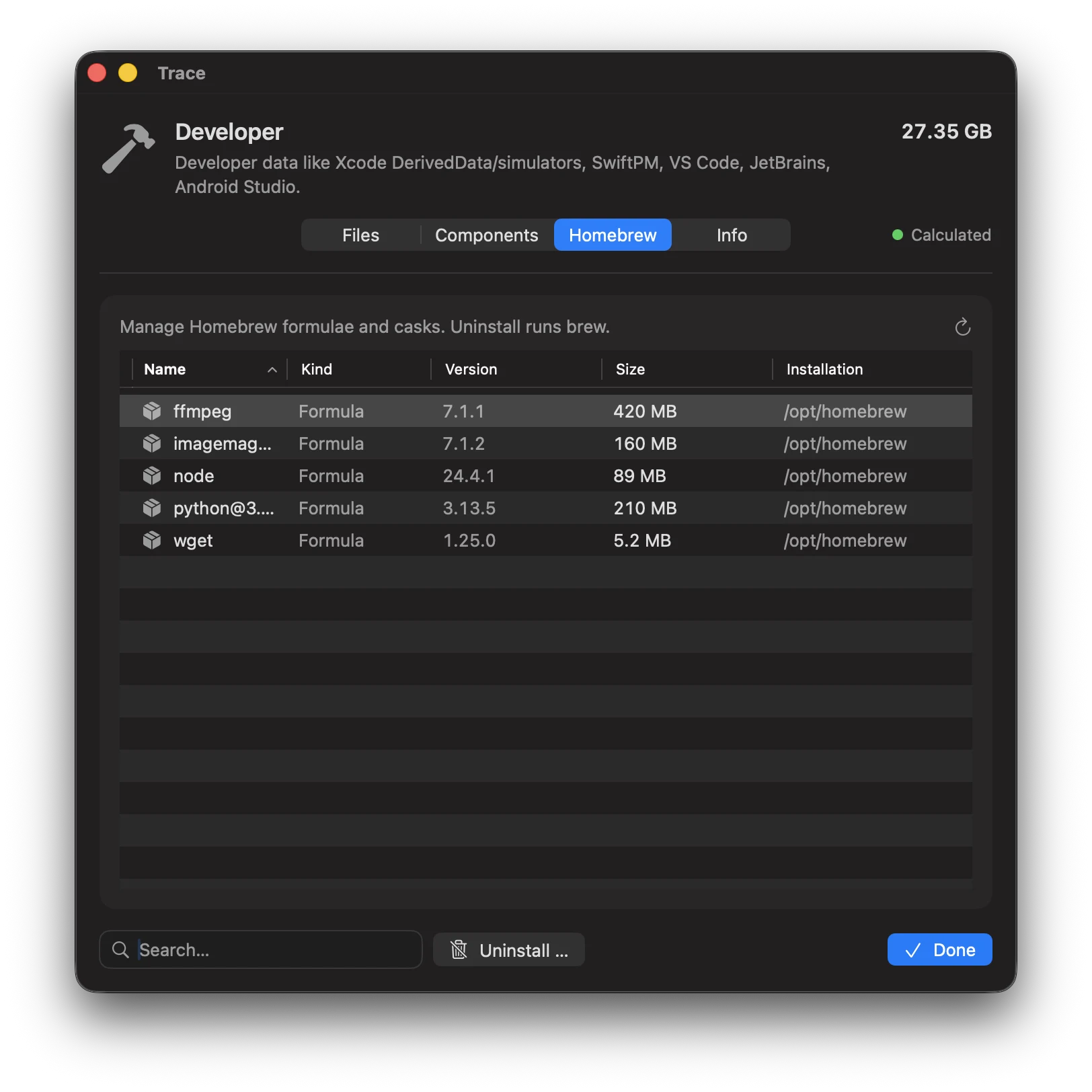
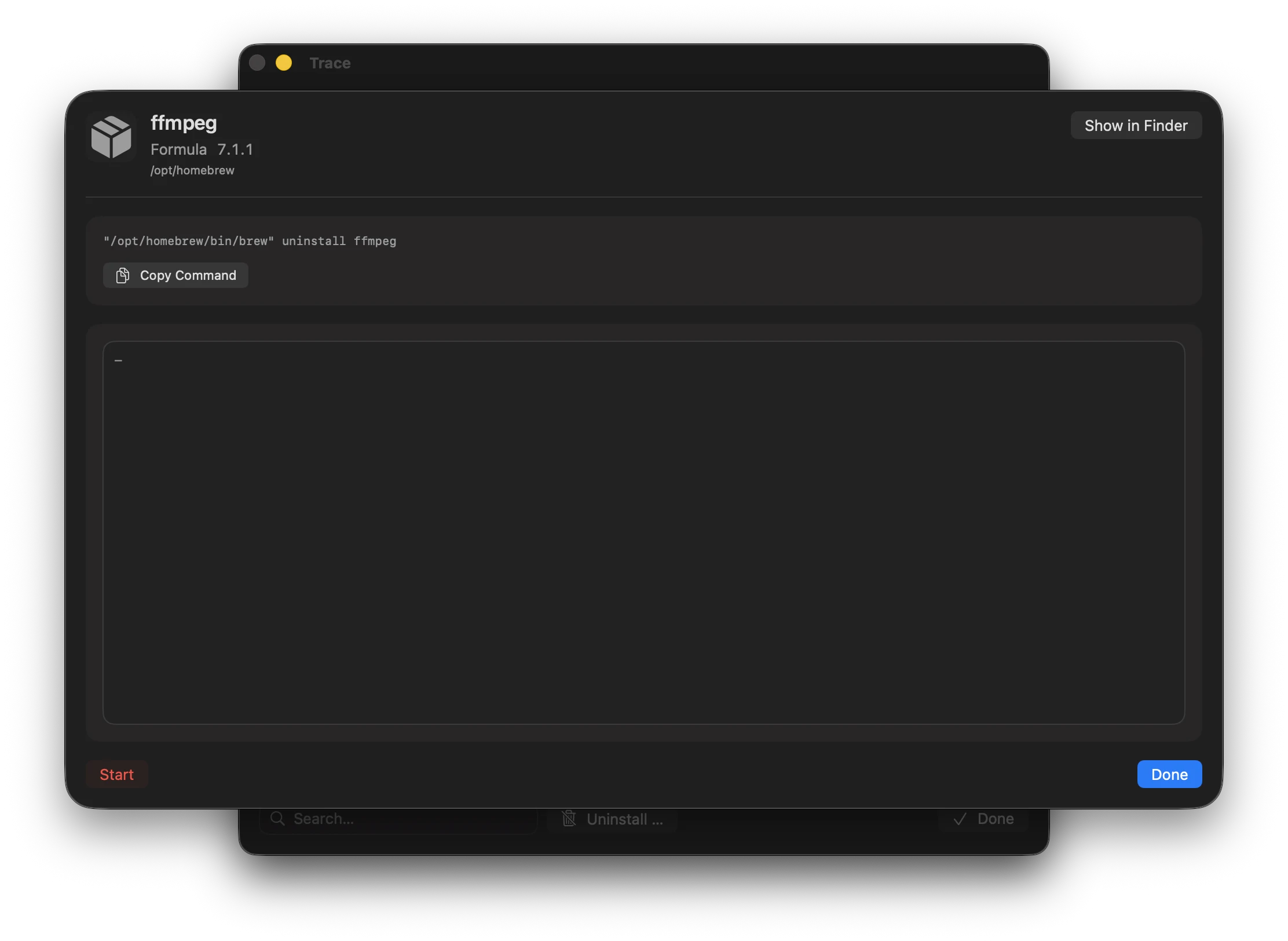
In the Development category details, the Homebrew tab lists installed formulae and casks and lets you uninstall individual packages via brew uninstall with live output.
- Detection: Looks for
/opt/homebrew/bin/brewand/usr/local/bin/brew(best effort). - Uninstall: Select a package and click Uninstall ….
Categories / 11
System Data
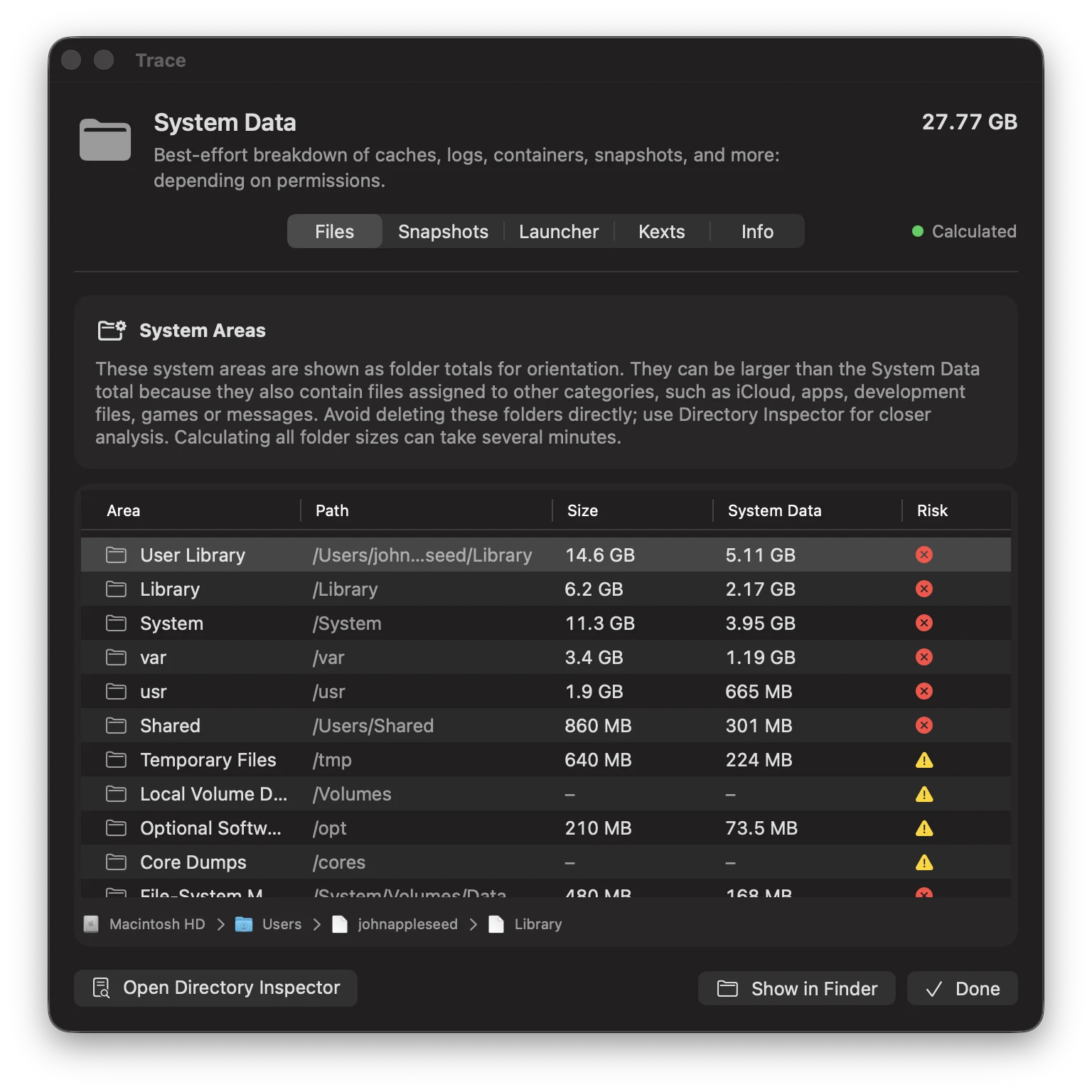
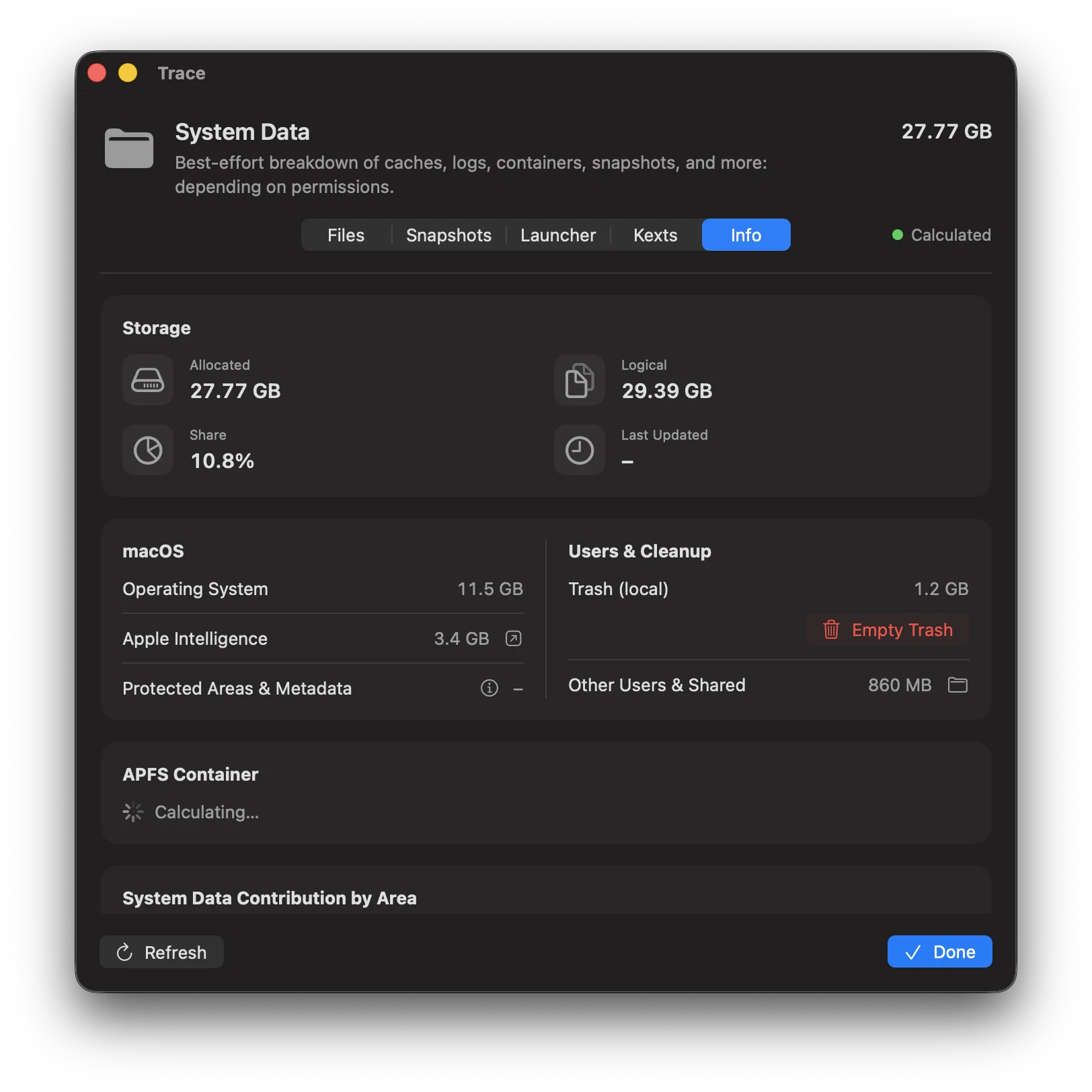
On the dashboard, System Data is the used storage remaining after the other categories are assigned. The detail view explains accessible parts and lists important system directories for reference. Their full folder sizes may also include apps, development data, or cloud files; do not add them on top of the category total.
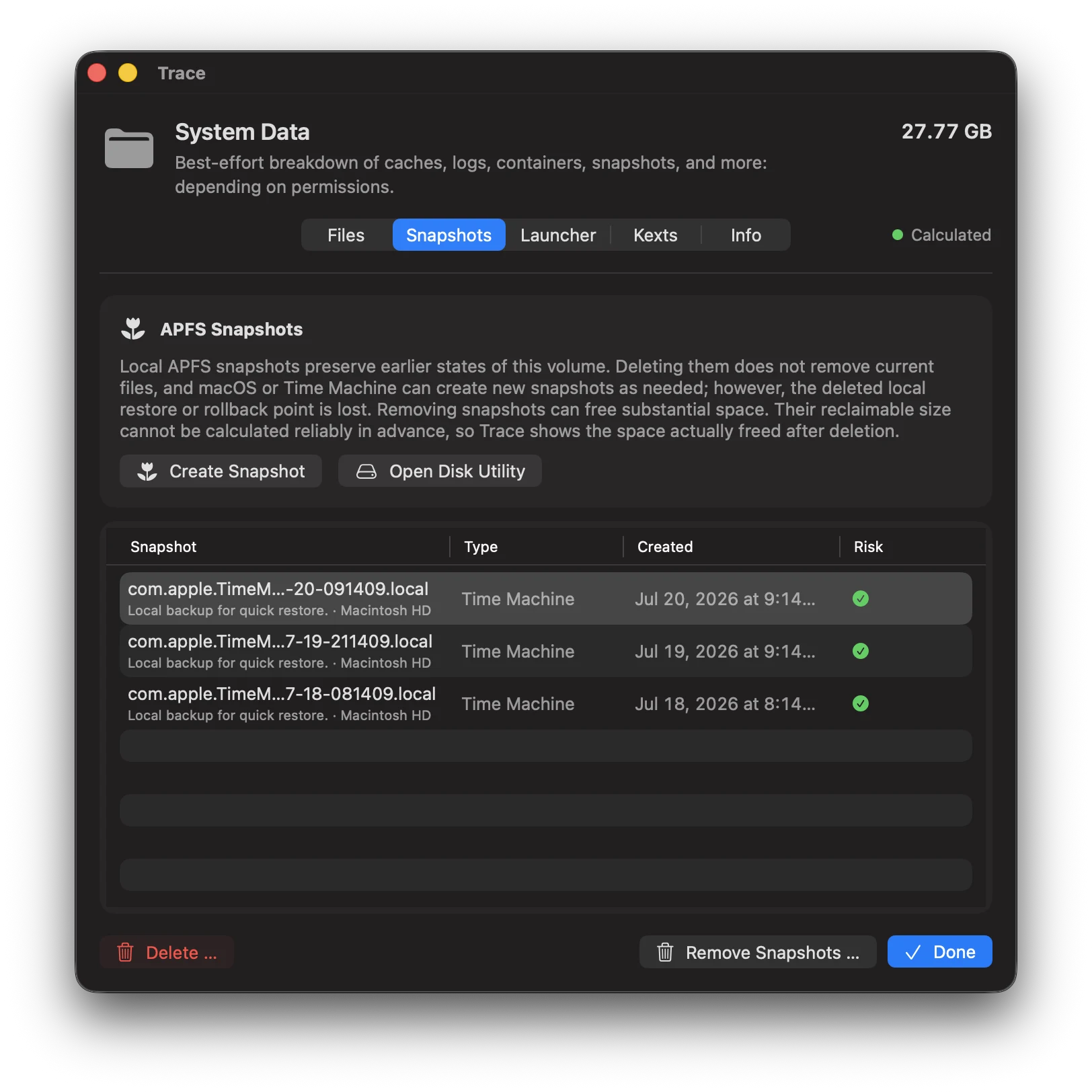
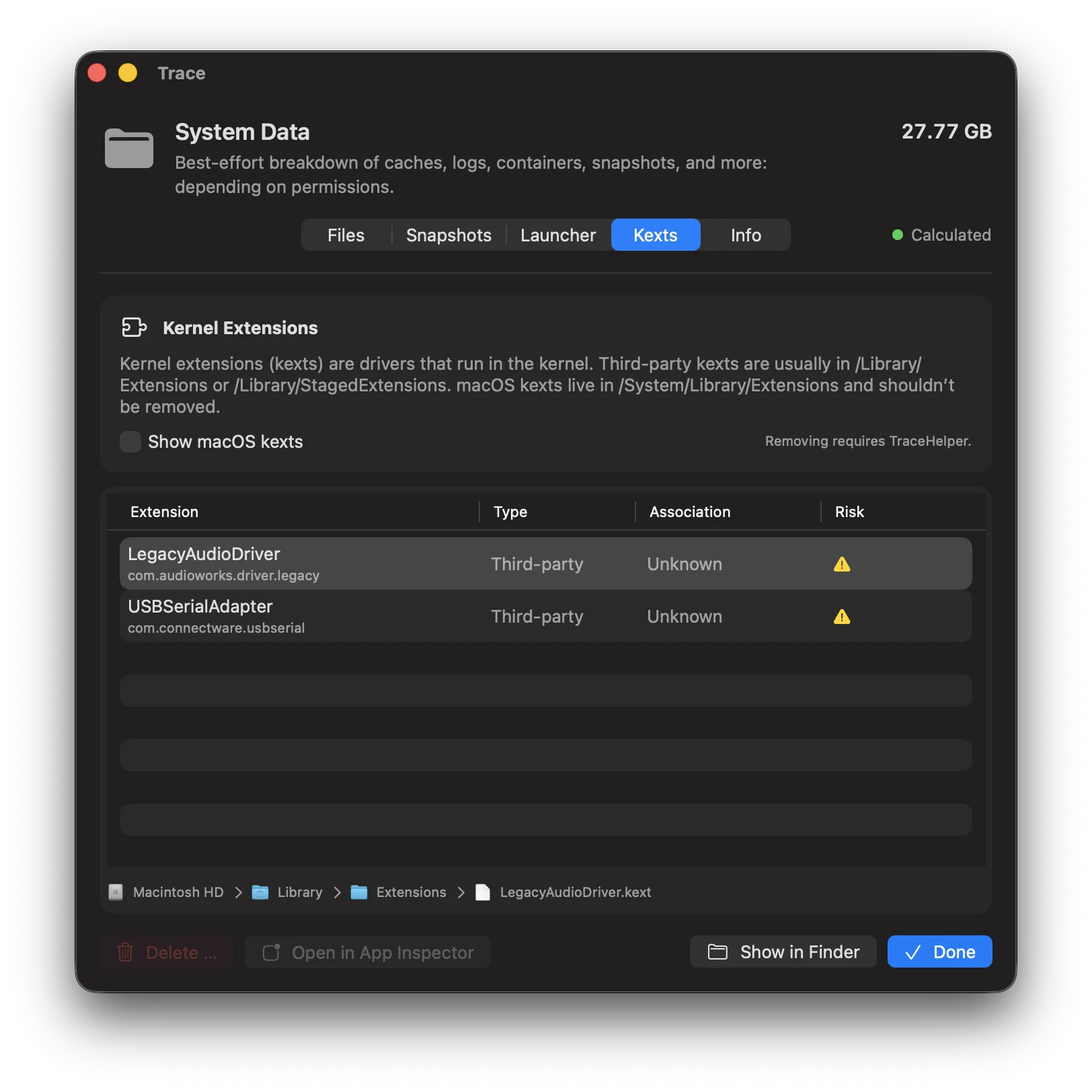
An empty folder such as /cores can correctly show 0 KB. SIP and other macOS protections stay enabled; Trace does not require you to disable them. It does not invent sizes for inaccessible items. Use the Directory Inspector to look closer and the dedicated Snapshots, Launchers, or Kexts tabs rather than deleting whole system folders.
Categories / 12
Other
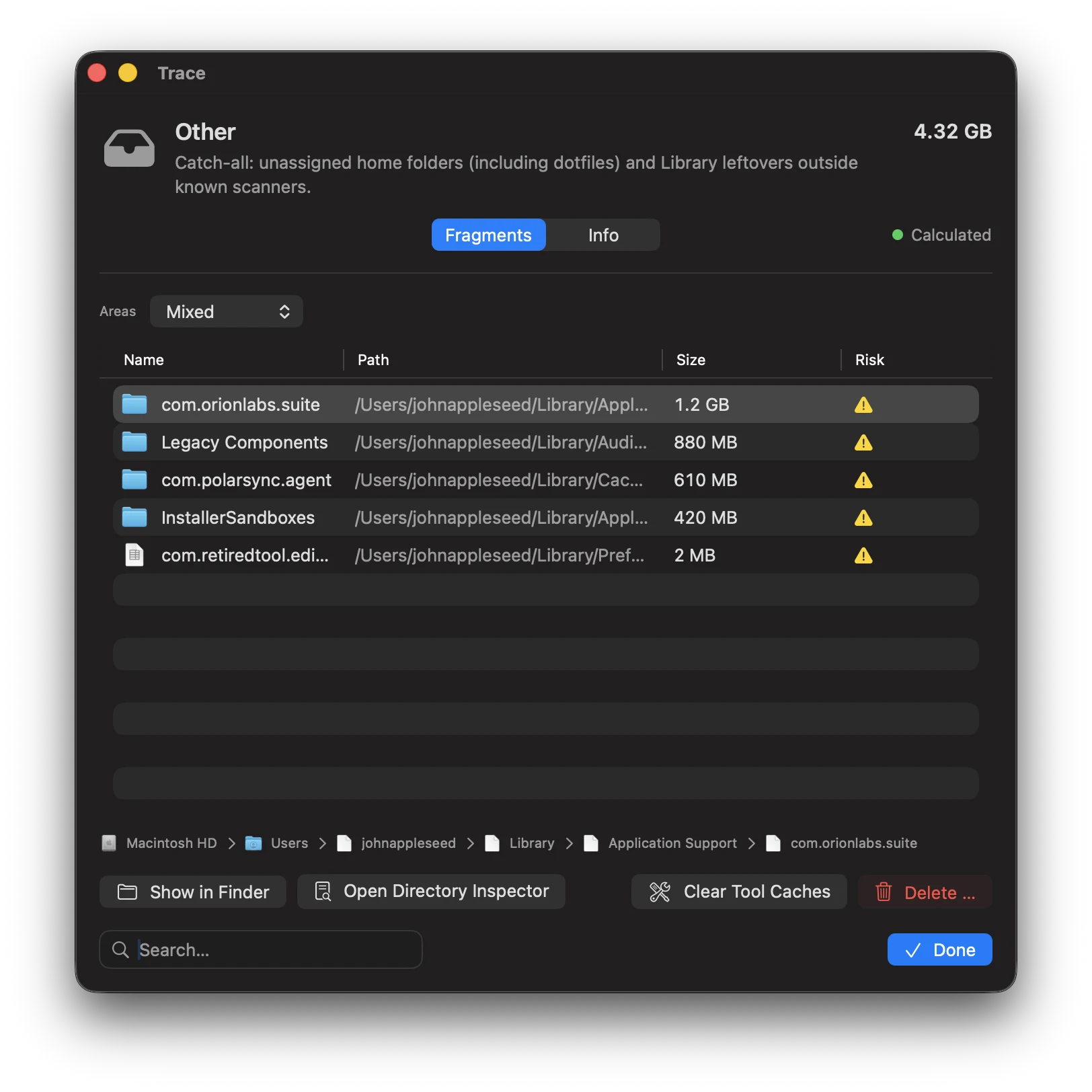
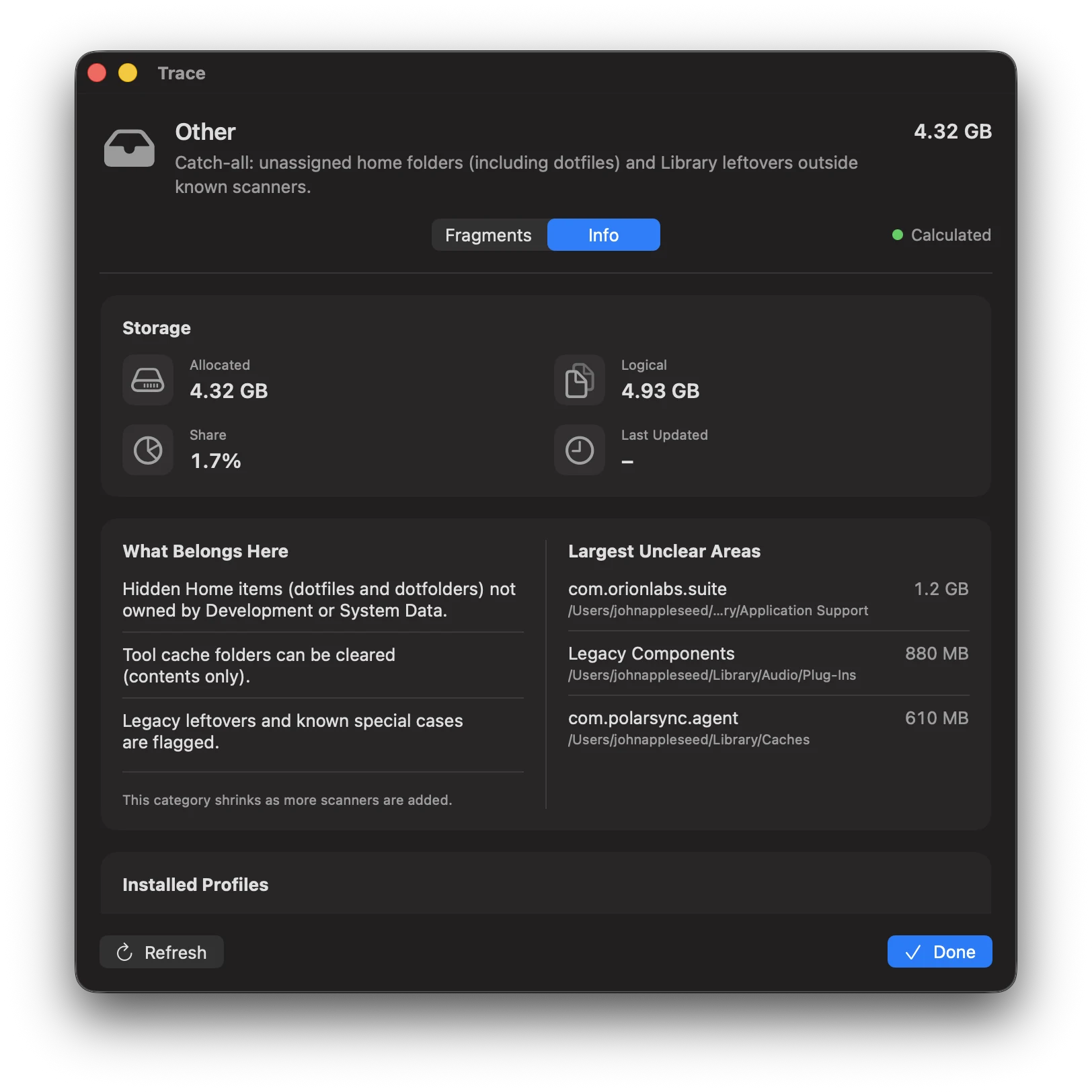
Catch-all category for paths that can't be clearly attributed to another category – especially visible dotfiles and dotfolders in Home that are not assigned to Development or System Data. Trace lists the largest fragments and helps you classify them.
Contains
- Home dotfiles/dotfolders not recognized as dev dots
- Visible Home dotfiles and dotfolders, except dev dots and Trash
Fragments tab
- View: mixed / folders / files
- Sorted by size (largest first)
- For details, use Directory Inspector (drill-down)
Clear tool caches
Trace can clear typical tool cache folders in your home directory (e.g. ~/.cache, ~/.npm, ~/.gradle). These folders are detected heuristically.
- Recommendation: move to Quarantine first (Undo possible)
- Space is freed only once the quarantine session is permanently deleted
What to do with a large “Other”?
- First check if Full Disk Access is missing (scans are intentionally incomplete without it).
- Use the view menu to find large folders or individual files faster.
- Volume bytes that can't be cleanly attributed (APFS/snapshots/overhead/permission gaps) are shown under “System Data” – not under “Other”.
Cleanup & uninstall / 13
App Inspector
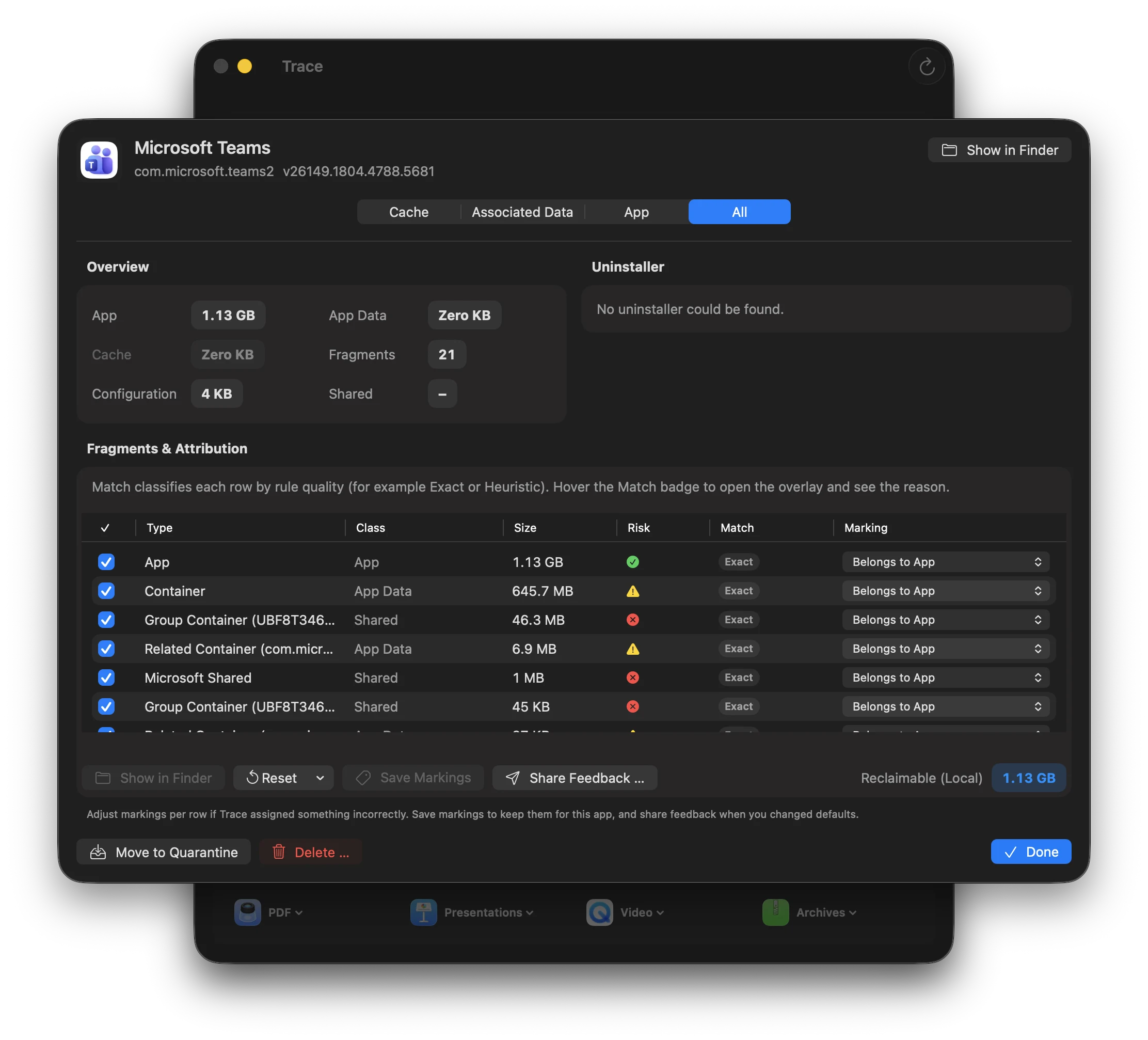
App Inspector shows all paths belonging to an app – along with the rationale (evidence).
Mapping methods
Deterministic
Bundle ID-based paths with high match quality:
- Containers, Application Scripts
- Caches, Logs, Preferences
- Saved Application State
- HTTP Storages
Heuristic
Name/path matches with lower match quality:
- Application Support (by app name)
- Deep search in whitelisted roots
- Vendor-specific rules
Each entry shows a Match badge (for example Exact/Heuristic), risk level (safe/caution/danger), and a “Why?” explanation.
The UI intentionally avoids raw percentages. Match explains ownership rationale; the Risk overlay explains impact and recommendation.
How Match and internal mapping signals work (technical)
- Not an ML probability: internal confidence signals are rule-based scores from
0.0to1.0per finding. - The internal policy uses two values: Attribution and Removal; both remain technical internals and are not shown as raw values in the UI.
- Signal-based weighting: Trace applies boosts/penalties (for example exact app identity/path evidence, wildcard/heuristic matches, shared/system scope, receipts, launchd evidence).
- UI display: the table shows a compact Match badge instead of percentages.
- Policy thresholds: visibility is policy-based per artifact kind/context (not one fixed global value).
dangerartifacts stay visible even when internal scores are low. - Dedup decision: when duplicates exist, Trace keeps the artifact with higher final attribution confidence.
- Removal behavior: removal confidence is used for warnings/confirmation context, not for silently removing items from “Everything”.
- App and Game Inspector: both use the same policy; low-attribution entries stay visible and are no longer hidden behind a toggle.
Exact means strong ownership evidence. Heuristic is intentionally conservative; check Match/Risk overlays before destructive actions.
New in the inspector flow
- Delete … does not launch uninstallers; only the dedicated uninstaller action does.
- Uninstaller rows now include a Finder quick-reveal icon.
- System-wide leftovers under
/Libraryare now included by default in App/Game Inspector scans. - For launchd matches, referenced helpers under
/Library/PrivilegedHelperToolsare detected as dedicated artifacts. - Nested
.appbundles inside other apps (for example SparkleAutoupdate.app) are no longer listed separately in the Apps tab. - The Match column stays compact (badges); Match overlay shows the reason (for example Exact/Heuristic), Risk overlay shows impact and recommendation.
- Use the per-row Marking column to add manual labels (Belongs to App / Not Related / Unsure).
- Share Feedback … opens the bug-report flow with a redacted diagnostics archive (including inspector snapshots). No telemetry, only explicit user action.
Safari web apps can use far more space than their small app bundles suggest. Trace includes clearly attributable web-app data and caches in the Agent and App Inspector. These bytes must not also be counted under System Data. Shared browser profiles and other websites’ data are not exclusive app leftovers and must not be removed indiscriminately.
Cleanup & uninstall / 14
Game Inspector
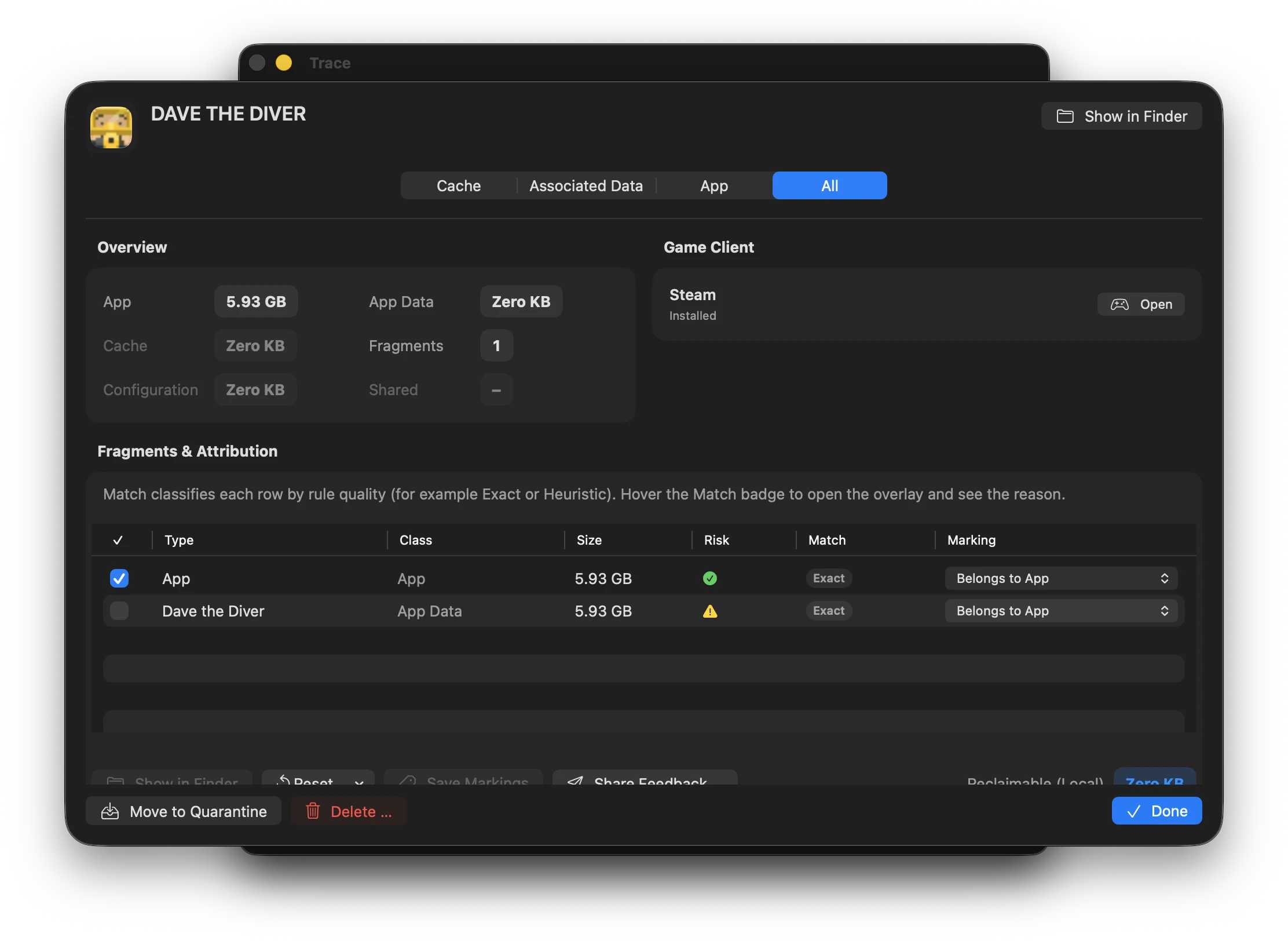
Open a detected game in Games to inspect its installation and associated data. The inspector shows the detected associations, sizes, and risks. A saved game is not the same as a replaceable download cache; review the selection before acting.
The confirmation distinguishes quarantine from permanent removal. Risky permanent deletion uses the same 24-hour Time Machine check as the App Inspector. Do not confuse shared launcher data with files owned exclusively by one game.
Cleanup & uninstall / 15
The four cleanup modes
Trace offers four presets that only control the default selection. You can always select/deselect individual paths manually.
Cache
Rebuildable artifacts: caches, logs, saved state, and HTTP storages.
SafeAssociations
Cache plus data that can often be restored automatically (e.g. re-downloadable content or sync data) – depending on the app.
SafeApp
App bundle + cache. Preferences and user data remain.
CautionEverything
App + cache + preferences + app data. Potentially irreversible.
DangerData shared by multiple apps (e.g. Microsoft Office, Adobe) is marked as “Shared/Danger” and is never selected by default in any preset.
Start with “Cache” or “Associations”. “Everything” can remove user data and may be irreversible.
Cleanup & uninstall / 16
Quarantine & Undo
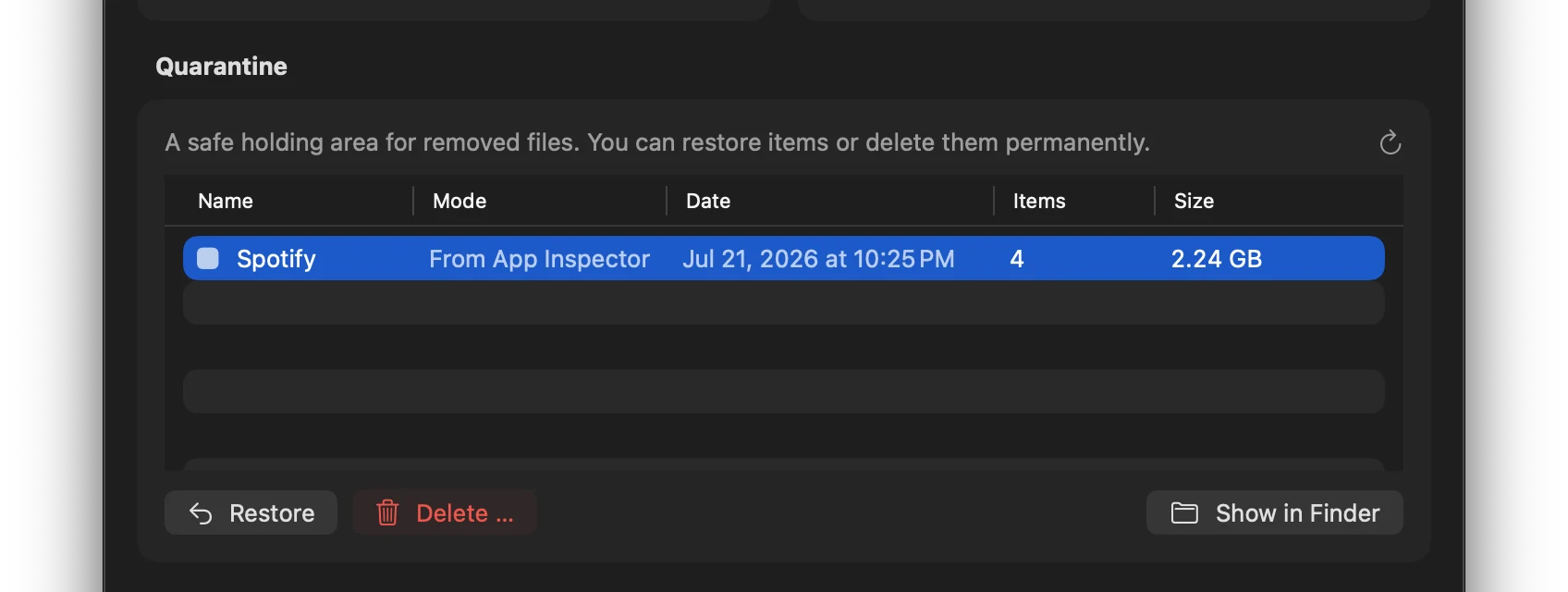
Quarantine is an option you explicitly choose, not the default for every Delete button. The data stays on disk in a session that records its original location. No space is freed at this stage.
From the dashboard, review a session, restore it, or delete it permanently. Restoration must not silently overwrite files that now exist at the destination. Protected paths require the helper and its checks. Only permanent removal releases the occupied space; it cannot be undone.
Cleanup & uninstall / 17
Backups before permanent deletion
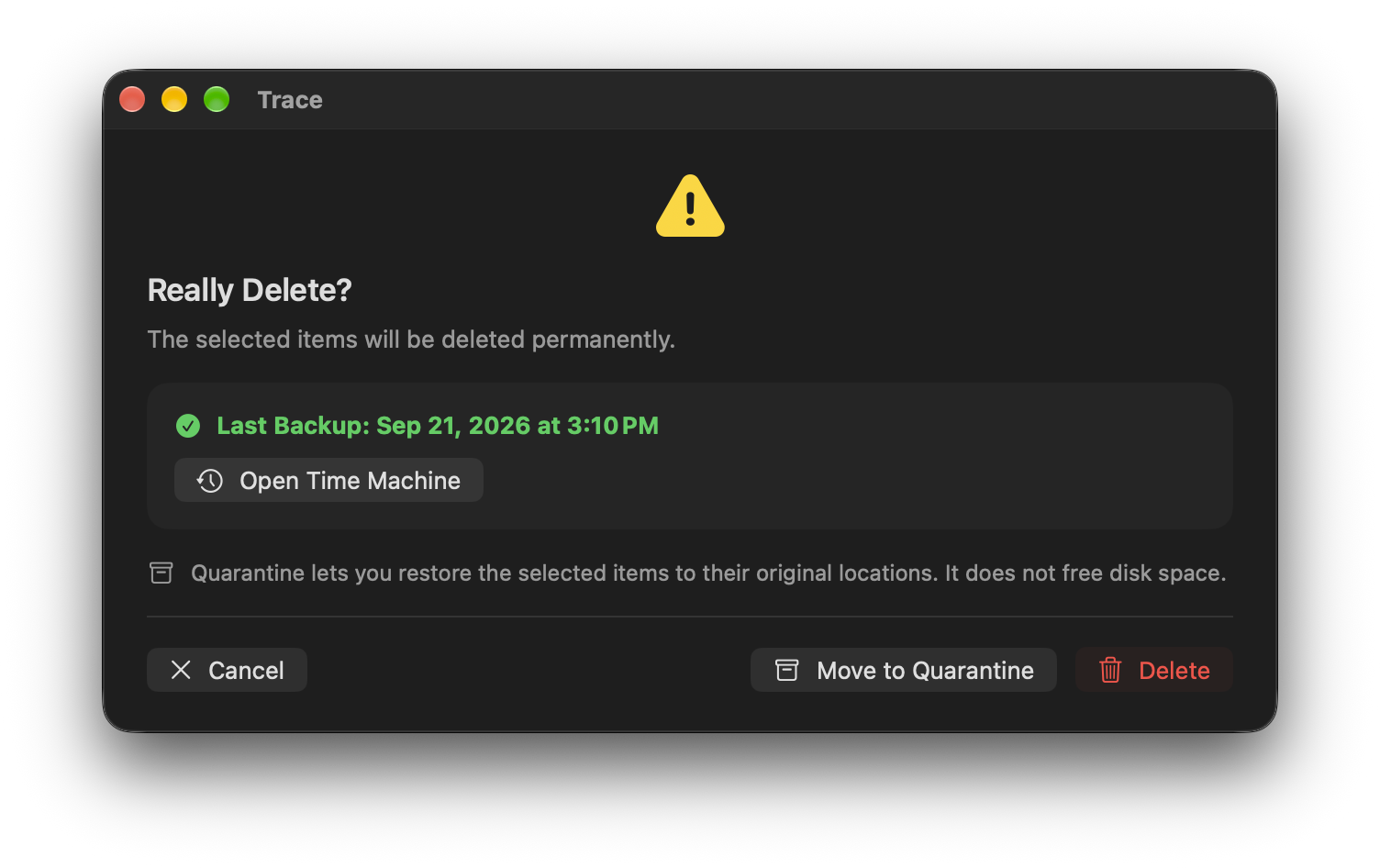
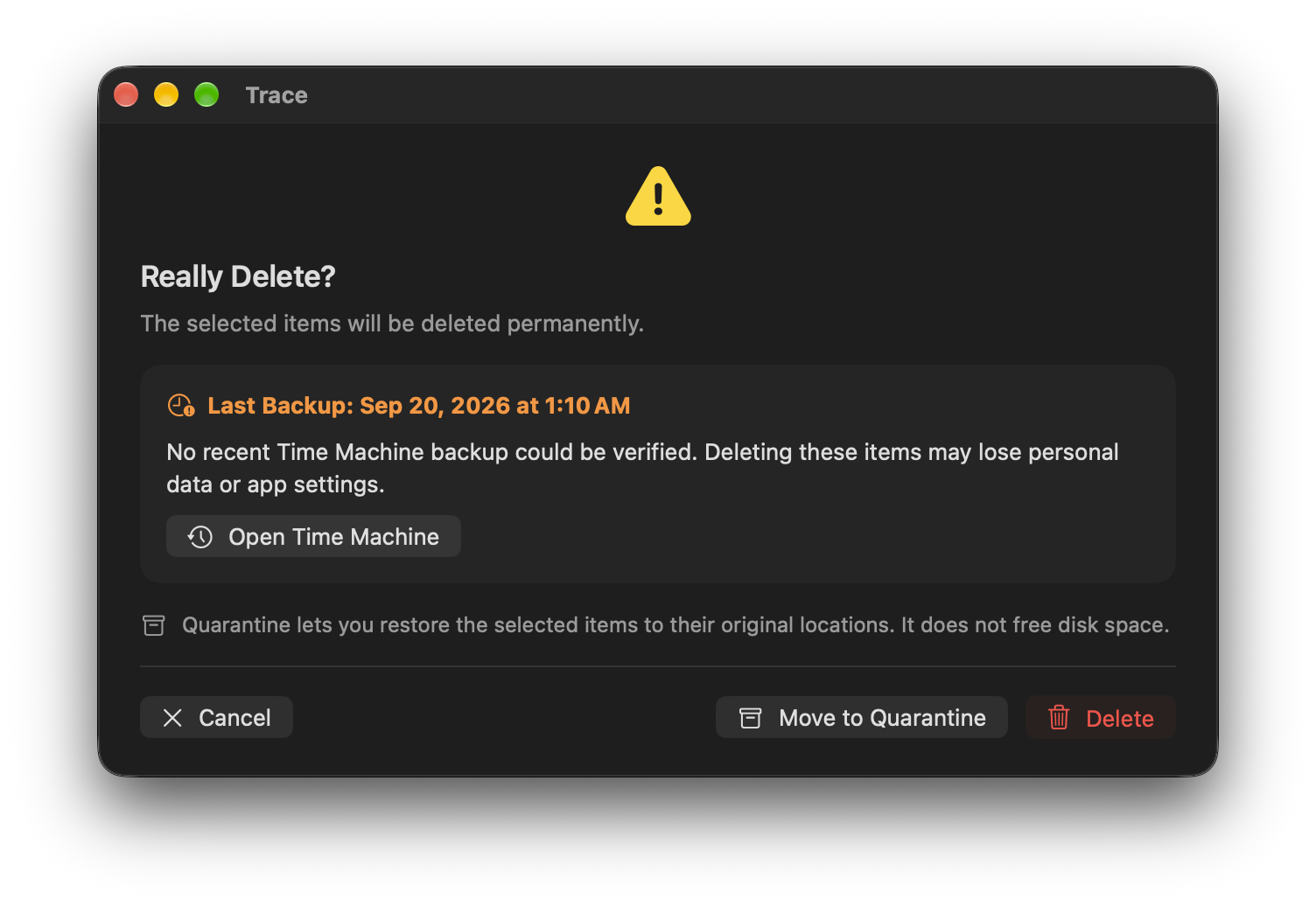
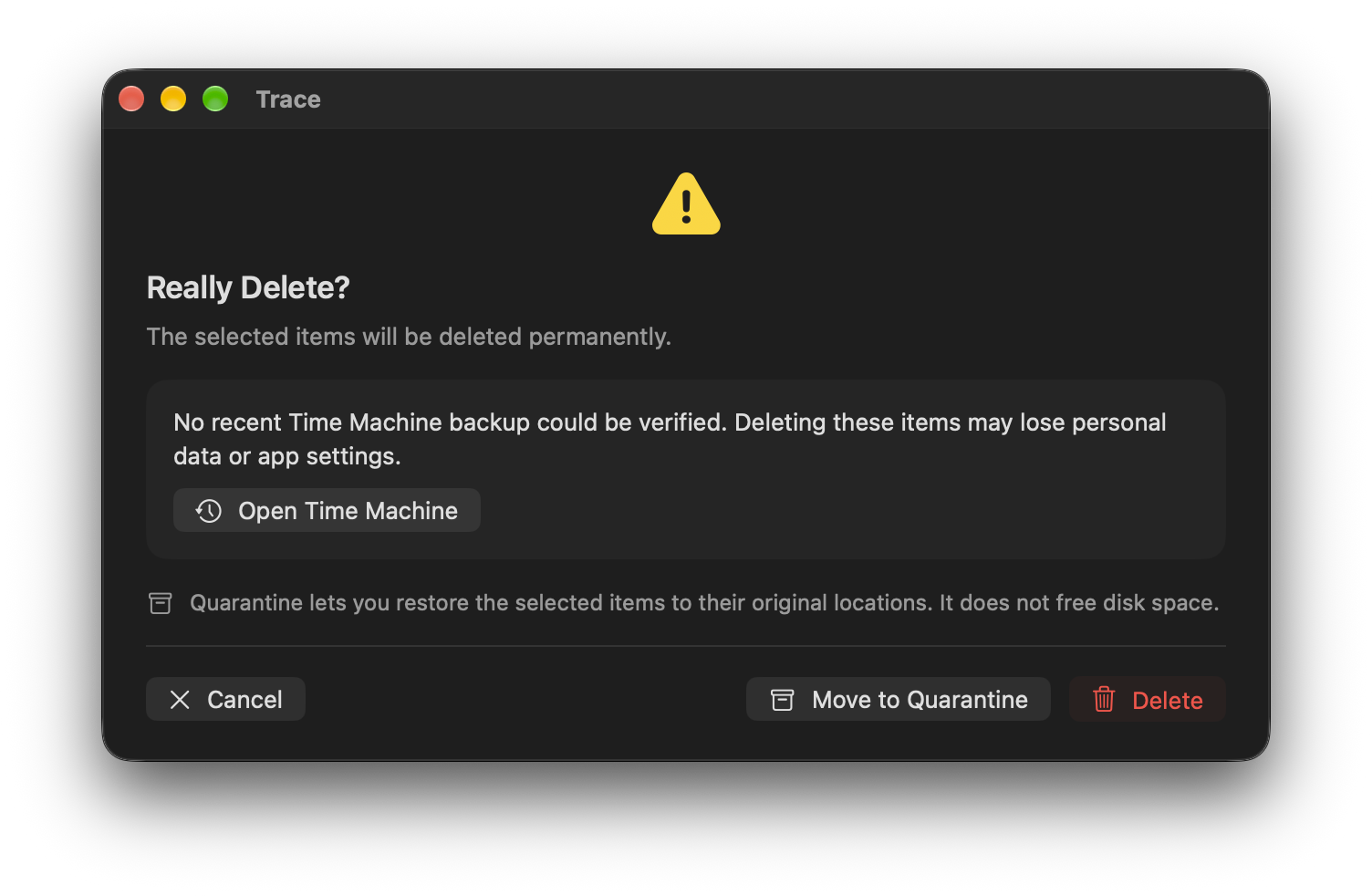
The additional Time Machine check applies to permanent deletion with caution, high, or unknown risk. A confirmed backup from the last 24 hours counts as current. If no such backup exists or its age cannot be confirmed, Trace warns about potential data loss and offers a way to open Time Machine.
This applies to the relevant actions in the App and Game Inspectors, categories, and Directory Inspector, as well as permanent quarantine or Trash cleanup. Low-risk items do not trigger the extra backup warning. An ordinary deletion confirmation may still appear.
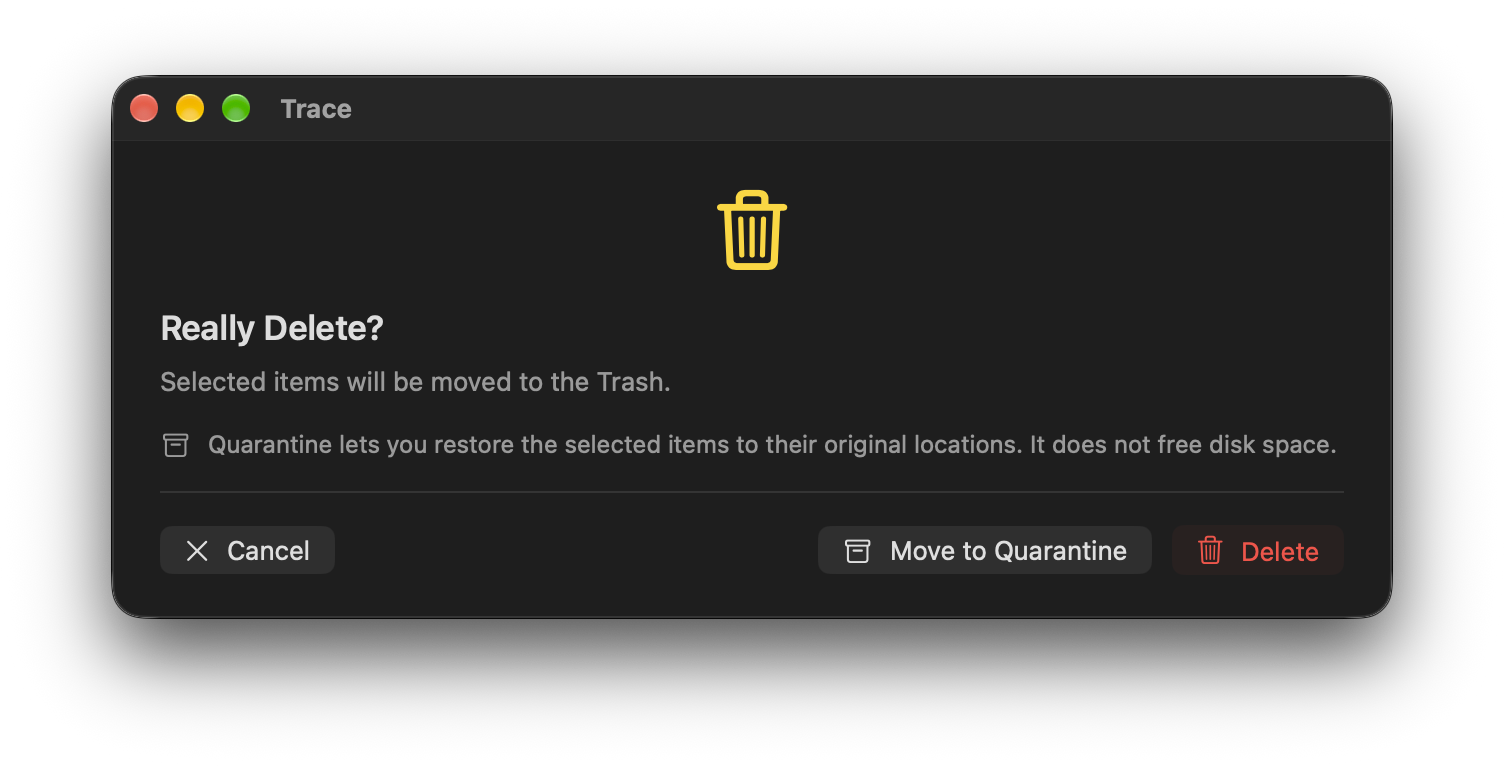
Moving items to the Trash, as Trace Agent does, is not permanent deletion and does not need this extra backup warning. Where supported, quarantine is another option. It allows restoration but does not free space immediately. A recent backup adds protection; it does not guarantee that every file is included.
Tools / 18
Directory Inspector
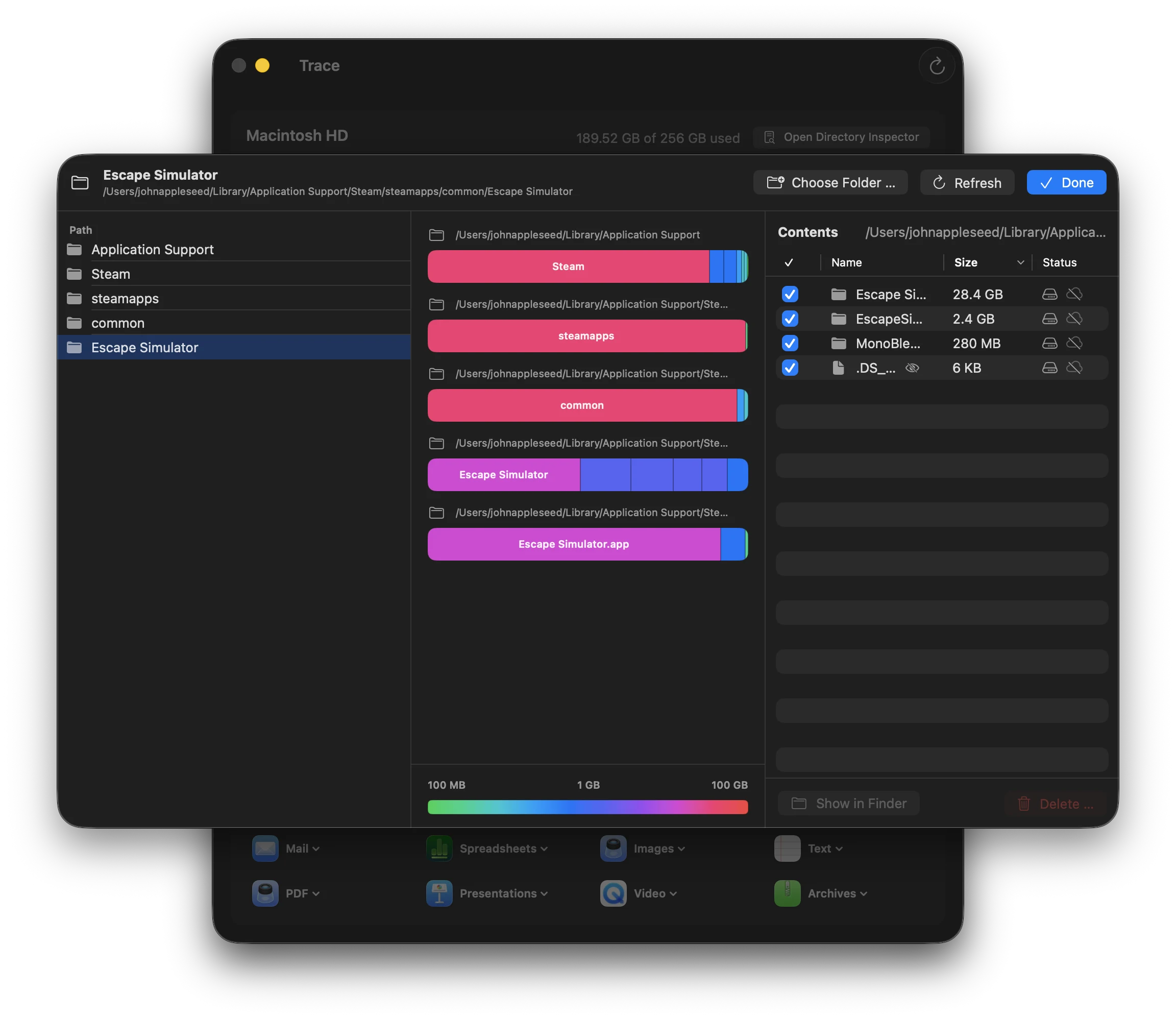
Directory Inspector lets you analyze any folder or drive – independent of predefined categories.
Features
- Stacked storage bars: each level shows the size distribution as color-coded bars (folders by size, files gray)
- Drill-down: click a folder to navigate deeper
- Size legend: shows allocated and logical size
- Cloud status: icons show whether items are local, cloud-only, or mixed
- Context menus: right-click to open in Finder, delete, and more
- Filter: checkbox to show/hide hidden files
Access
You can open Directory Inspector from the dashboard (“Open Directory Inspector …”) or via the context menu in category views.
Tools / 19
Default apps
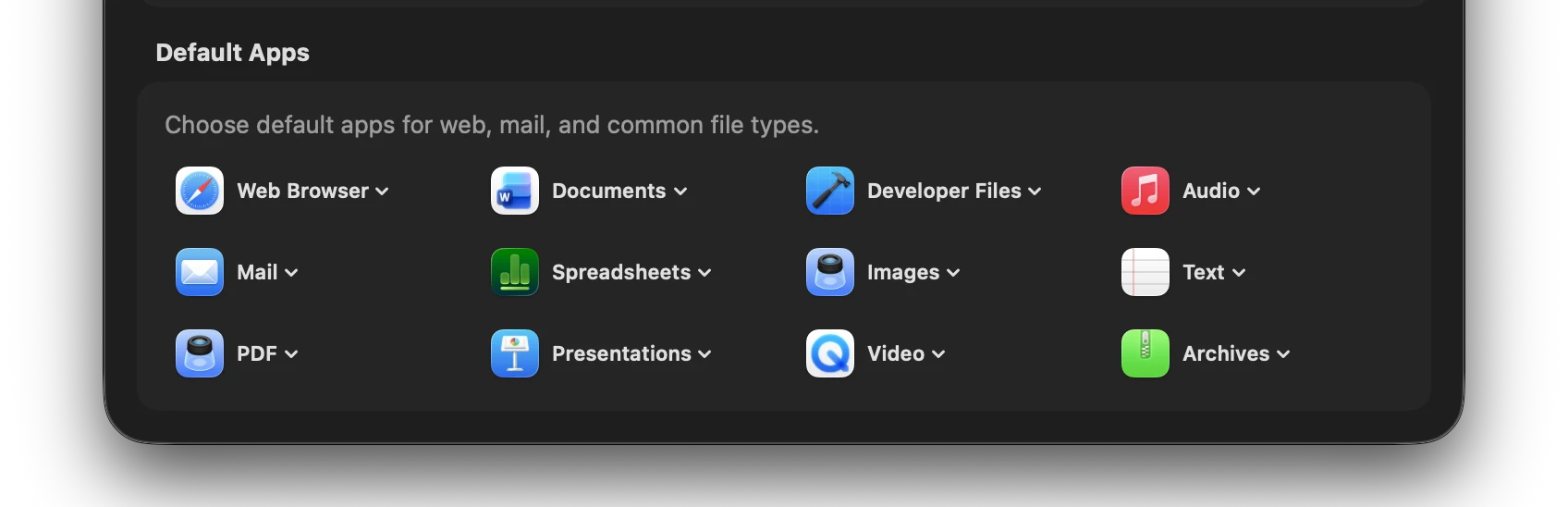
Manage all default apps in one place – without digging through different System Settings screens.
Supported categories
- Web: default browser
- Mail: email client
- PDF: PDF viewer
- Documents: word processor
- Spreadsheets: spreadsheet app
- Presentations: presentation app
- Developer files: code editor
- Images: image viewer
- Video: video player
- Audio: music player
- Text: plain text editor
- Archives: archive manager
Trace uses the macOS Launch Services API to set default apps for UTI types (Uniform Type Identifiers). Changes apply system-wide.
Tools / 20
Vendor Inspector
Vendor Inspector includes curated profiles for well-known apps – with specific rules for paths, shared data, and cleanup behavior.
Why vendor profiles?
Many large software vendors don't follow Apple conventions for app data. They store files in unexpected locations, share data between apps, or use proprietary folder structures. Vendor Inspector knows these patterns.
Supported vendors (selection)
- Adobe: Creative Cloud, Photoshop, Lightroom, Premiere, etc.
- Microsoft: Office 365, Teams, OneDrive, VS Code
- JetBrains: IntelliJ, WebStorm, PyCharm, etc.
- Google: Chrome, Drive for Desktop
- Browsers: Firefox, Safari, Arc, Brave, Edge
- Development: Xcode, Docker, Homebrew
- Communication: Slack, Discord, Zoom, Telegram
- Media: Spotify, Final Cut Pro, DaVinci Resolve
Vendor profiles override the generic heuristic with app-specific knowledge. This prevents false attributions and finds hidden data paths.
Shared data warnings
Vendor Inspector detects shared data between apps (e.g. Adobe Creative Cloud Shared, Microsoft Office Shared) and marks it as “Shared/Danger” – it is never selected automatically in any cleanup mode.
Tools / 21
Trace CLI
tracectl is Trace's read-only command-line companion. It ships with Trace and is made available as a Terminal command by PKG/Homebrew installations. It is designed for status checks, diagnostics, storage summaries, and app inspection – not unattended deletion.
Terminal workflows without cleanup risk
The CLI can show information and open Trace. Mutating actions such as delete, Quarantine, restore, or helper repair stay in the app with visible confirmation.
tracectl helpall commands and optionstracectl statusversion, agent, helper, and license snapshottracectl doctorcheck installation, permissions, and Homebrew contexttracectl storagestorage overview in Terminaltracectl app /Applications/Foo.appinspect app artifacts read-onlytracectl quarantinelist Quarantine sessions read-only
$ tracectl doctor
Trace doctor

[OK]   Trace.app installation
[OK]   TraceHelper
[OK]   TraceAgent
[WARN] Full Disk Access

Use tracectl help for all commands.
tracectl and not trace?
macOS already ships a Terminal tool named trace. Trace therefore uses the unambiguous command name tracectl.
Reference / 22
TraceHelper & TraceAgent
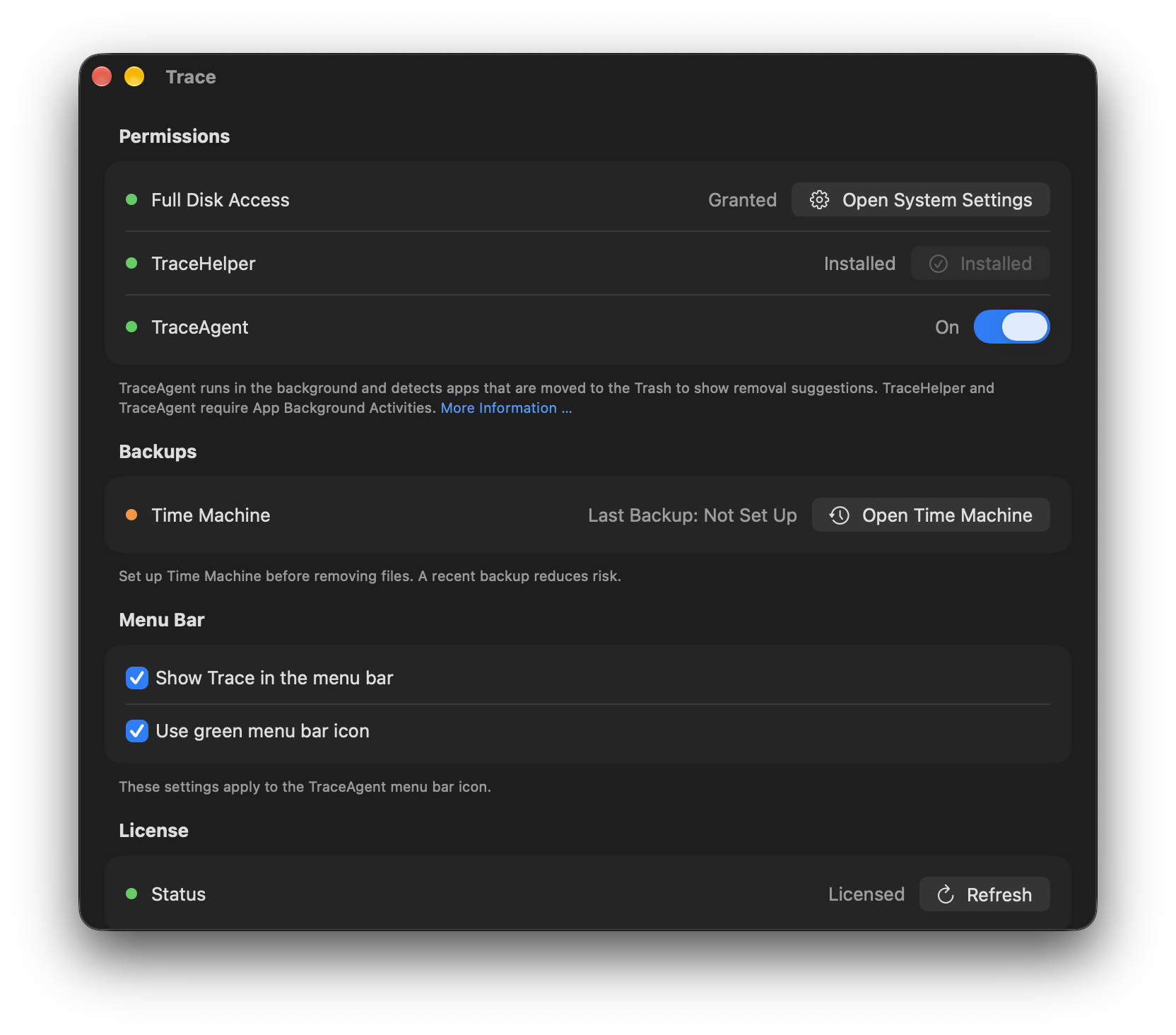
TraceHelper handles actions you explicitly request that need elevated permissions, such as removing eligible local APFS snapshots or accessing protected locations. Installation, background activity, and Full Disk Access are separate requirements. Check their current status in Permissions or Settings.
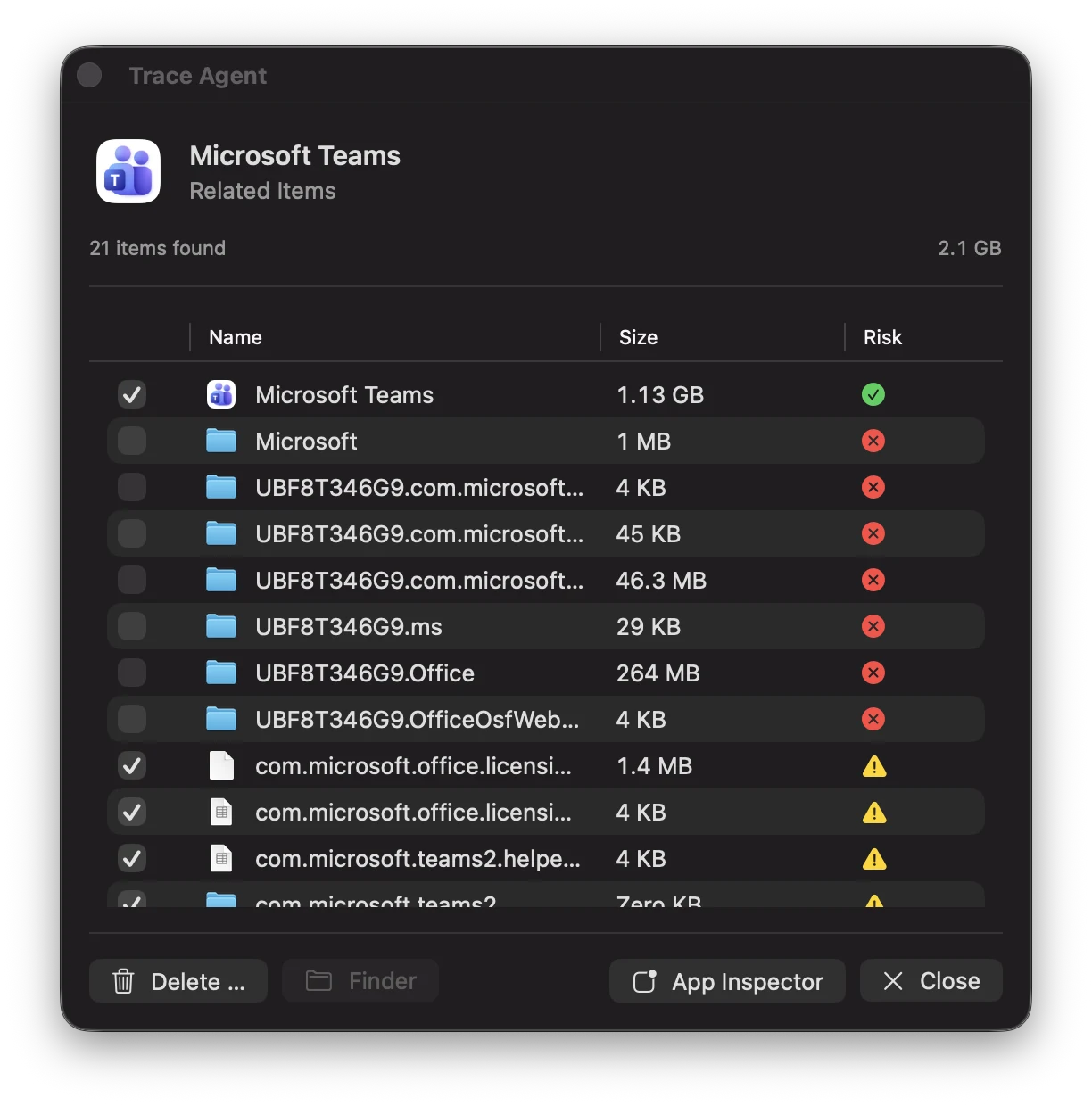
TraceAgent gives you quick access from the menu bar: find an app, drop an app onto its icon, or review related data after moving an app to the Trash. You choose the items in the suggestion window. Shared and high-risk data are not selected by default. TraceAgent never deletes anything automatically and is free to use in the demo too.
The agent’s Delete action moves selected data to the Trash. It does not delete it permanently, so no extra Time Machine warning is needed here. Apps already in the Trash are not moved again. Files and folders dropped onto the menu bar icon can be moved into quarantine after a visible confirmation. Open the App Inspector for more detail.
Reference / 23
Permissions
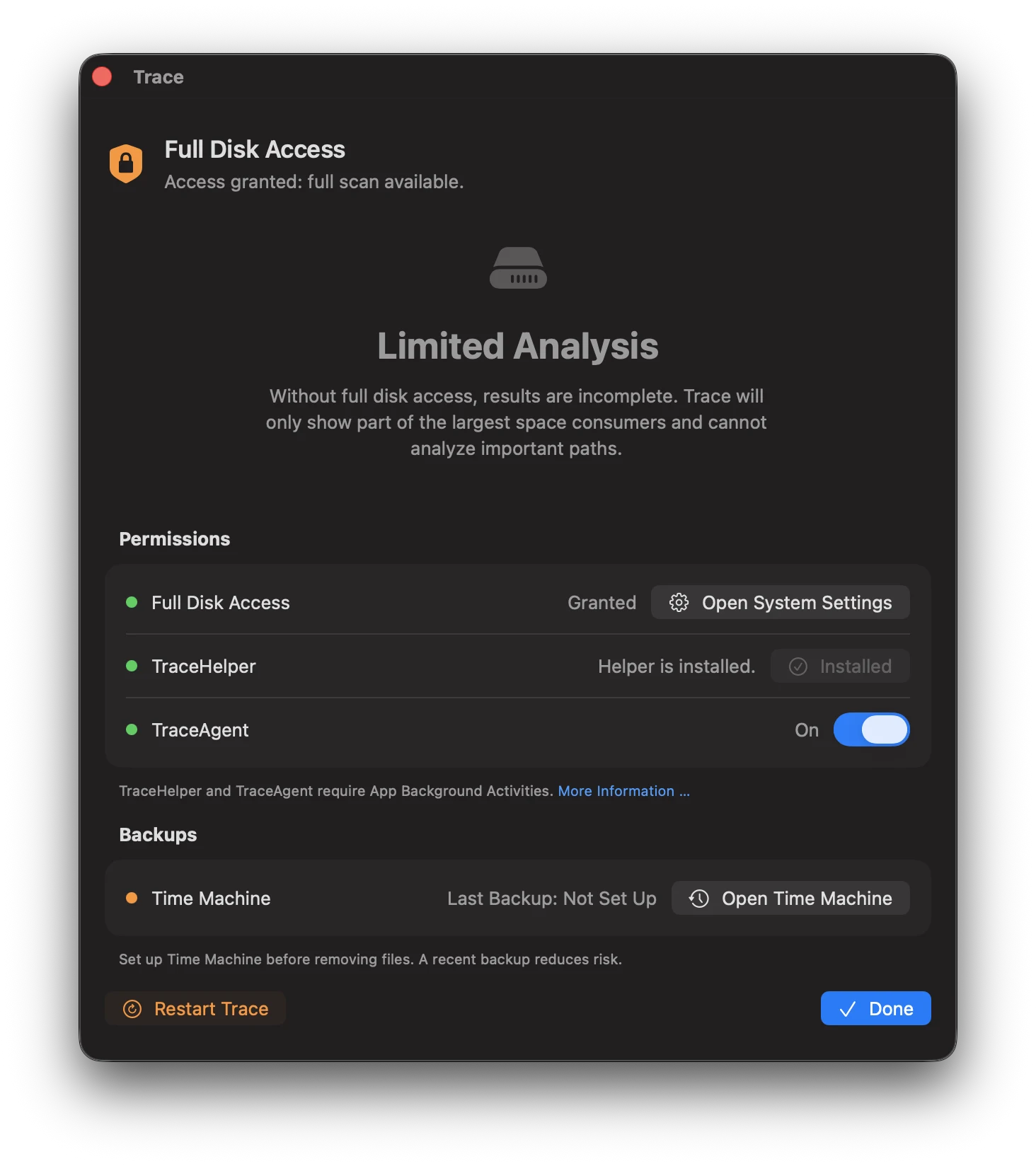
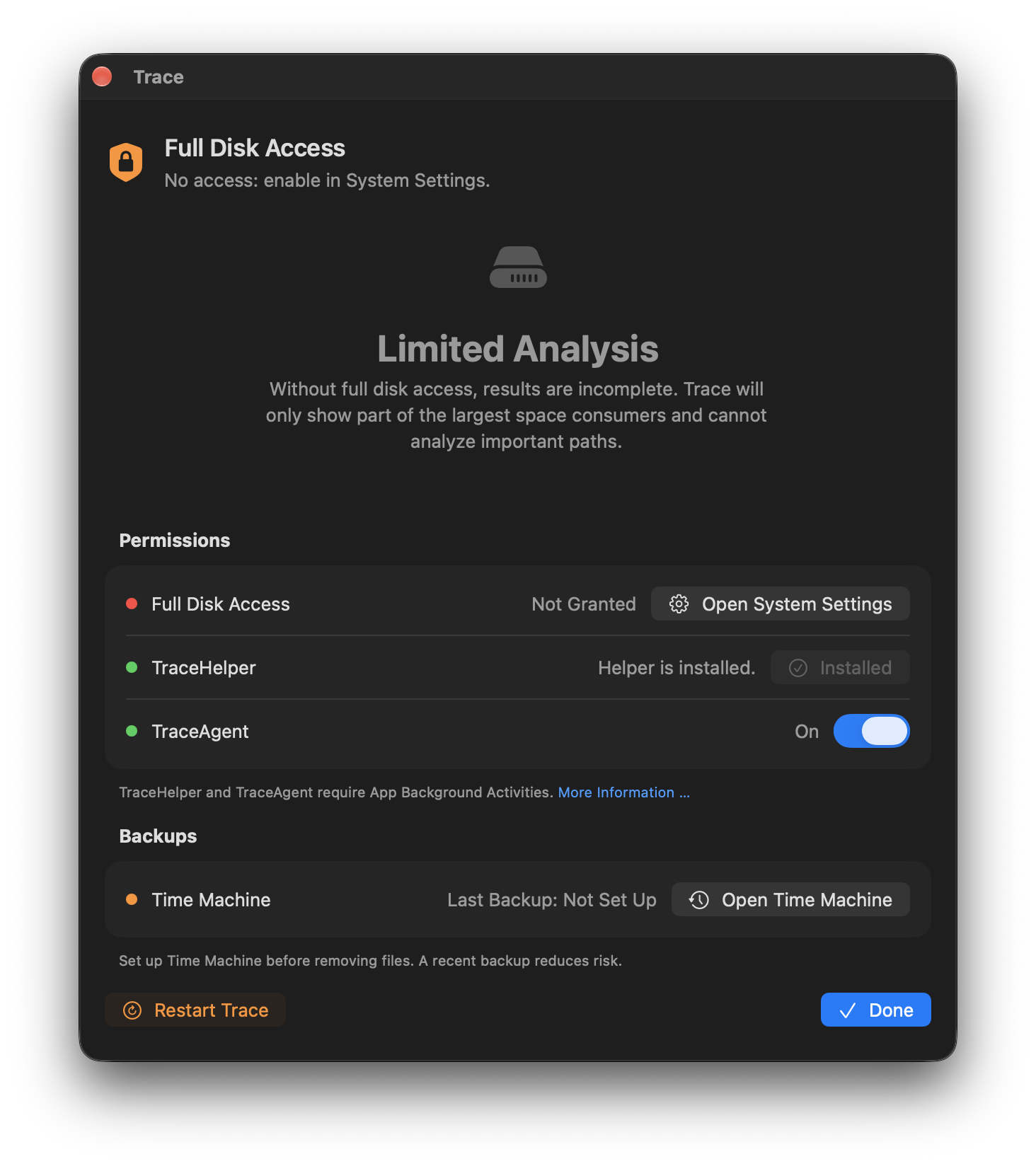
Open Permissions or Trace Settings to check Full Disk Access, helper, and agent status. macOS manages Full Disk Access in System Settings → Privacy & Security. Use the installed Trace app in /Applications and the entries identified by Trace, not an old build or rollback copy.
Background activity and Full Disk Access are different permissions. An enabled agent does not automatically gain access to protected data. Depending on the active background host, its access is checked separately. Follow Trace’s current status; an old TraceAgent entry is not a blanket replacement for the app’s permissions.
For background services, open System Settings → General → Login Items and allow background activity for Trace. TraceAgent can still be enabled or disabled separately inside Trace. Startup checks can repair recoverable registration problems automatically; intentionally disabled features stay disabled. Any approval required by macOS must still be given.
Time Machine status appears here and in Settings. A confirmed backup up to 24 hours old is current. This status does not replace checking whether important files are excluded from backups, or your explicit confirmation of permanent deletion.
Reference / 24
APFS snapshots
APFS automatically creates snapshots for Time Machine, updates, and other system operations. These can take up significant space.
What Trace shows
- Snapshots on system and data volumes
- Best-effort sizes (exact sizing is complex on APFS)
- Timestamp and source (Time Machine, OS update, etc.)
Deleting snapshots
Deleting snapshots is irreversible. Trace warns about OS/update-related snapshots and requires admin confirmation. The Remove snapshots … action skips OS/update snapshots (for example, macOS update snapshots) and only removes reclaimable local snapshots.
Reference / 25
Release Notes
Published release notes and earlier changes.